

Widget Settings
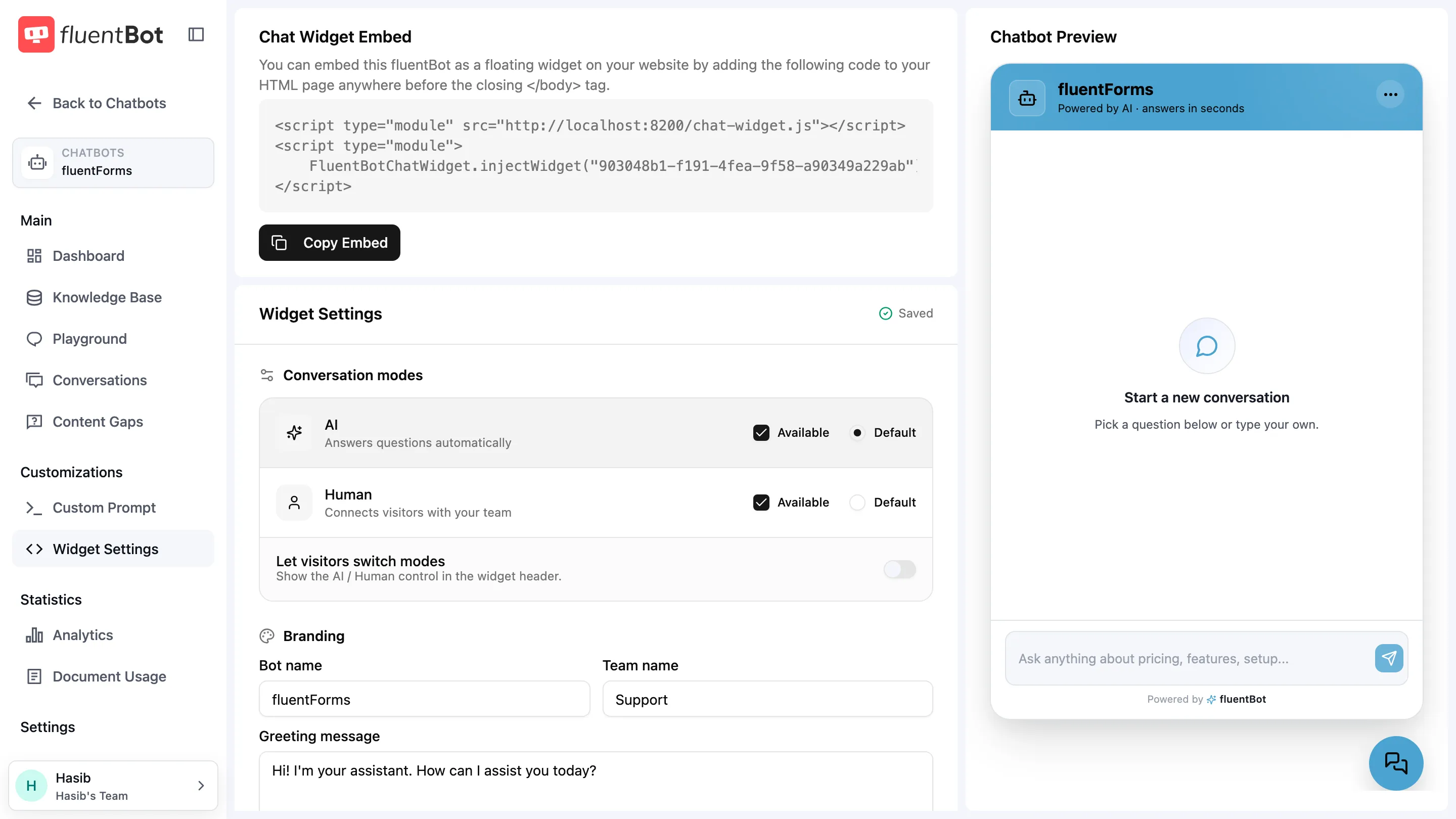
The Widget Settings page controls how your chatbot looks and behaves on a real site. It also includes the embed snippet for the current bot and a live preview that updates while you edit, so most visual changes don’t require re-embedding the widget.
Open it from the bot’s left sidebar → Widget Settings (under Customizations).
Page Layout
| Area | What it is for |
|---|---|
| Chat Widget Embed | Copy the script tags for the current bot. |
| Widget Settings | Conversation modes, branding, colors, header style, team agents, quick questions, and launcher controls. |
| Chatbot Preview | Check draft settings live before shipping. |
The content area uses a two-column split on desktop: settings on the left, preview on the right. On smaller screens, the sections stack.
Changes autosave — a Saved indicator in the settings header confirms each change is stored. There is no separate Save button.
Chat Widget Embed
The Chat Widget Embed card generates the two script tags for this specific bot:
- The first script loads
chat-widget.jsfrom the configured widget base URL. - The second script calls
FluentBotChatWidget.injectWidget("<bot-id>"). - Copy Embed copies the full snippet.
Paste the snippet before the closing </body> tag on the site where the widget should appear. Widget settings are stored server-side, so changing colors, copy, quick questions, or handoff settings doesn’t require copying the snippet again.
For platform-specific installation steps, see Embed the Widget.
Conversation modes
Control whether visitors talk to the AI, your team, or both:
| Setting | What it controls |
|---|---|
| AI | Answers questions automatically. Toggle Available to offer it, and mark it Default to open chats in AI mode. |
| Human | Connects visitors with your team. Same Available / Default controls. |
| Let visitors switch modes | Shows the AI / Human control in the widget header so visitors can change modes themselves. |
Making Human the default with AI unavailable is the human-only setup; the reverse is pure self-service.
While AI mode is available, visitors can also fork a conversation from any message — branching into a new AI chat that keeps the history up to that point. See Conversation forking.
Branding
| Setting | What it controls |
|---|---|
| Bot name | Header title for the widget (e.g. fluentForms). |
| Team name | The team label visitors see (e.g. Support). |
| Greeting message | Initial bot greeting shown when a visitor opens the widget. |
| Bot icon | Preset icons (Robot, Support, Chat, Sparkles, Messages, Flash) or a custom logo URL. |
Colors
Three color values, each with a picker and hex field:
| Setting | What it controls |
|---|---|
| Primary | Launcher, header, and accent color. |
| Secondary | Supporting tint used across the widget. |
| On-primary text | Text color rendered on top of the primary color. |
Header style
Pick how the widget header is painted: Gradient, Solid, or Minimal.
Team agents
Settings for the human side of the widget:
| Setting | What it controls |
|---|---|
| Team online | Toggles online status in the widget header. |
| Offer a human after failed answers | Shows a “Connect with a human” button once the AI misses this many answers in a row. Set to 0 to turn this off — visitors who ask for a person are still offered one. |
| Offer a human while the team is offline | Visitors can still start a conversation; your team replies when back. |
| Auto-reply when agents are slow | Sends a holding message if no agent replies in time. |
See Live Chat for the agent-side workflow.
Quick questions
Starter prompts shown as clickable chips when the widget opens. Add up to 10 questions; the top 3 are shown to visitors. Pick the most common visitor questions so people can start without typing.
Other
| Setting | What it controls |
|---|---|
| Show branding | Shows the Powered by FluentBot footer in the widget. |
| Floating button position | Launcher position on the visitor’s screen: Right or Left. Default is Right. |
| Floating button icon | Preset icons (Message square, Message circle, Chat bubble, Sparkles, Bot, Smile) or a custom launcher icon URL. |
| Show button text | Shows a short label such as “Ask me” beside the launcher icon. |
Live Preview
The right pane renders a widget preview with your current draft settings. Use it to:
- See exact colors and header style before visitors do.
- Switch between the AI and Human tabs to check both modes.
- Confirm bot icon, greeting, quick questions, and branding.
- Read your greeting copy aloud — that’s how visitors will read it.
The preview is interactive enough for layout review, but messages aren’t sent.
Embedded widgets pick up saved settings on the next page load or widget initialization. Already-open visitor sessions may need a refresh or navigation before they show the new configuration.
Troubleshooting
- Visitors can’t reach a human — check the Human conversation mode is Available, or that Offer a human after failed answers isn’t set to
0when you expect automatic offers. - Widget shows the team as offline — turn on Team online, and check Settings → Availability for operator schedules.
- Button text doesn’t appear — turn on Show button text.
- Visitor still sees old colors or greeting — reload the host page. Already-open widgets can keep the old settings until the next initialization.
What’s next
- Embed the Widget — drop the widget on a real site.
- Live Chat — handle escalations once visitors trigger them.
- Playground — test the underlying answers before tweaking the surface.