

Plans & Billing
Hitting a usage limit, need to download an invoice, or ready to upgrade? This page covers everything billing. Billing is managed per team, so if you belong to multiple teams, switch to the right one first.
Open the main sidebar and choose Billing.
Plans
The Pricing page shows the currently available plans, included usage, and whether your team is on that plan.
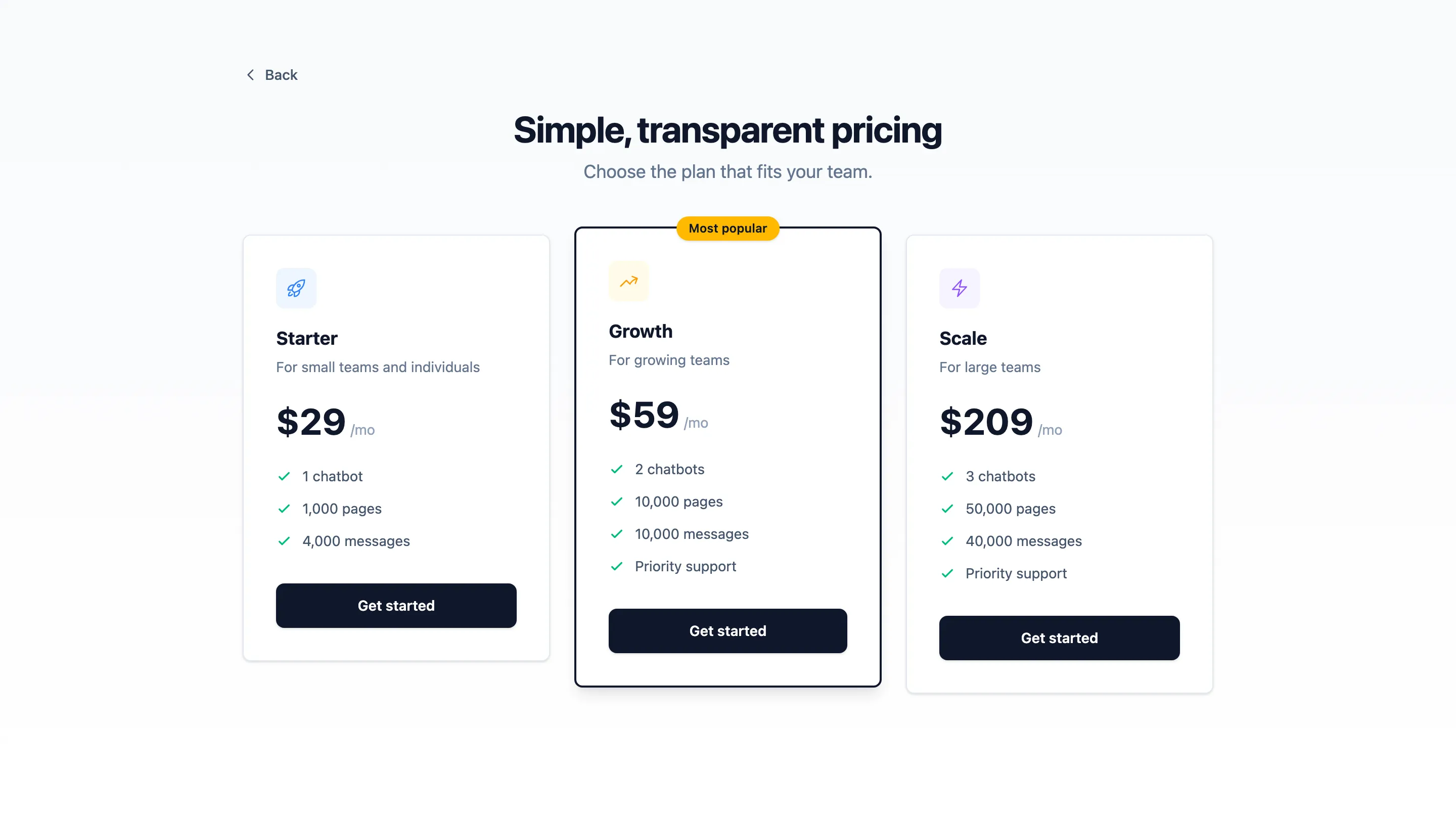
Current monthly plan options:
| Plan | Price | Chatbots | Pages | Messages | Notes |
|---|---|---|---|---|---|
| Starter | $29/mo | 1 | 1,000 | 4,000 | For small teams and individuals. |
| Growth | $59/mo | 2 | 10,000 | 10,000 | Includes priority support. |
| Scale | $209/mo | 3 | 50,000 | 40,000 | Includes priority support. |
Pricing and limits can change, so treat the in-app Pricing page as the source of truth.
Team owners and team admins can start checkout or change plans. Other roles can view plans, but the purchase buttons are disabled and the page shows a billing-access notice.
Usage cards
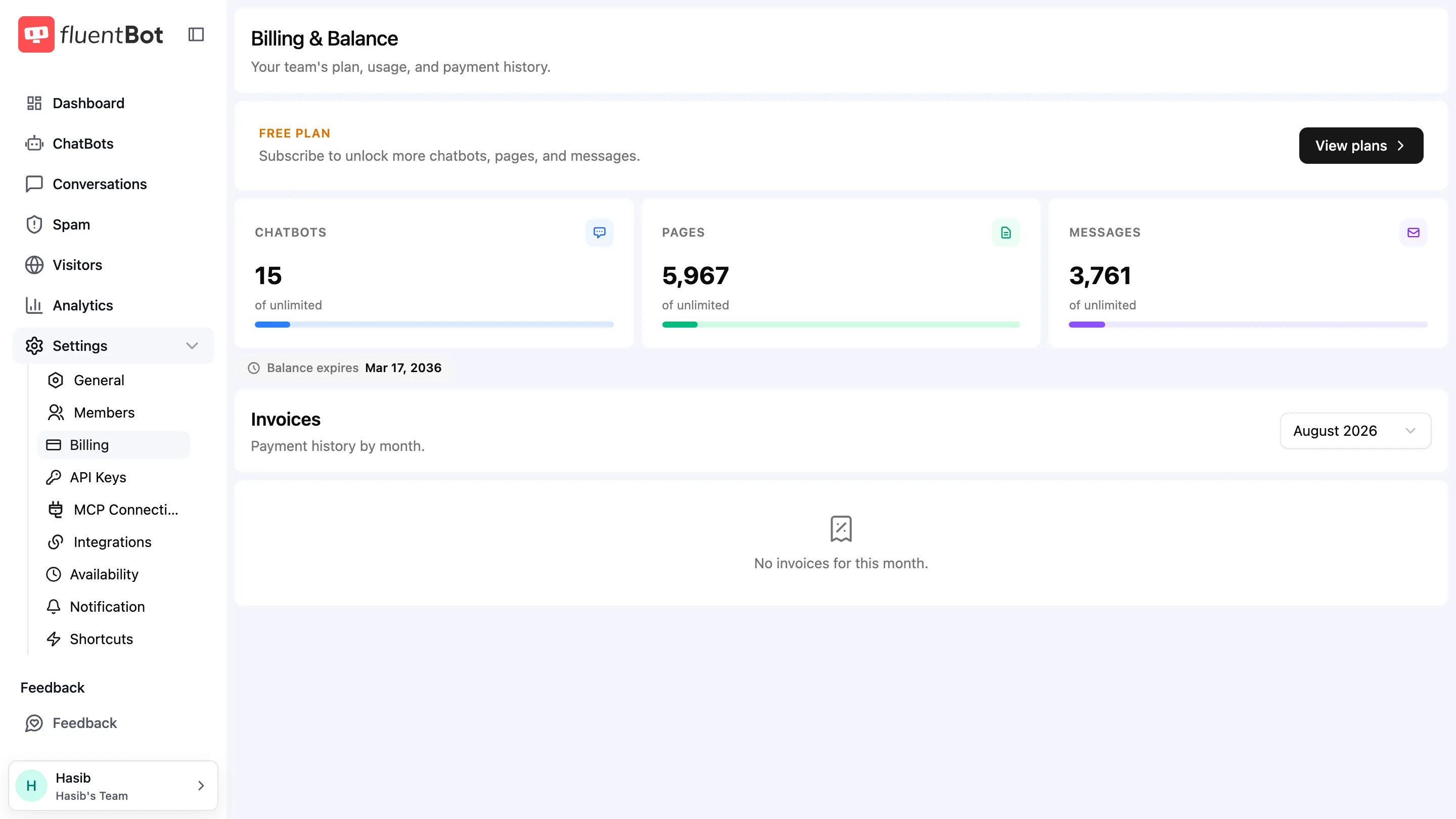
The Billing page shows your current plan and usage cards for:
| Counter | What it tracks |
|---|---|
| Chatbots | Bots in the active team. |
| Pages | Indexed documents across the active team’s sources. |
| Messages | AI responses generated during the current subscription period. |
Each card shows the used count, plan allowance, percentage, and progress bar. Usage above 70% is highlighted amber; usage at 90% or higher is highlighted red. When a limit is reached, FluentBot may block the related action until the allowance resets or the team upgrades.
The Balance expires date is the end of the current billing period.
Subscribing or changing plans
Click View plans or Change plan, choose a plan, and complete the Stripe-hosted checkout flow. After Stripe redirects back to FluentBot, the Pricing page verifies the checkout session and returns you to Billing.
For upgrades or downgrades, choose the new plan from the Pricing page. FluentBot blocks a plan change if your team already exceeds the new plan’s chatbot or page limit. For example, a team with 2 chatbots can’t downgrade to Starter until it’s down to 1 chatbot or fewer.
Invoices
The Invoices block lists payment history grouped by month. Use the month dropdown to filter.
Each invoice row includes the invoice date, description, status, amount, and a link to the Stripe-hosted invoice page where you can download the PDF.
Payment settings and cancellation
If the team has a Stripe billing account, click Manage billing to open the Stripe Customer Portal. Use it to:
- Update the saved card.
- Update billing email or address.
- Add tax IDs.
- Cancel a subscription.
If the team hasn’t subscribed yet, the portal is unavailable. If you cancel, FluentBot keeps the current billing-period balance until the subscription state changes.
Troubleshooting
- Subscribe button does nothing - pop-ups may be blocked. Stripe Checkout opens in a new tab.
- Paid but plan didn’t update - refresh after a short wait. If it still looks wrong, contact support with the invoice ID.
- Bot stopped responding - check the usage cards. If a limit is exhausted, upgrade or wait for the next plan period.
- Need a refund - contact support with the invoice details.
What’s next
- Usage & Tokens - understand usage trends.
- Teams & Members - billing applies to the active team.
- Train your bot - adding sources affects page usage.