

Invitations
Invitations let existing FluentBot users join a team with a specific role and bot access level.
Registration is by invitation only — for account signup, follow the invitation link you received. See Getting Started.
Receiving a team invitation
You may see an invitation in two places:
- An email to the invited address.
- A pending invitation notice inside FluentBot.
The invitation shows the team name, role, inviter, and any bot access limits.
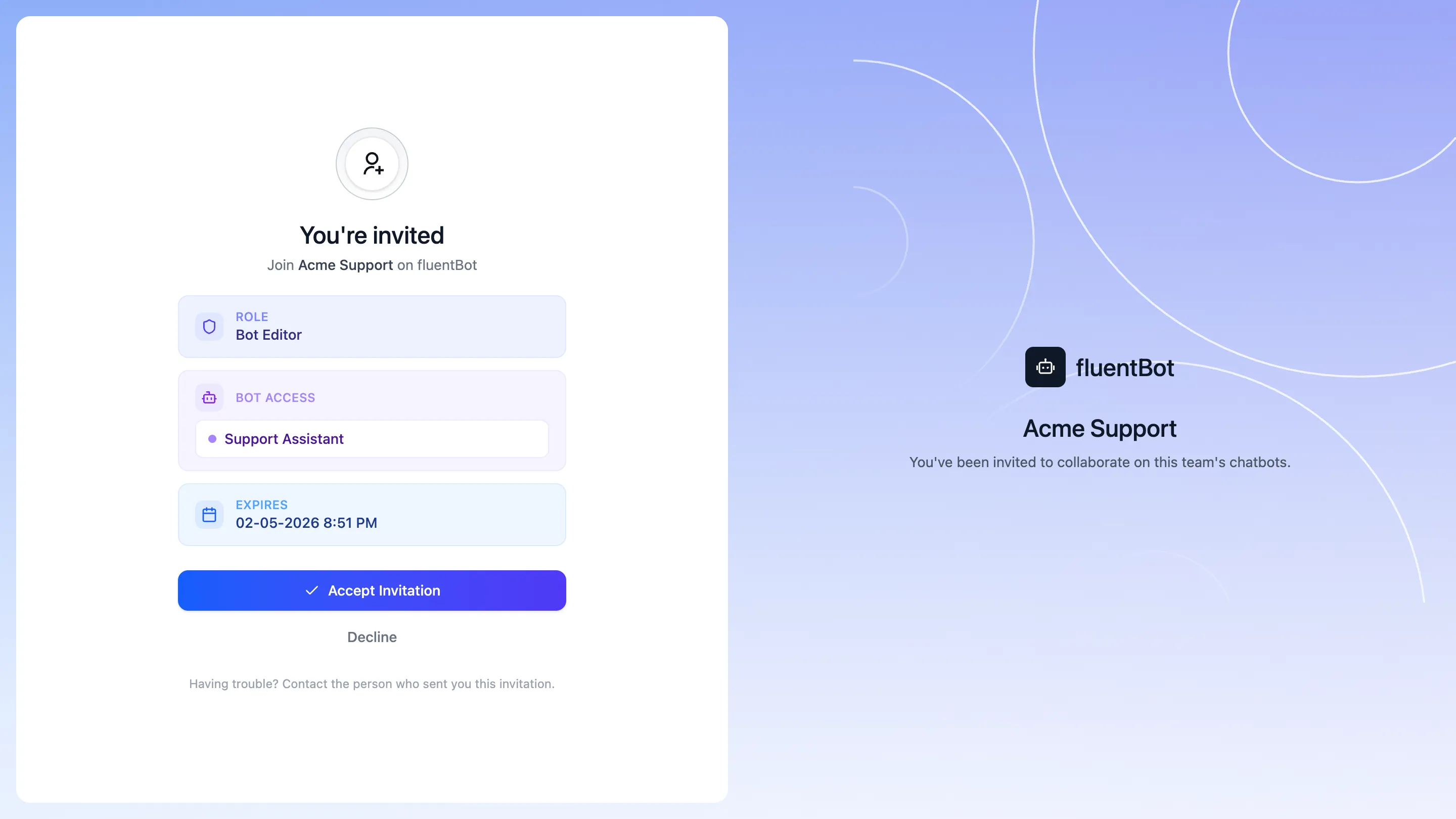
Accepting an invitation
Click Accept to join the team. After accepting, switch to the new team from the account menu at the bottom of the sidebar (My Teams).
If the invitation was sent to a different email address, sign in with that address or ask the inviter to resend it.
Declining an invitation
Click Decline if you don’t want to join the team. Declining removes the invitation from your pending list.
Resend or delete
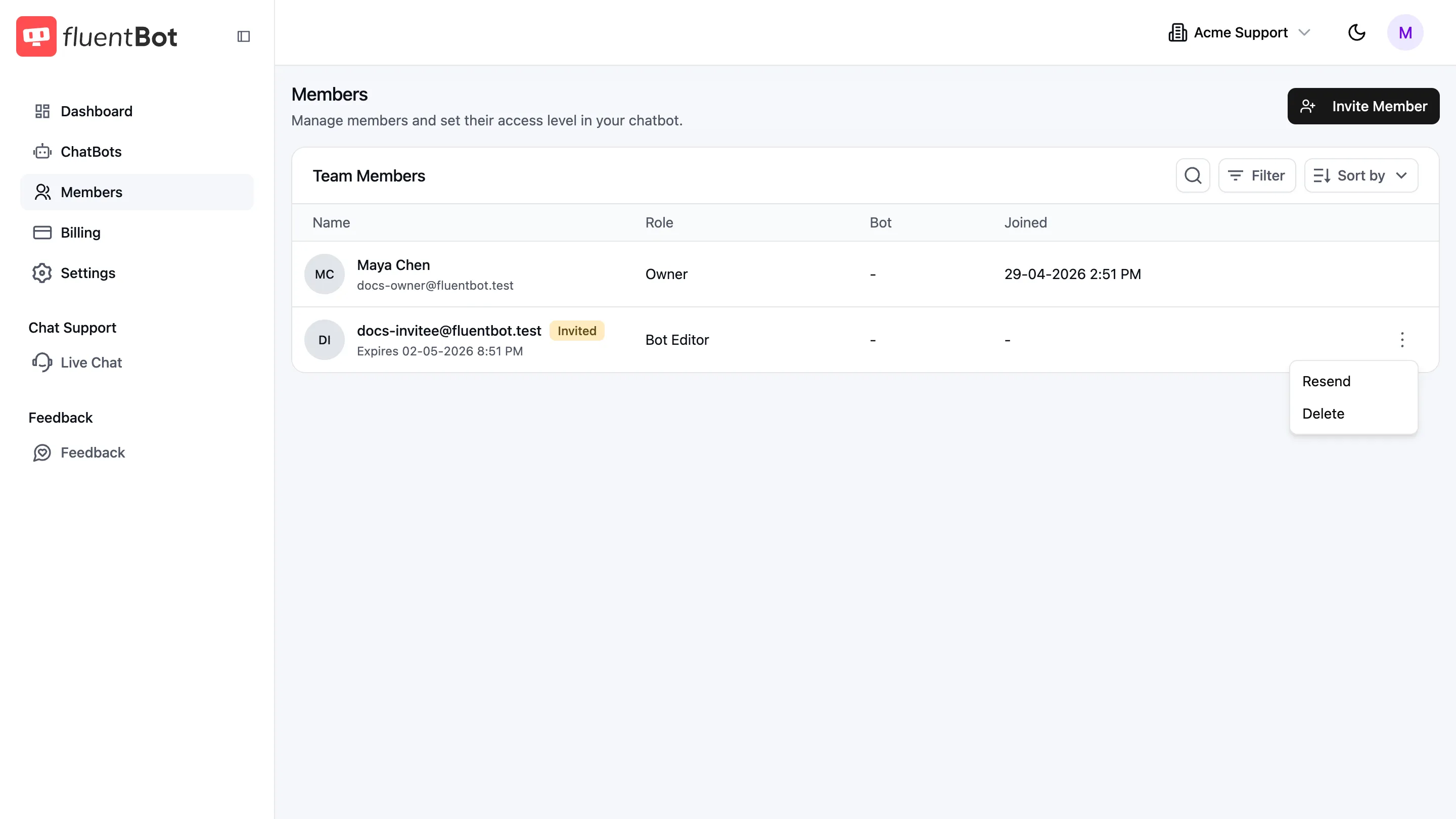
Team owners and admins can manage outstanding invitations from the Members page:
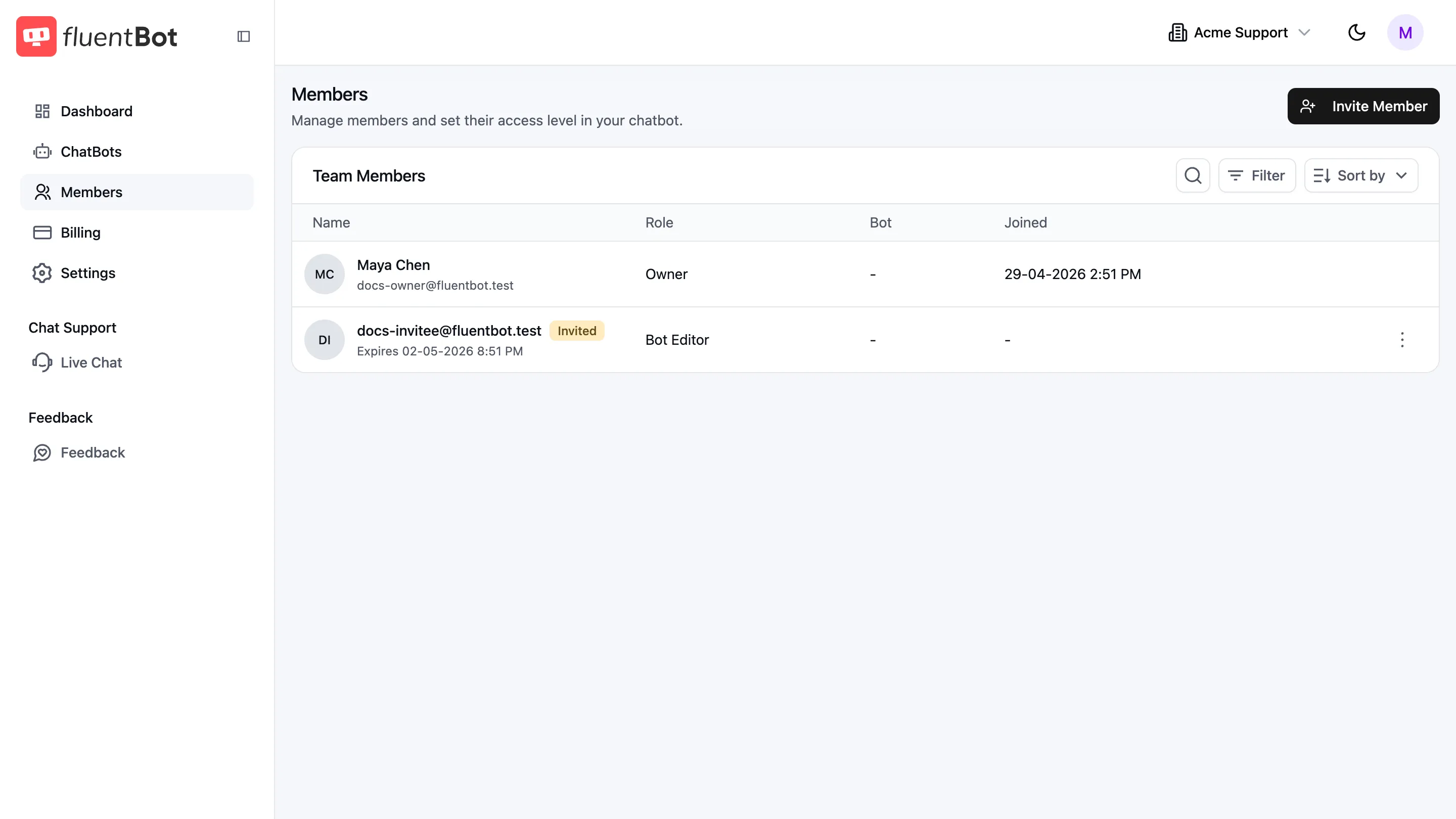
- Resend — sends another invitation email.
- Delete — cancels the invitation so it can no longer be accepted.
Troubleshooting
- Invitation expired — ask the inviter to resend it.
- This invitation isn’t for you — the invitation email and your logged-in email don’t match.
- I accepted but don’t see the team — refresh, then open the team switcher.
What’s next
- Teams & members — manage the team you joined.
- Profile — finish setting up your account.
- Getting started — first steps after registering.