

Content Gaps
A content gap is a question the bot was asked but couldn’t answer with confidence. The Content Gaps page surfaces them so you know exactly where your knowledge base is thin — no guessing, no anecdotes from support.
Open it from the bot’s left sidebar → Content Gaps.
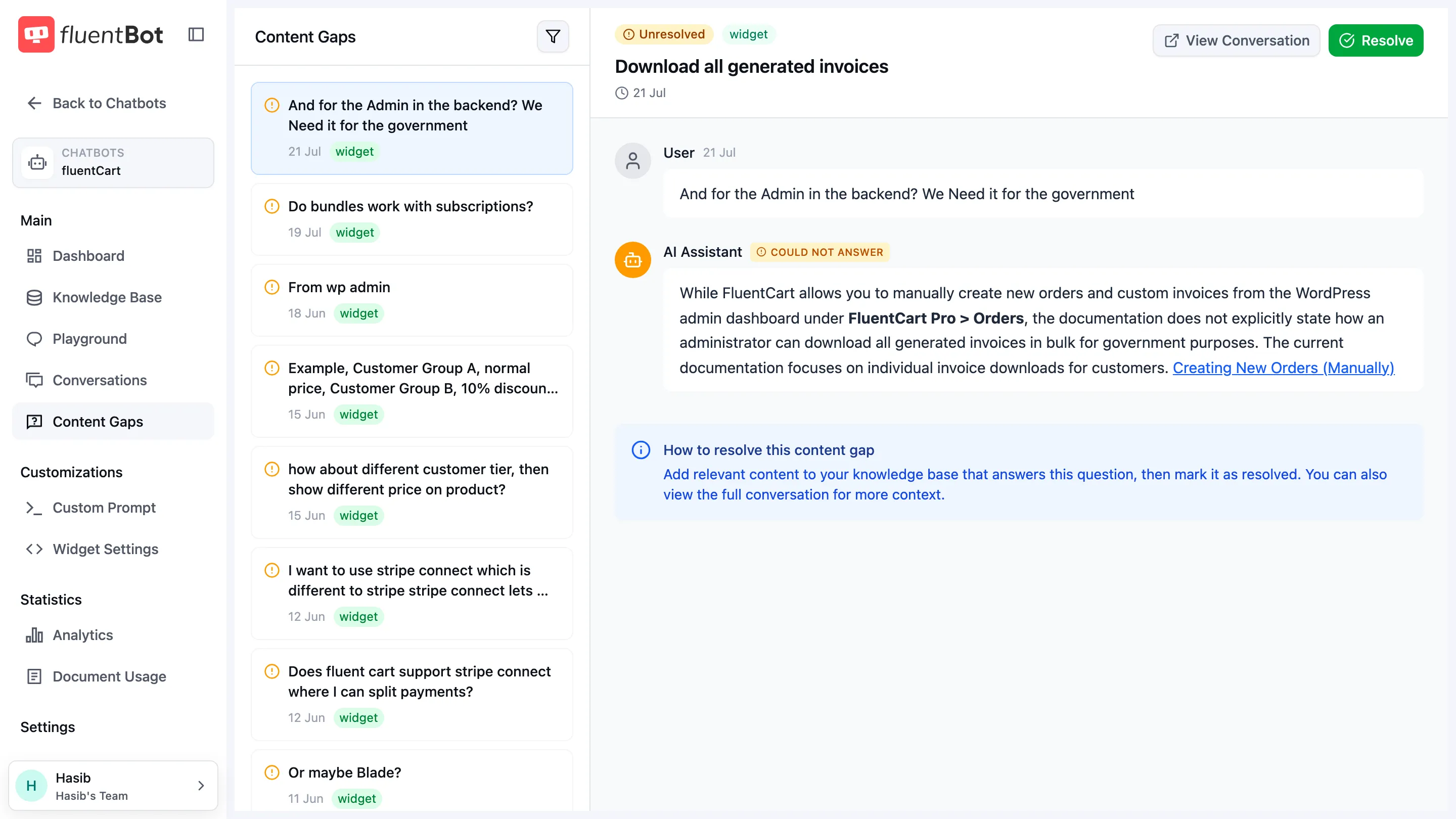
How a gap appears
FluentBot detects likely unanswered questions automatically. You don’t mark gaps manually, but you can resolve or unresolve them after review.
Page layout
Two-column layout:
- Left rail — gaps sorted newest first.
- Right pane — detail view for the selected gap.
Gap list
Each row shows the visitor’s question, the source badge (Widget / API / Fluent Support), the timestamp, and a status of Unresolved or Resolved.
Default filter: Unresolved only. Use Filter content gaps above the list to toggle Resolved.
Open a row’s Content gap actions menu to select it for bulk actions. Once at least one gap is selected, the list header changes to selection mode with a selected count, Cancel, Resolve, and Unresolve controls. While selection mode is active, click rows to add or remove them from the selection.
Detail pane
Selecting a gap reveals:
- Full visitor question.
- The “could not answer” reply the bot returned.
- Action buttons:
- Resolve — once you’ve added content that covers this question.
- Unresolve — undo if you resolved something prematurely.
- View Conversation — deep link to the surrounding chat in Conversations.
Workflow: turning gaps into sources
The point of this page isn’t to read the list — it’s to drive action. Typical loop:
- Open the oldest unresolved gap.
- Read the question. Decide if the bot should answer it.
- If yes, find or write the content that answers it.
- Add it as a source from Sources — URL, uploaded file, or pasted text.
- Wait for indexing to finish.
- Open the gap, click Resolve.
- Repeat.
For trickier gaps, click View Conversation to see what the visitor was actually trying to do — sometimes the literal question isn’t the real one.
What’s not a gap
- A question the bot answered with low quality but not “I don’t know” — that’s a feedback issue, not a gap. Use thumbs feedback to surface those.
- A question outside the bot’s scope (off-topic chitchat) — these may still appear here. Mark Resolved without action.
Bulk actions
Use bulk actions when you have already reviewed several gaps and want to update their status together:
- Open the row’s Content gap actions menu and choose Select.
- Select additional gaps from the list. Shift-click another row to select a range.
- Click Resolve to mark selected unresolved gaps as resolved, or Unresolve to reopen selected resolved gaps.
- Click Cancel to leave selection mode without changing anything.
The buttons only act on matching statuses: Resolve ignores already-resolved gaps, and Unresolve ignores unresolved gaps. If your current filter hides the new status, updated gaps disappear from the list after the bulk action.
Troubleshooting
- Gap reappears after I added the content — the same question can hit again from a new conversation. Resolving a gap doesn’t prevent re-logging. Confirm the new source is Indexed, then verify in the Playground.
- Question shows up here but the bot answered it — mark resolved and move on.
- Empty Content Gaps page — either the bot hasn’t seen traffic, or every question was answerable. Check Conversations for activity.
What’s next
- Sources — add the content that fills the gap.
- Conversations — see the full chat each gap came from.
- Train your bot — different ways to add sources.