

Playground
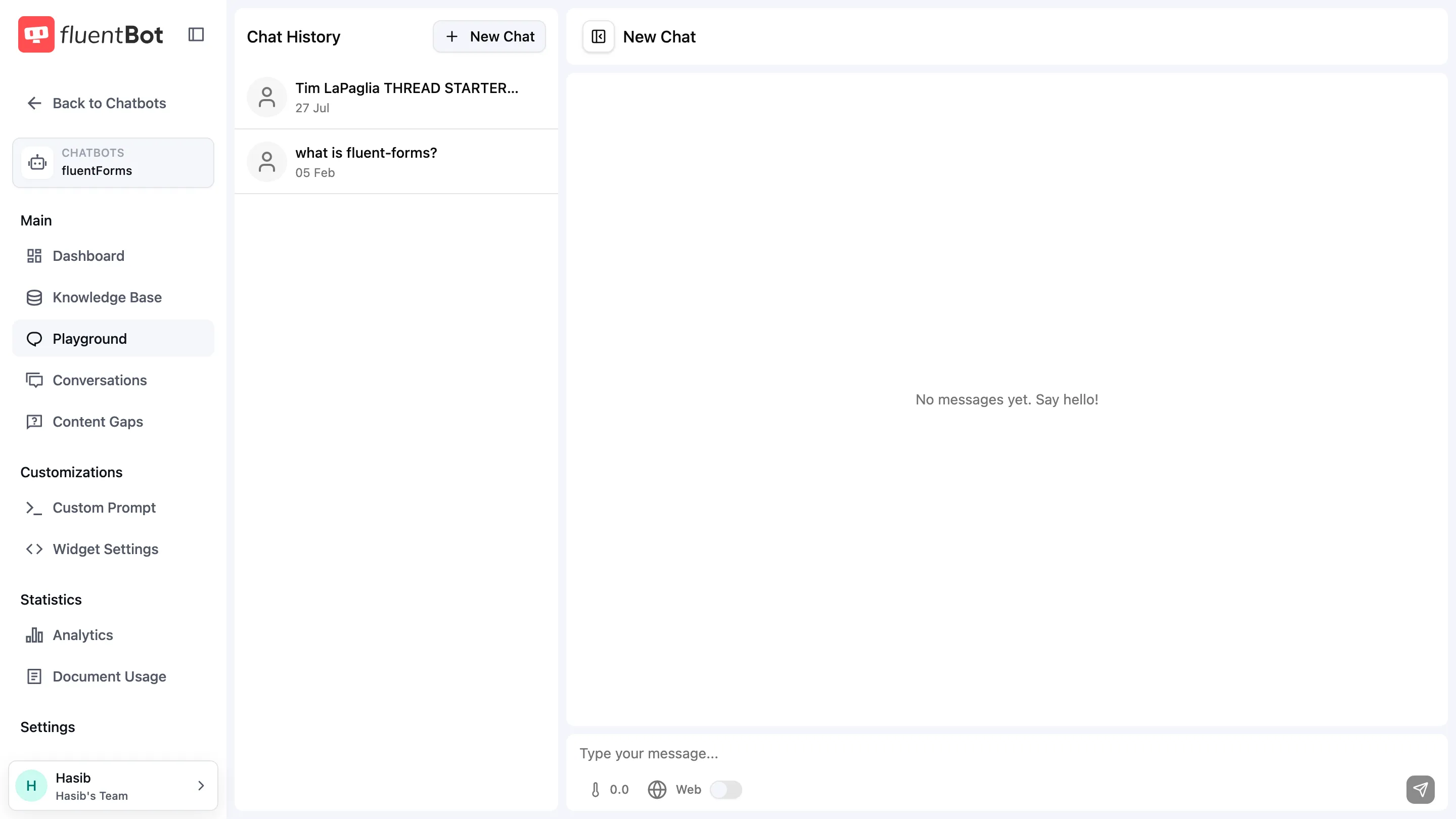
The Playground is a private chat surface for testing your bot before visitors use it.
Open it from the bot’s left sidebar → Playground.
When to use it
- Right after adding new sources, to confirm answers actually pull from them.
- Before shipping the widget, to sanity-check tone and accuracy.
- When debugging a regression — try the failing question directly and check which sources were cited.
Asking a question
Type into the composer at the bottom and click Send (or press Enter). The bot replies in the chat panel.
The composer also carries two per-request controls:
- Sampling temperature — adjust answer randomness for this playground session (
0.0is deterministic). - Web search toggle — augment answers with live web results. Only available when Live web search is enabled in the bot’s Settings page; otherwise the toggle is disabled.
What you see in the response
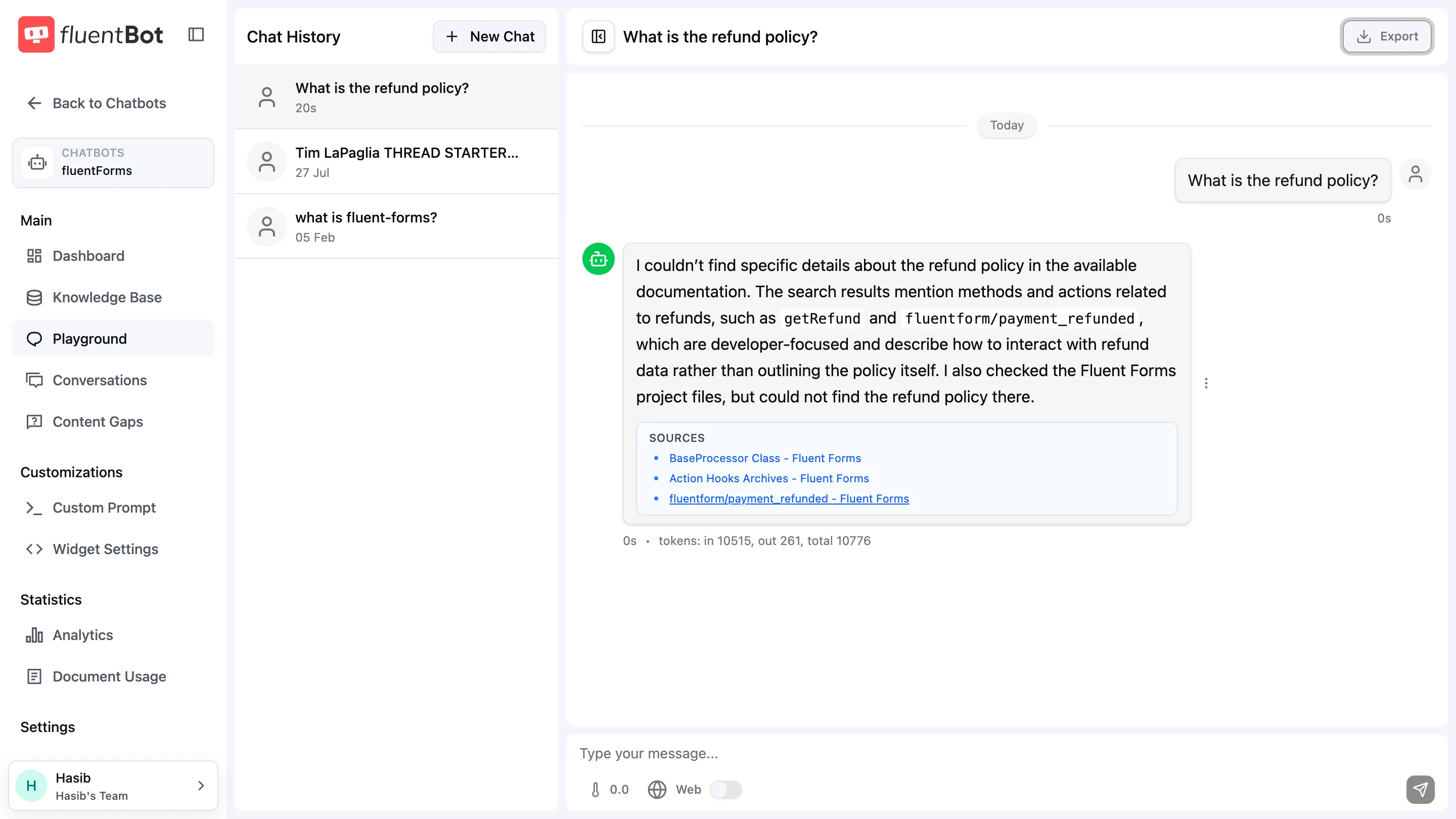
| Element | What it shows |
|---|---|
| Answer | Markdown-rendered bot reply. |
| Sources | Citations — links to the documents used for the answer. Click to open the source. |
| Timestamp | Relative time since the message was sent (e.g. 9s, 4hr). |
| Token usage | tokens: in <input>, out <output>, total <total> directly under the message. |
The triangle button next to each answer collapses or expands its Sources list.
Chat History sidebar
Past playground chats live in the Chat History rail on the left:
- New chats appear at the top.
- Title is taken from the first user prompt.
- + New Chat button starts a fresh conversation.
- Click any past chat to reopen the thread and continue.
- A three-dot Conversation actions menu sits next to each chat (Select / Delete).
Multi-turn context
Each Playground conversation keeps prior turns within that thread. To reset the context, click + New Chat.
Delete a chat
Two paths:
- Single delete — open the chat’s three-dot Conversation actions menu in the rail → Delete. A confirmation dialog asks before removing the chat and all its messages.
- Bulk delete — open any chat’s actions menu → Select to enter selection mode. Checkboxes appear next to every chat plus a header with
<n> selected, Cancel, and Delete. Tick the chats you want and click Delete. Confirmation dialog before removal.
Deletion is permanent — there’s no undo.
Export a chat
With a chat open, click Export conversation at the top of the right pane. A small popover offers two formats:
- CSV — flat row per message; convenient for spreadsheets.
- JSON — full message structure with sources and metadata; better for programmatic use.
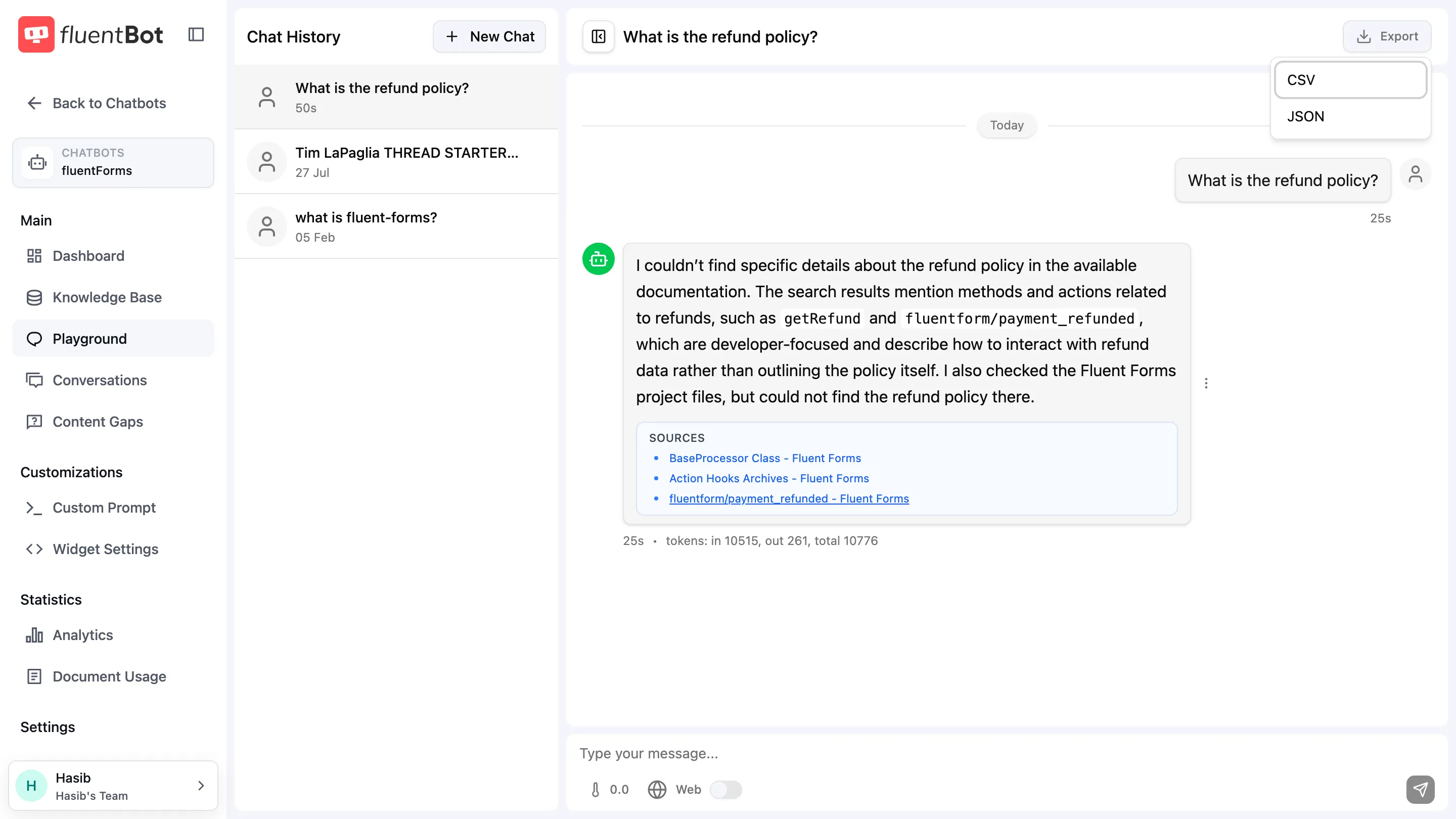
The download fires immediately; the file is named after the chat.
Playground usage
Playground conversations count toward normal bot usage:
- Token usage counts toward your team’s Usage & Tokens.
- Subscription limits apply — if you’ve exhausted your message credit, the playground stops too.
- Playground conversations appear in Conversations under the playground filter.
Treat the Playground as a private staging surface for your bot.
What it’s good for
- Confirming a newly added source is being used (check the Sources block under the answer).
- Spotting unsupported answers — if the answer cites no sources, review the source coverage.
- Comparing latency before and after a refresh.
What it’s not good for
- Load testing — interactive, one question at a time.
- A/B testing prompts — the system prompt is configured per-bot in Custom Prompt, not per-message.
Troubleshooting
- No Sources cited — the bot could not match the question to your sources. Check Content Gaps — it may be logged as unanswered.
- Source listed but answer is wrong — rephrase the source content or inspect the document in Document Usage.
- Reply cuts off mid-sentence — connection dropped. Refresh and ask again; the prior turn is preserved.
- Bot stops responding — likely out of message credit. Check Plans & Billing.
What’s next
- Conversations — review real visitor chats.
- Widget settings — customize the public-facing widget once you’re confident.
- Integration — ship the bot.