

Profile
Your profile is the per-user identity inside FluentBot. It’s separate from your team — changing your profile name doesn’t rename your team, and the same account can belong to multiple teams.
Open it from the account menu at the bottom of the sidebar → Profile & Settings.
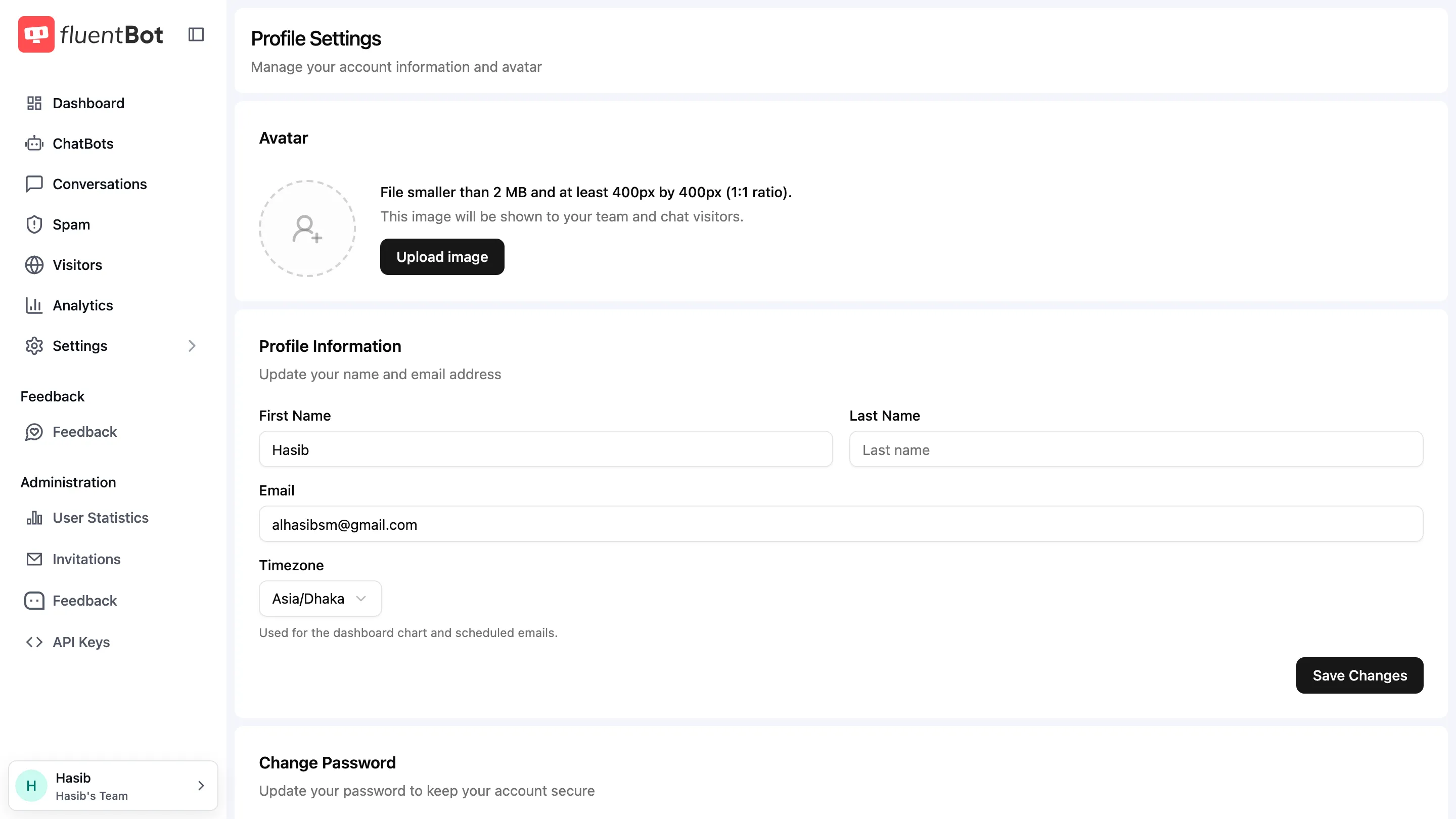
Avatar
Upload an image to represent you in the team and to chat visitors. Constraints:
- File size: smaller than 2 MB.
- Dimensions: at least 400px × 400px, 1:1 aspect ratio.
Click Upload image. The previous avatar is replaced.
Profile Information
Editable fields:
| Field | Notes |
|---|---|
| First Name | Up to 255 characters. |
| Last Name | Up to 255 characters. |
| Unique per user. Changing it triggers a verification step (see below). | |
| Timezone | Used for the dashboard chart and scheduled emails. |
Click Save Changes to persist.
Display name is auto-derived from first + last name. Notification preferences live under Settings → Notification.
Change your email
Email changes may require verification:
- Enter the new address and save.
- Check the new address for a verification email.
- Click the verification link.
- Once verified, the new address replaces the old one.
You can cancel a pending email change before clicking the link.
Change Password
- Enter your Current Password.
- Enter the New Password twice (the confirmation must match).
- Click Change Password.
Validation: minimum 8 characters, mixed case letters, at least one number. Special characters allowed but not required.
If the current password is wrong, the request is rejected without revealing whether the new password met the rules.
Delete Account
Self-service from the bottom of the page:
- Click Delete Account.
- Confirm with your password.
- Optionally provide a reason (up to 1000 characters).
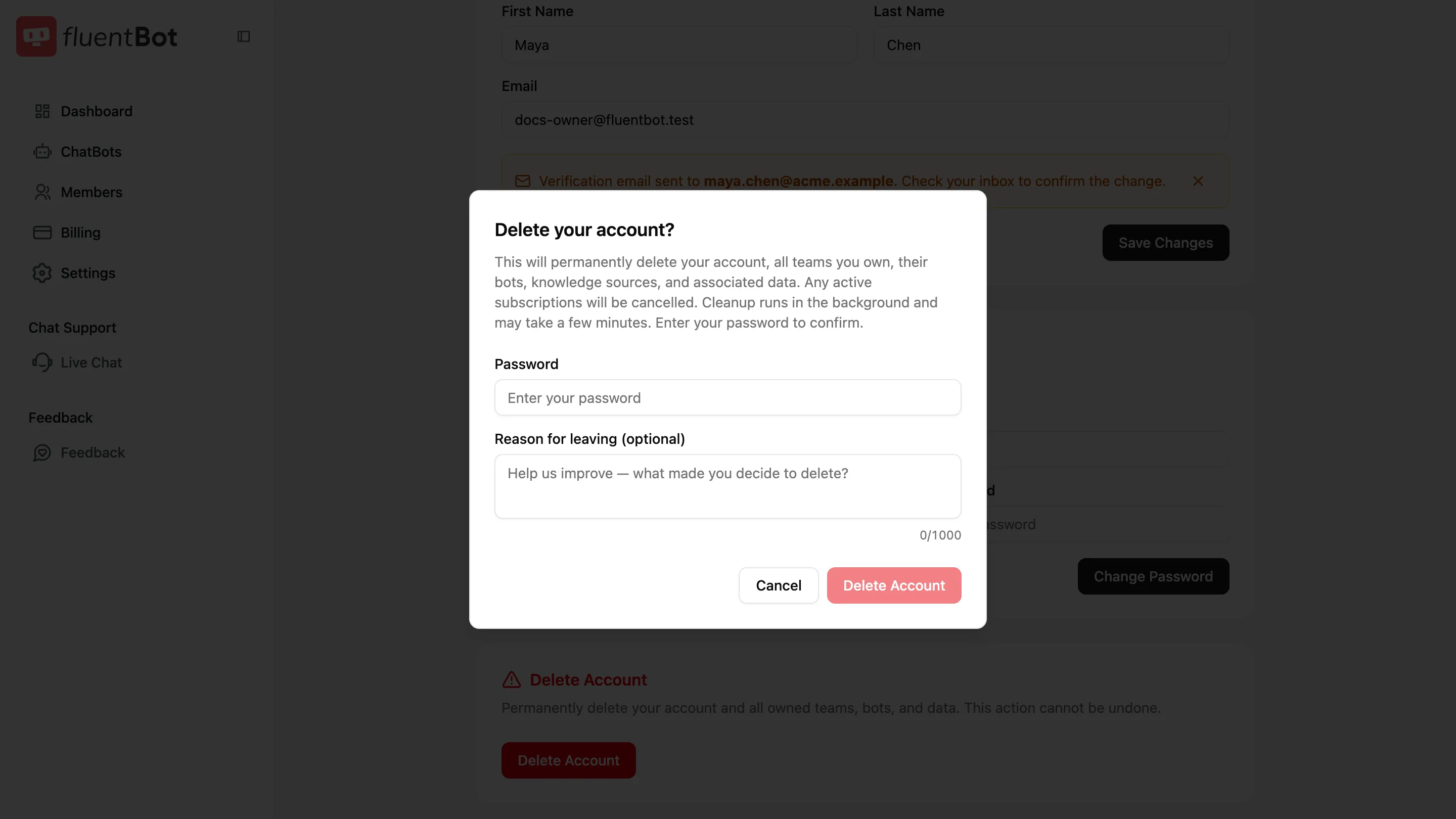
After confirmation, FluentBot signs you out and begins account deletion.
Sessions and security
- Two-factor authentication — not currently available.
- Active sessions — not currently exposed as a self-service session list.
- Push notification devices — managed automatically when you enable browser or app notifications.
Troubleshooting
- “Email already registered” — the address is in use by another FluentBot account. Pick a different address, or contact support.
- Verification link expired — trigger a fresh email change.
- Avatar upload failed — confirm the file is under 2 MB and at least 400×400.
- Wrong password on change — make sure the Current Password matches; the new-password rules are checked only after the current password verifies.
What’s next
- Teams & Members — manage who has access alongside you.
- Plans & Billing — subscription is per-team, not per-user.
- Invitations — accept or decline pending team invites.