

Train Your Bot
Training a bot means adding sources. FluentBot prepares each source so the bot can answer from it. You can mix any combination of website links, uploaded files, pasted text, and WPManageNinja syncs.
1. Open the Knowledge Base
In the bot sidebar, click Knowledge Base. The table lists every source attached to this bot. On a fresh bot it reads No sources found; once you’ve added sources, each one is a row.
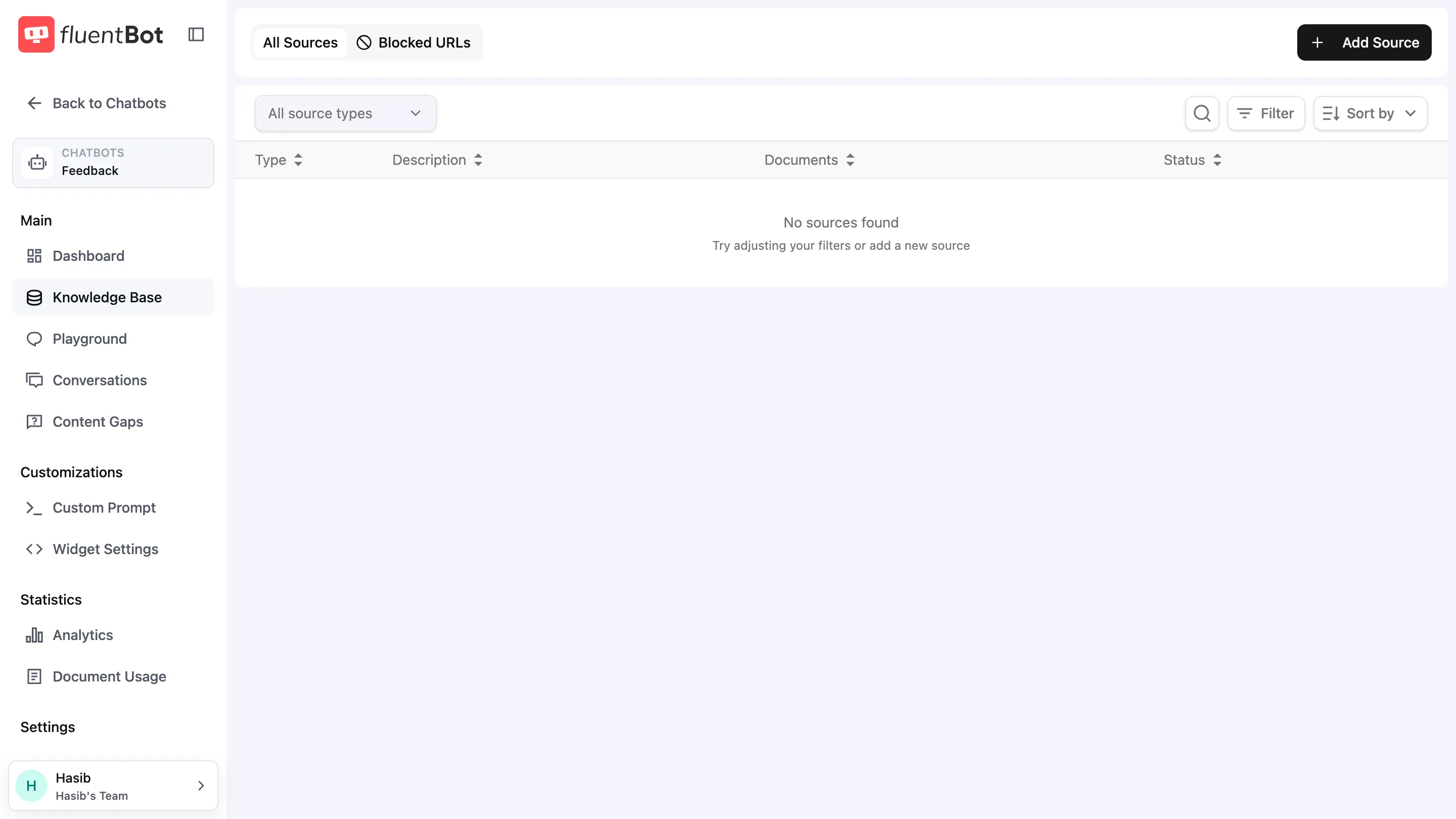
The page has two tabs:
- All Sources — every source you’ve added, with status.
- Blocked URLs — paths the crawler should skip across all Website Links sources for this bot.
2. Click Add Source
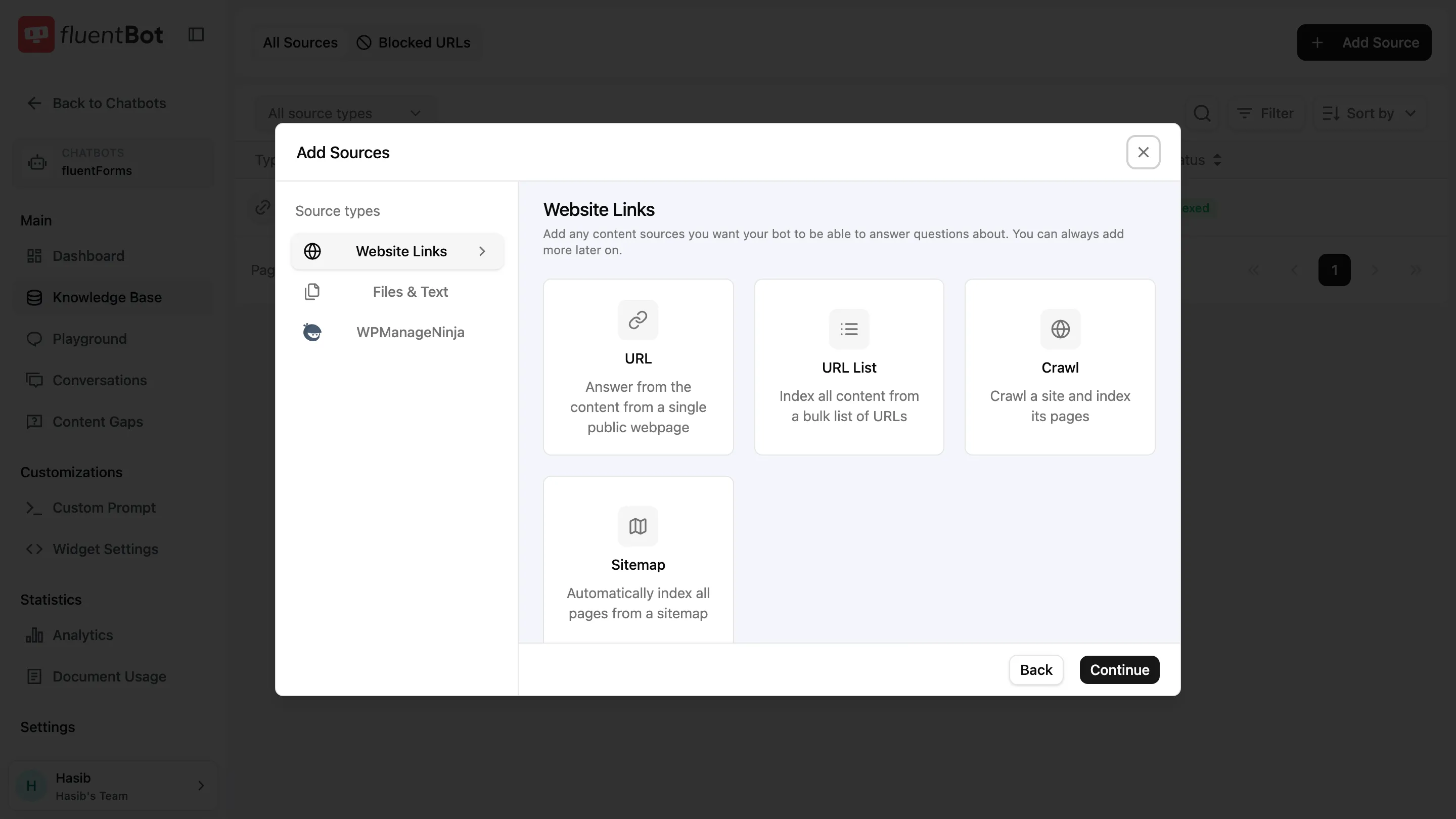
Top-right + Add Source opens the source picker. The left rail lists three categories — pick one to see its sub-types on the right.
Website Links
Crawl public web content. Four sub-types:
- URL — single public webpage.
- URL List — upload a TXT file with one URL per line; every listed page gets indexed.
- Crawl — start at one URL and follow internal links.
- Sitemap — point at a
sitemap.xmland we index everything in it.
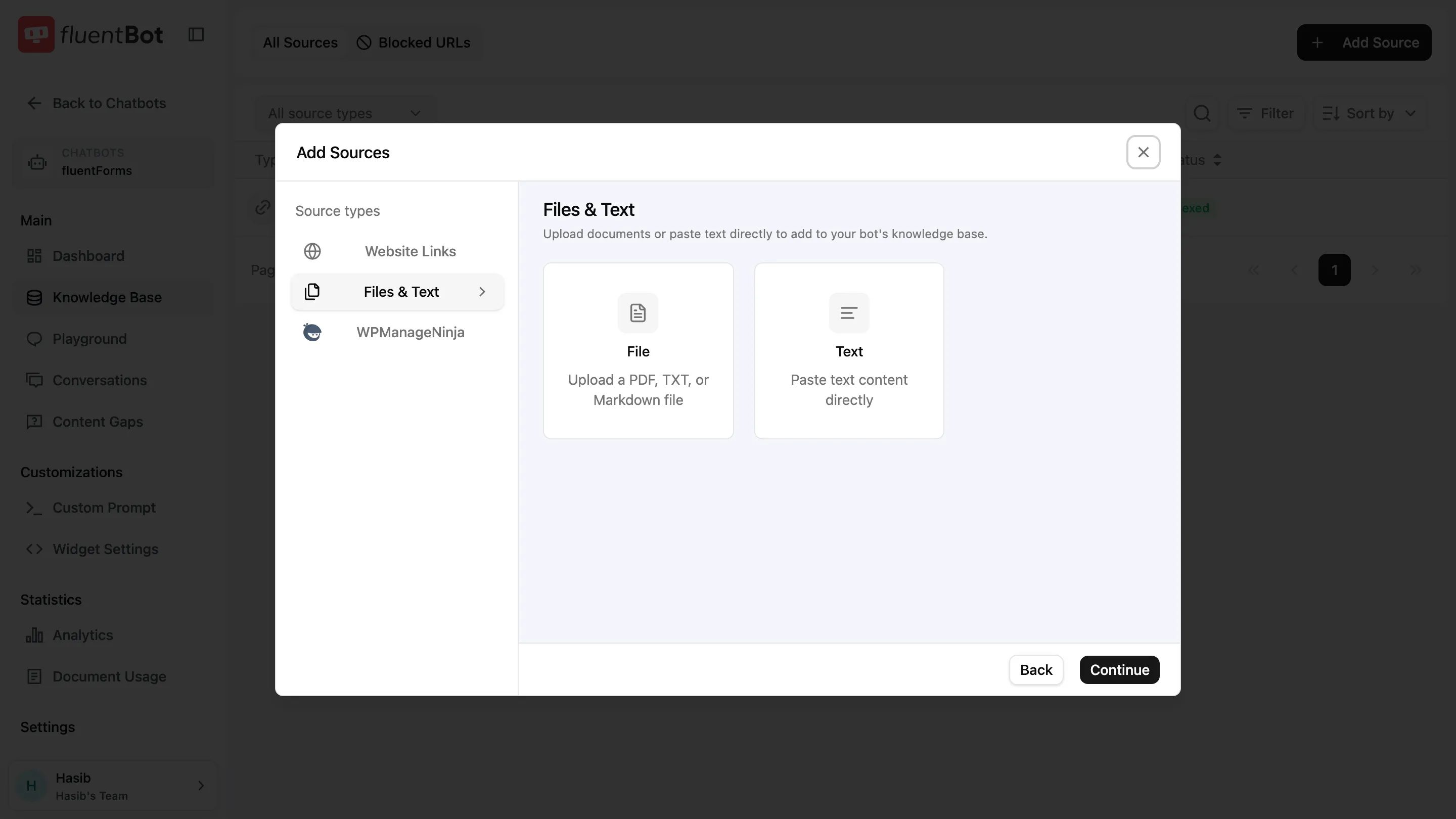
Files & Text
Upload a document or paste raw text:
- File — upload PDF, TXT, or Markdown.
- Text — paste text directly (up to 500,000 characters).
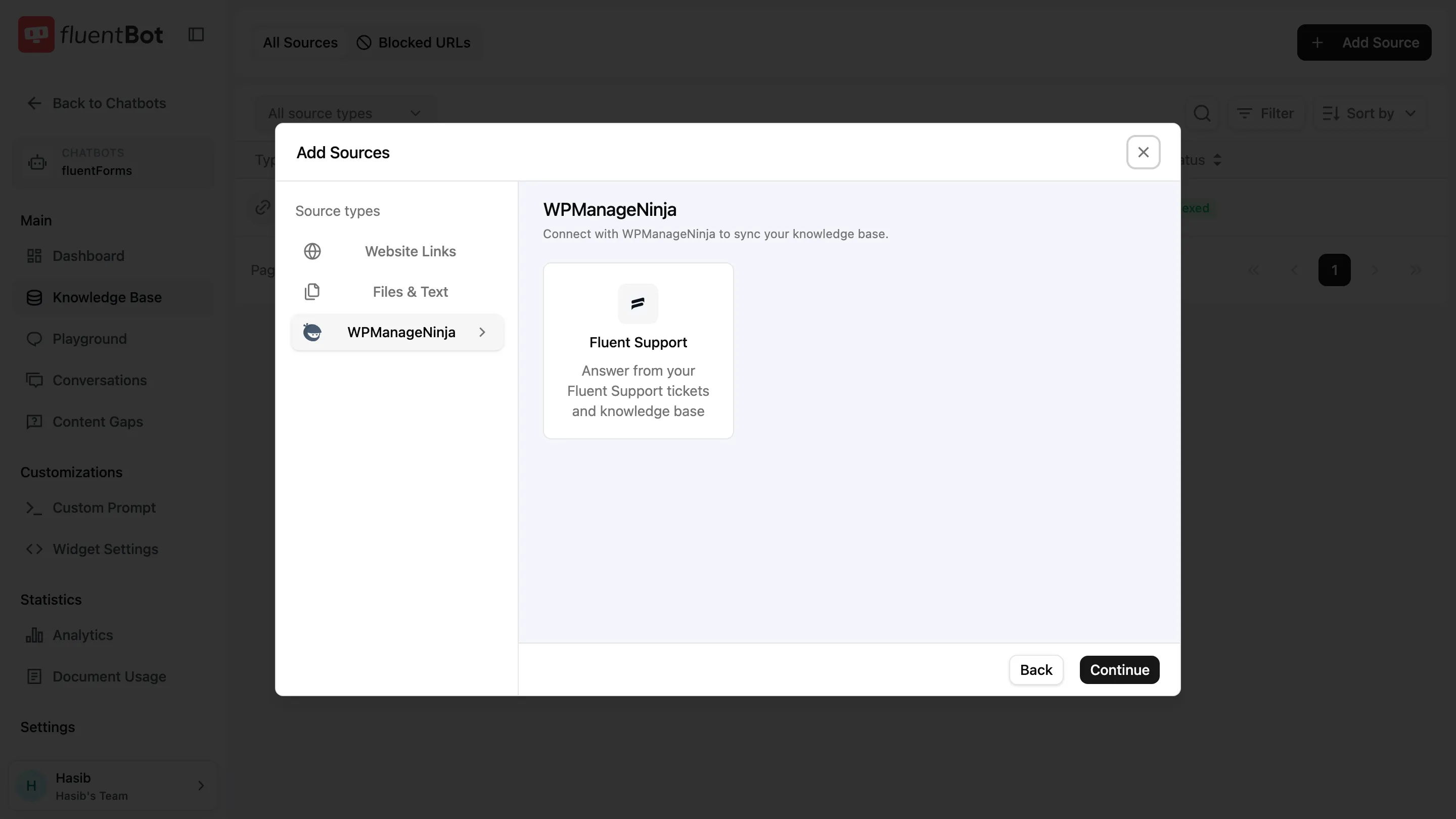
WPManageNinja
Sync from a WPManageNinja product:
- Fluent Support — answer from your tickets and knowledge base.
3. Fill the source form
Each sub-type opens its own form. Two examples:
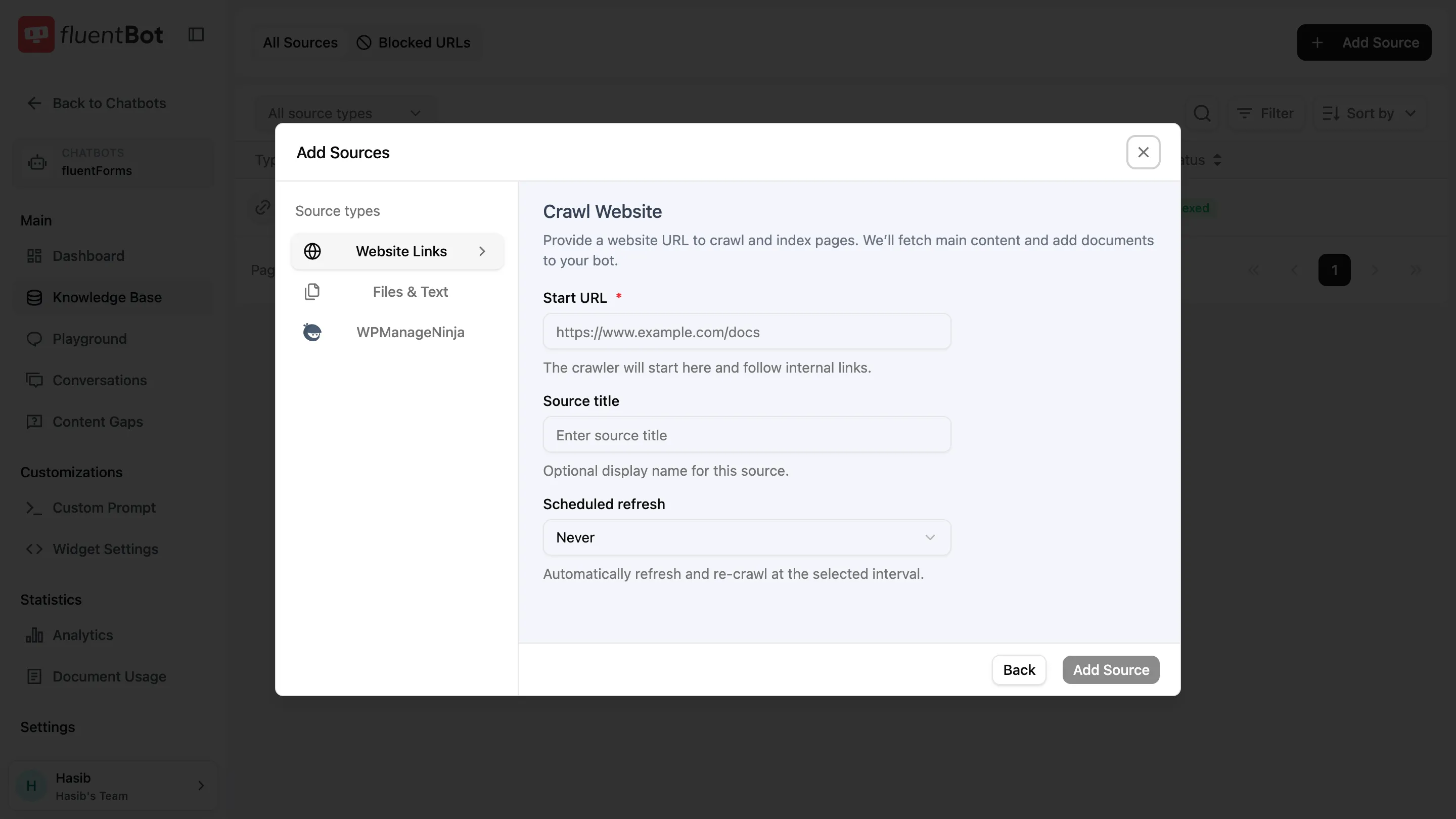
Crawl form
- Start URL (required) — where the crawler begins.
- Source title (optional) — display name in the All Sources table.
- Scheduled refresh —
Never, daily, weekly, or monthly. The bot re-crawls automatically at the chosen interval.
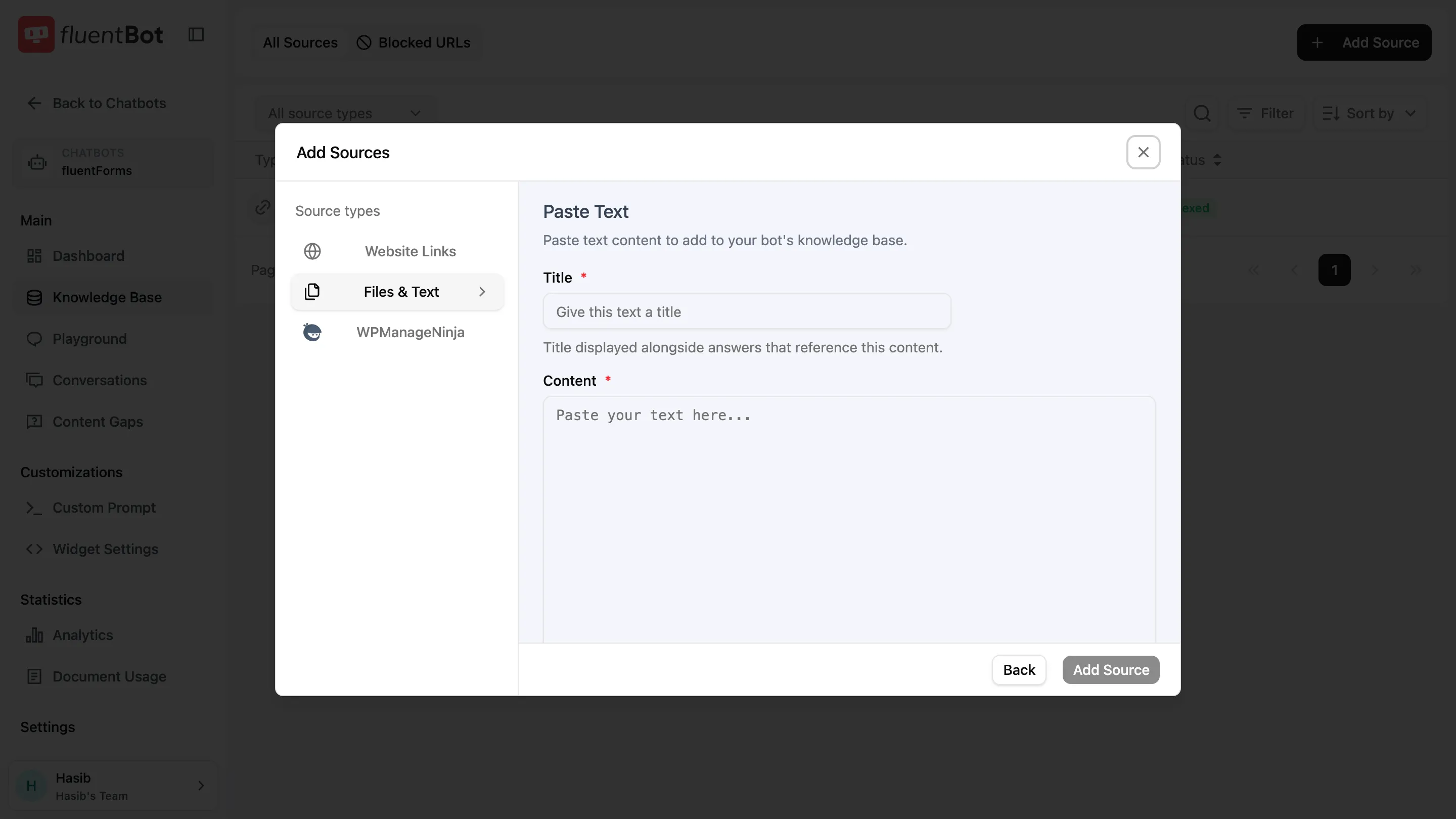
Paste Text form
- Title (required) — shown alongside answers that cite this content.
- Content (required) — up to 500,000 characters.
Click Add Source at the bottom-right when the required fields are valid.
4. Watch indexing progress
You return to the All Sources table. Each row shows a Status badge that updates as the source moves through the pipeline:
- Scraping — fetching content from the source.
- Indexed — content saved and ready to answer.
- Failed — the source could not be processed. Click the row to see the error and retry.
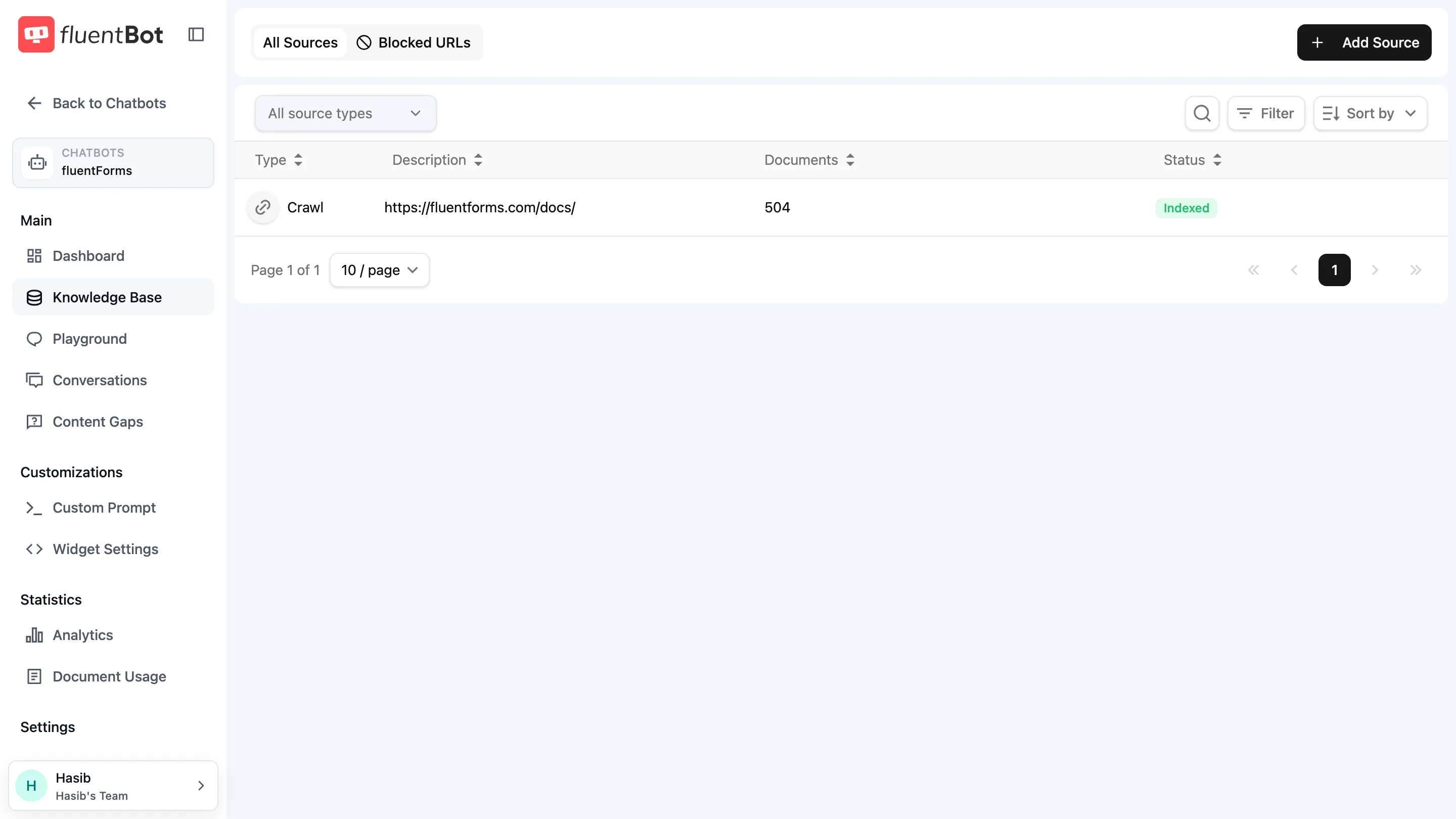
The Documents column shows how many documents the source produced. 0 with status Indexed usually means the page had no extractable text (e.g. JS-heavy SPA without server-rendered content, or empty PDF).
5. Test your bot
Open the Playground tab in the sidebar and ask a question. You’ll see:
- The generated answer.
- Source citations — which documents were used.
- Usage details.
If the answer cites no sources, your bot fell back to its default response. Double-check that the relevant source has status Indexed with Documents > 0.
Common patterns
- Help center docs — use Crawl with the help center root URL. Set Scheduled refresh to weekly.
- Marketing site — use Sitemap if you have one; faster + complete coverage.
- One-off PDF — File upload, no refresh needed.
- Internal policy text — Text paste; small, immediate, no fetch step.
- Mixed sources — a single bot can combine all of the above.
Troubleshooting
- Failed status on a Crawl — host blocked the scraper, JS-rendering failed, or the URL 404s. Click the row to see the per-URL log.
- Indexed but Documents = 0 — content was empty or stripped. Try the source as a File if it’s a downloadable PDF.
- “Page (docs) limit reached” — you’ve hit your plan’s page cap. Free up space by deleting unused sources, or upgrade billing.
- Crawl took forever — set Scheduled refresh to Never while debugging; cancel and retry with a narrower start URL.
What’s next
- Embed the widget — ship the bot to your site.
- Content Gaps — surface questions the bot couldn’t answer.
- Retrain & Update — keep the index fresh as content changes.