
Create a New Bot
A bot is one chatbot instance — one personality, one knowledge base, one embed script. You can have multiple bots in a team, depending on your plan.
Prerequisites
- You’re signed in and inside a team (see Getting Started).
- Your team’s plan has at least one available bot slot.
1. Open the Chatbots page
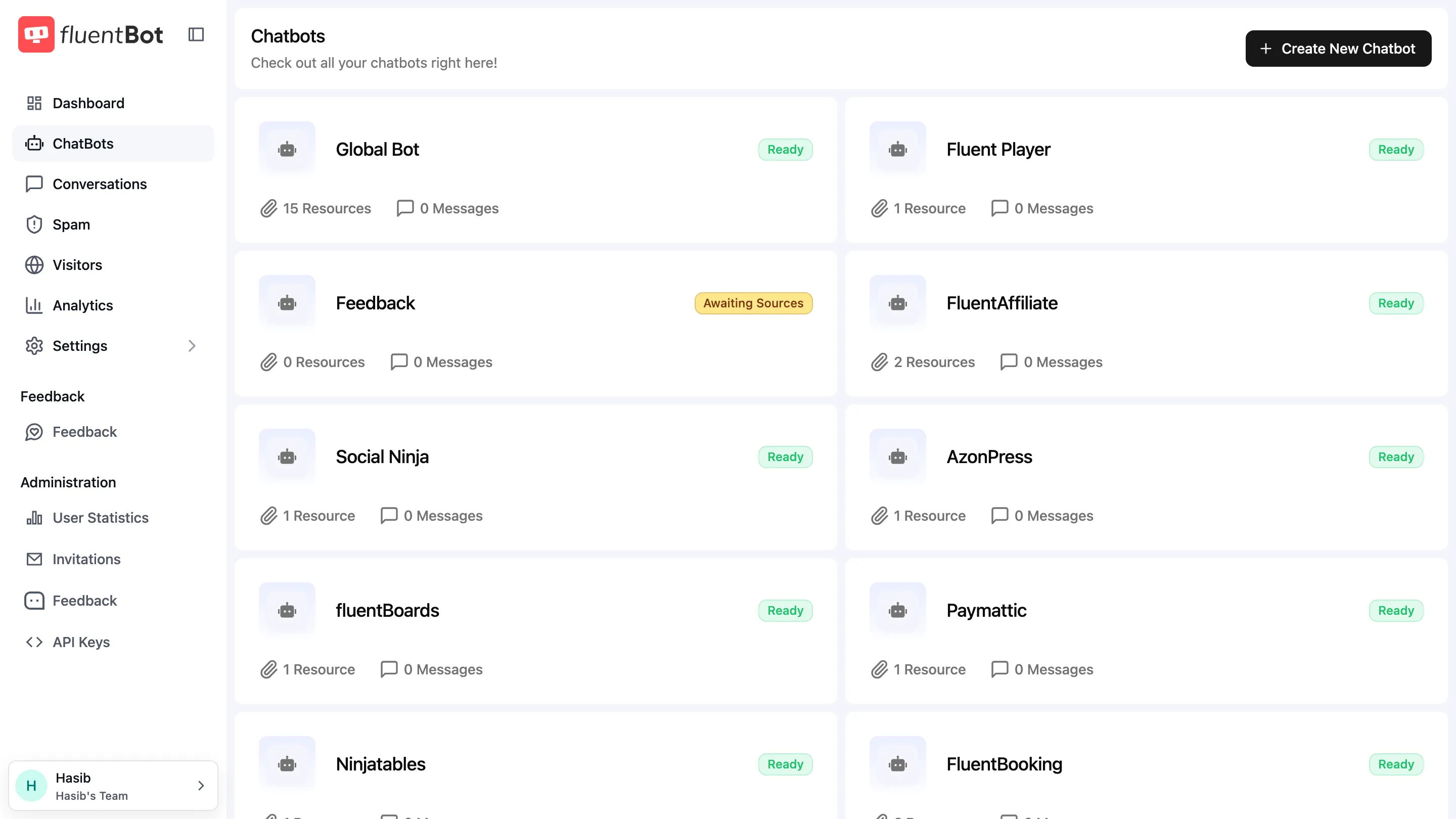
In the sidebar, click ChatBots. The page lists every bot in the team; if you don’t have any yet, the empty state centers a + Create New Chatbot button. If you already have bots, click the header + Create New Chatbot button on the top right.
2. Open the create-bot panel
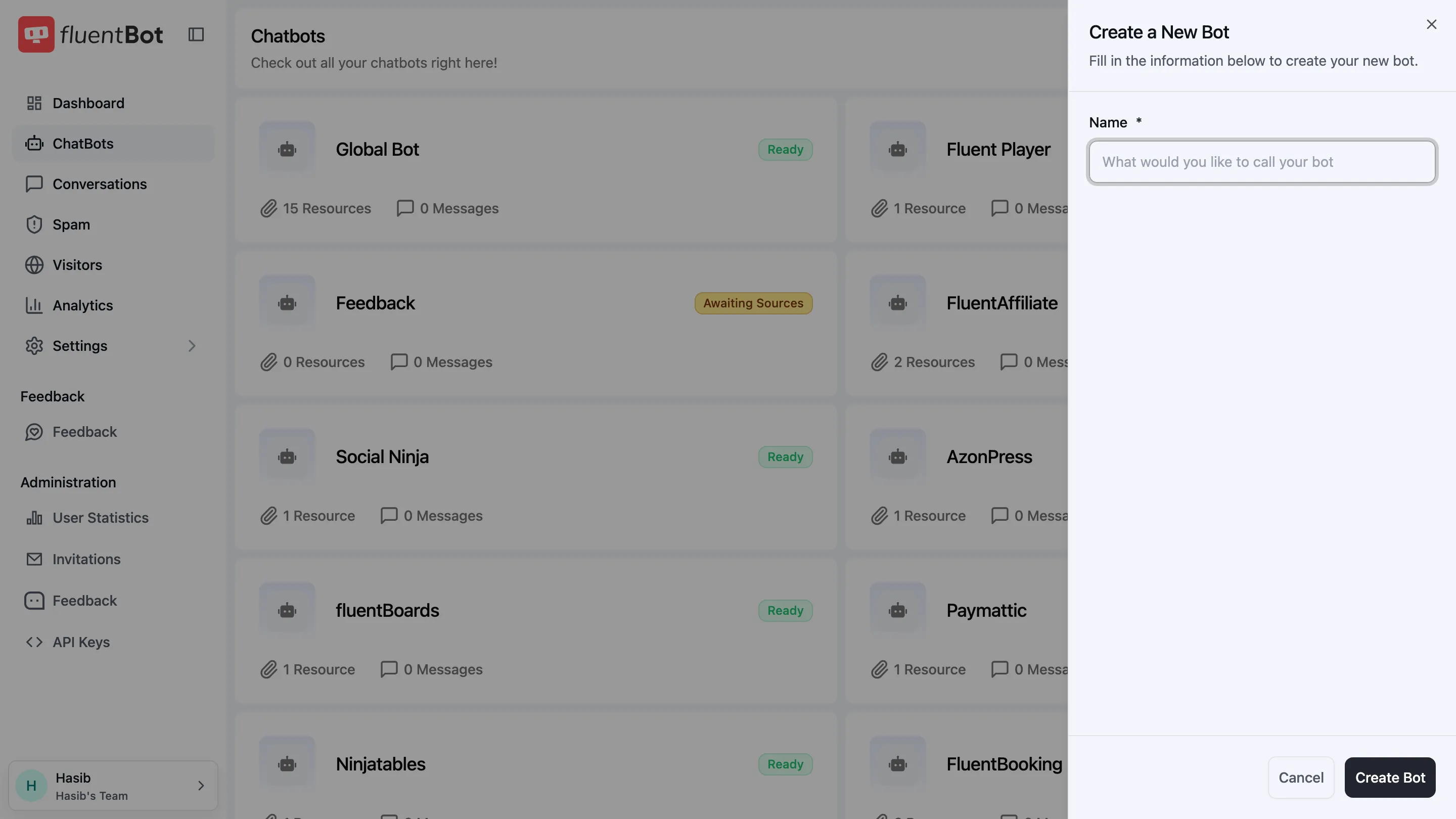
Click + Create New Chatbot. A side panel slides in from the right.
The panel asks for one field:
- Name — what the bot shows as its header title in the widget. You can rename it later in the bot’s Settings page.
3. Click Create Bot
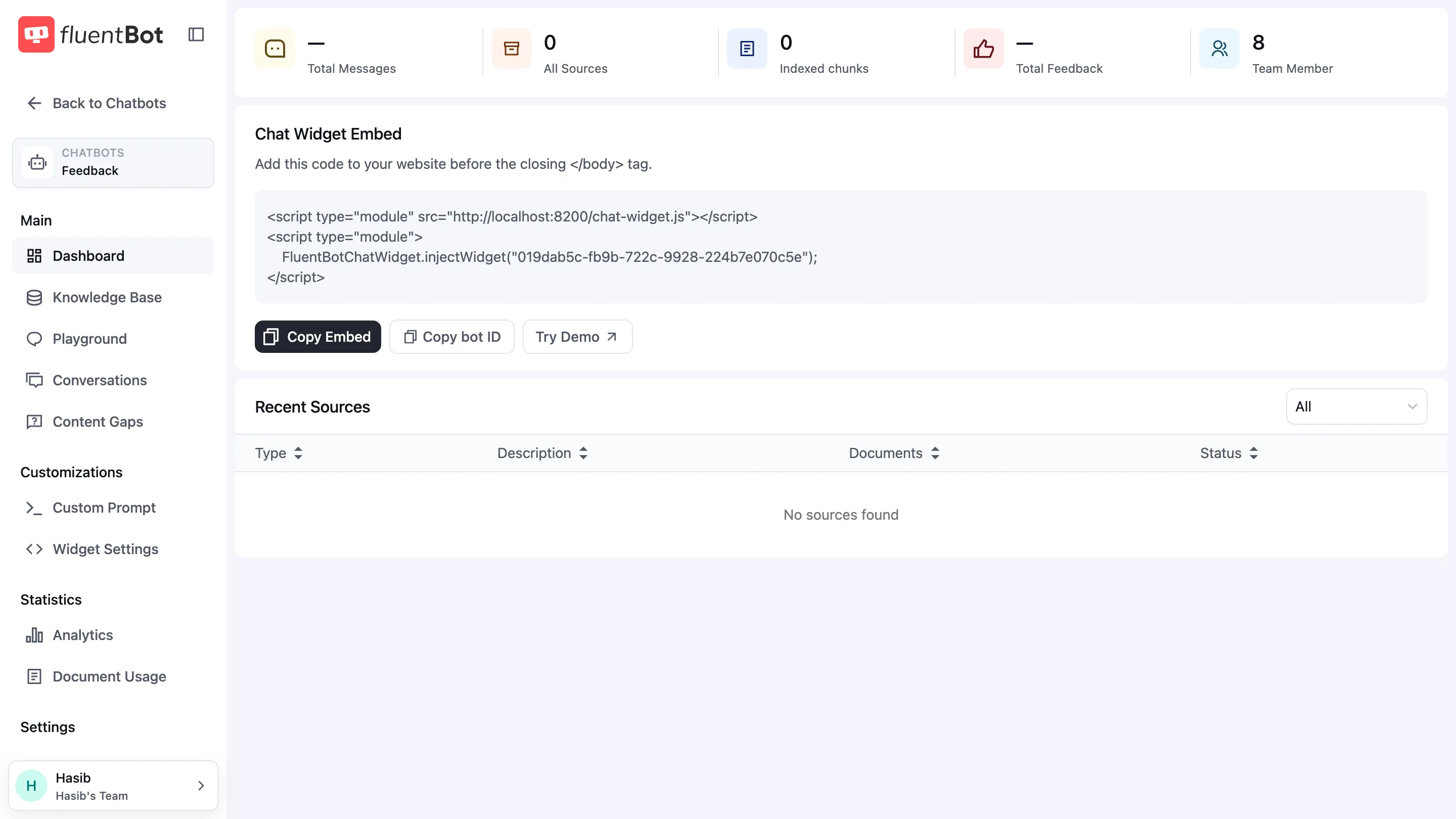
A toast confirms Bot created successfully and you land on the bot’s dashboard at /bots/<bot-id>. The bot is published immediately — embeddable, but with no knowledge yet.
What you get on the bot dashboard
The left bot-scoped sidebar exposes everything you can do per-bot:
- Dashboard — stats, status, embed snippet (this page).
- Knowledge Base — sources and indexed documents.
- Playground — test the bot in a sandbox chat.
- Conversations — every visitor chat history.
- Content Gaps — unanswered questions to triage.
- Custom Prompt — set the bot’s tone, system prompt, and fallback behavior.
- Widget Settings — widget colors, position, title, greeting.
- Analytics — usage charts.
- Document Usage — which docs got cited and how often.
- Settings — rename the bot, live web search, MCP tools, answer cache, delete the bot.
Defaults to know
Until you customize:
- Status: Awaiting Sources — the bot will reply with the fallback message until you add knowledge.
- Tone: friendly and helpful (configurable in Custom Prompt).
- Citation: every answer cites the source document.
- Fallback: when the bot can’t find an answer, it offers to connect the visitor to a human.
Troubleshooting
- “Chatbot limit reached. Please upgrade your plan.” — your team has used all bot slots in its plan. Delete an unused bot, or upgrade billing.
- Empty Name validation — Name is required. It can’t be blank.
What’s next
- Train your bot — feed it content through URL crawl, sitemap, or file upload.
- Widget Settings — customize colors, title, greeting.
- Playground — test before embedding.