

Retrain & Update
Knowledge sources don’t stay current on their own. As your docs, help center, or tickets change, the bot needs to re-fetch and re-index that content. FluentBot supports three update paths:
- Scheduled refresh — runs automatically per source on a cadence you pick.
- Manual refresh — click Refresh now in the source dialog to re-fetch on demand, or retry a failed source.
- Manual replacement — replace uploaded files or pasted text when the source content changes.
Scheduled refresh
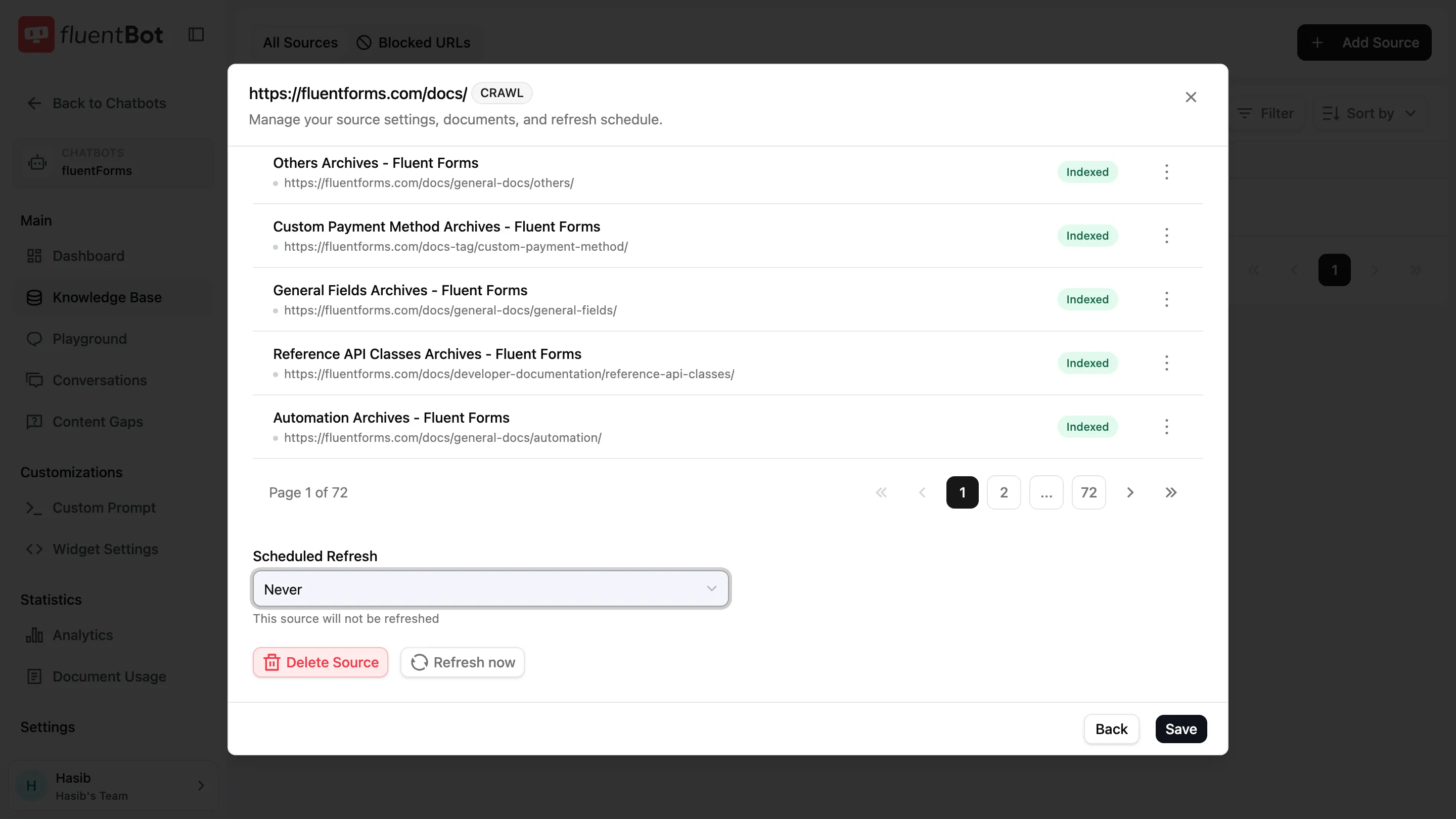
Open any Website Links source from Knowledge Base. The dialog has a Scheduled Refresh dropdown:
| Option | Behavior |
|---|---|
| Never | No automatic refresh. Source stays as-is until you retry manually. |
| Daily | Re-fetch once per day. |
| Weekly | Re-fetch once per week. |
| Monthly | Re-fetch once per month. |
Scheduled refresh runs automatically based on the cadence you choose.
What gets updated
When a refresh runs, FluentBot checks the source again and updates the indexed content when changes are found.
Manual refresh & retry
Click any source row in All Sources to open its dialog. The dialog footer has a Refresh now button that re-fetches the source on demand — no need to wait for the scheduled cadence. If the source’s current status is Failed or Partially Indexed, use the same button to re-attempt the failed items alongside the failure reason.
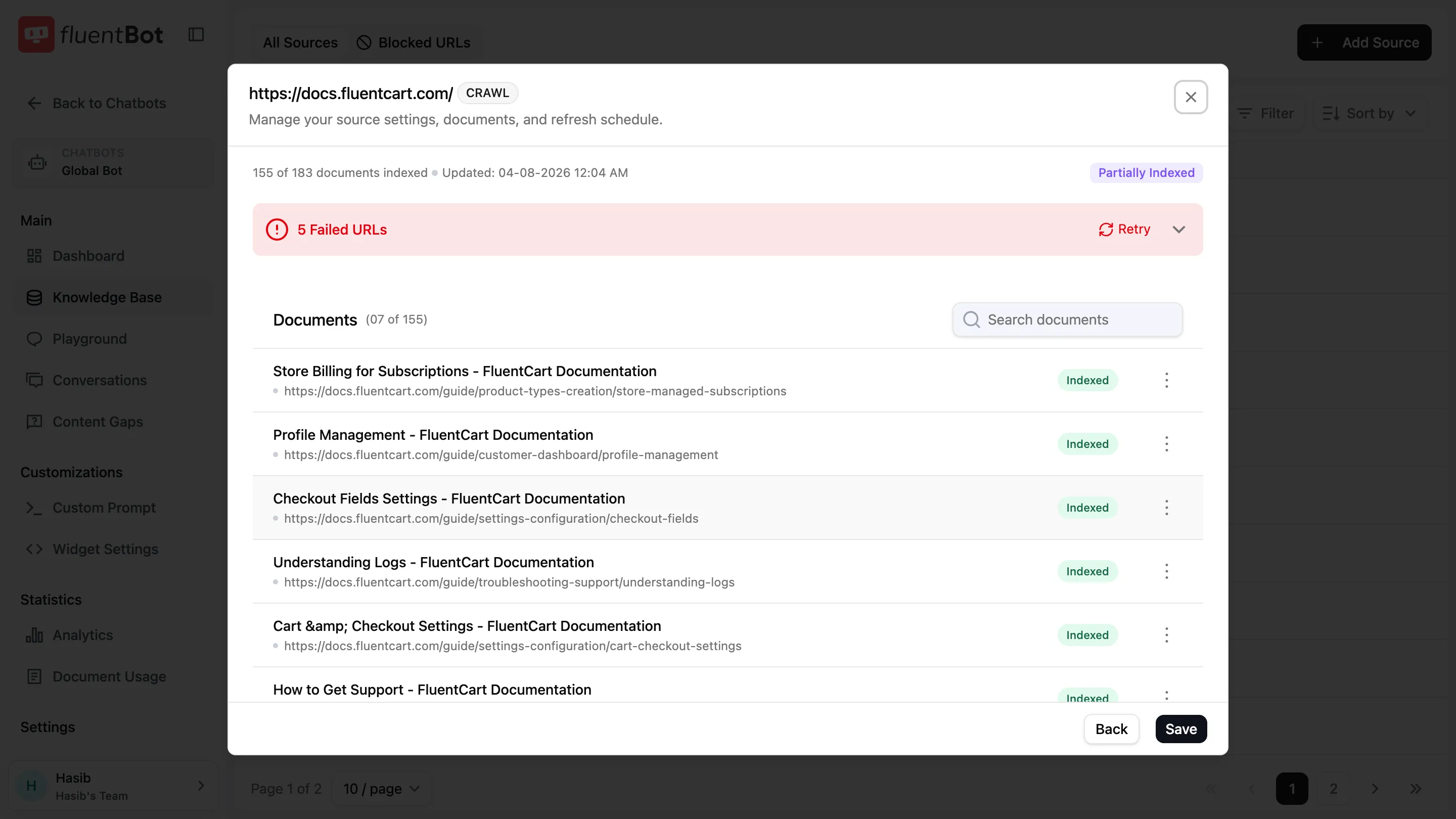
Refreshing starts the source again and re-runs the fetch pipeline. The same path applies whether the source is a single URL, a sitemap, or a Crawl.
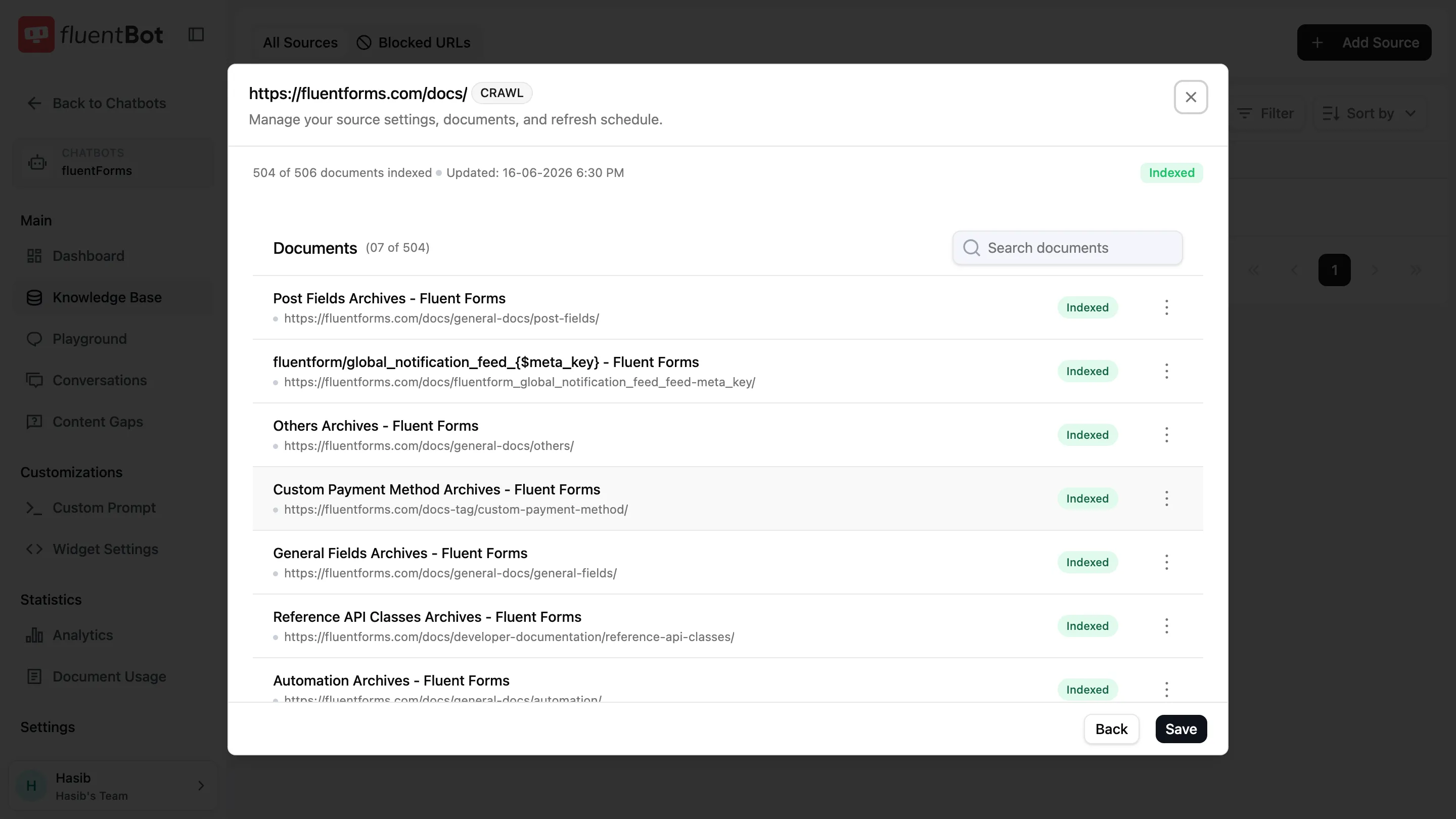
Inside the Documents list, each indexed document has its own actions menu (three dots) with three actions:
- Refresh — re-fetch just that document.
- Block this URL — add the document’s URL to the bot’s Blocked URLs list so future crawls skip it.
- Delete document — remove the document from the index.
Source statuses
A source moves through these states. Status badges in the All Sources table use the same labels:
| Status | Meaning |
|---|---|
| Queued | Waiting to start processing. |
| Scraping | Fetching content from the source. |
| Indexing | Saving extracted documents and making them searchable. |
| Indexed | Ready to answer questions. |
| Partially Indexed | Some items succeeded, some failed. Open the source and click Refresh now to re-attempt the failed items. |
| Failed | Every item failed, or the source itself is unreachable. Open the source and click Refresh now. |
| Deleting | Removal in progress. |
| Deleted | Removed from the bot. |
Removing a source
Delete Source at the bottom-left of the source dialog removes the source completely:
- Deletes every document under the source.
- Removes the source from future answers.
- Deletes uploaded files for File sources.
Deletion is permanent — there’s no undo. Re-adding the same URL afterwards is a fresh source with a new ID.
Choosing a refresh cadence
Pick the cadence based on how often the underlying content actually changes:
- Marketing site, product brochures: Monthly is usually enough.
- Help center, public docs: Weekly fits most teams.
- Release notes, changelog, ticket-based knowledge: Daily.
- Static reference (PDFs that never change): Files have no refresh — replace them manually after each revision.
More frequent refresh is best for content that changes often. For large sites that rarely change, weekly or monthly refresh is usually enough.
Troubleshooting
- “Source keeps failing” — open the source, read the failure reason, fix the underlying issue (auth, blocked URL pattern, dead domain, JS-rendered content with no fallback), then click Refresh now.
- “New content isn’t showing up in answers” — confirm the source is Indexed, then test the question in Playground.
- Indexed but Documents = 0 — the page returned no extractable text. Try the source as a File upload if the underlying content is a PDF.
- “Can’t find a Scheduled Refresh setting” — the source is a Text or File source. These don’t auto-refresh; replace the source manually if the content changes.
What’s next
- Train your bot — adding new sources.
- Content Gaps — find questions the bot still can’t answer.
- Playground — test the bot after a refresh before traffic hits it.