

Human Escalation
Human escalation is FluentBot’s path for getting a real person into a chat — either when the bot can’t help, or because you want every chat to start with a human in the first place.
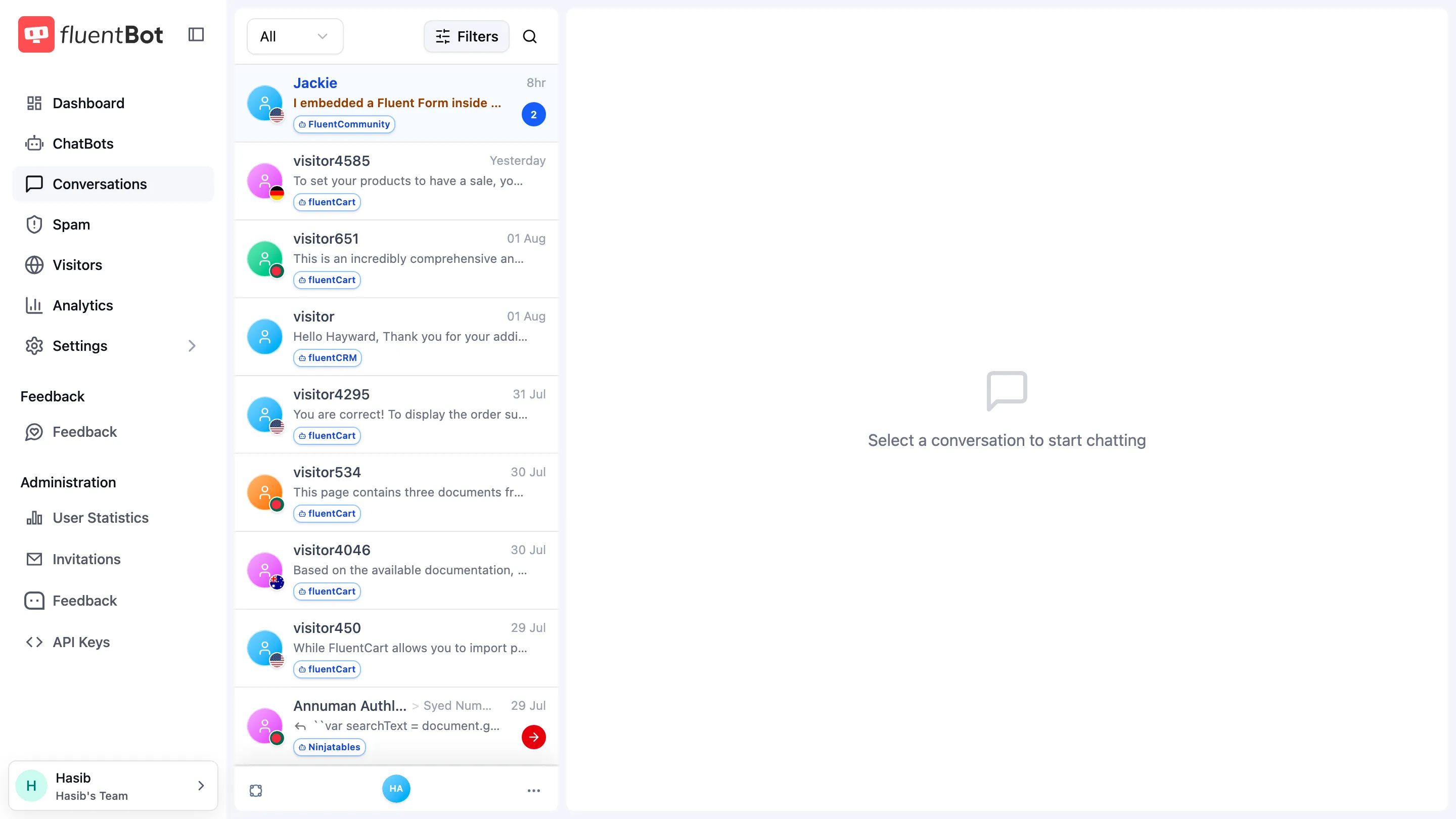
The agent side lives in Live Chat. This page is the conceptual reference: what escalation is, when it triggers, and how it interacts with the bot.
Two escalation modes
Both are configured per bot in Widget Settings via conversation modes.
AI-first with human handoff
Keep AI as the default conversation mode with Human also available. The bot answers normally, but visitors can switch to a human — and FluentBot can offer one automatically after the AI misses a configurable number of answers in a row (Offer a human after failed answers).
Use this for “the bot handles 80%, humans handle the 20% it can’t.”
Human-only
Make Human the only available conversation mode. The bot is bypassed entirely — every visitor message goes straight to your team’s queue. The widget acts as a thin live-chat front-end.
Use this when you want every conversation to be human-led but still want the FluentBot widget aesthetics, live chat, and conversation history.
Escalation states
| State | Meaning |
|---|---|
| Pending | Visitor escalated or sent a live-chat message; waiting for an agent response. |
| Unresolved | An agent has replied, or a resolved conversation was reopened. |
| Resolved | Closed — visitor solved or agent ended the chat. |
Live Chat also tracks whether the visitor connection is still in progress or has been cancelled after disconnect.
Once a chat is escalated, visitor messages route to Live Chat instead of the AI response flow. Agent messages are the responses going to the visitor until the conversation is resolved or restarted.
Agent presence
Whether the team appears online is controlled in Settings → Availability:
- Force offline (invisible mode), Set me available when using the app, or a weekly availability schedule in your timezone.
- With multiple operators, the widget shows online if at least one operator is available.
- There’s no skills-based routing or round-robin. Agents with access to the bot can respond to or assign conversations.
If no agents are available, the widget can still accept messages (Offer a human while the team is offline) — your team replies when back.
Visitor experience
From the visitor’s POV:
- They click escalate (or send a message in Human-Only mode).
- Widget shows the configured waiting message, if one is set.
- Conversation continues with the agent after an agent replies.
- On resolve, the conversation is closed; the visitor can start a new one.
Identity verification (if enabled — see Identity Verification) is preserved through escalation; the agent sees the verified visitor identity.
Email notifications
If a visitor has an email on their visitor profile and agent messages remain unread, FluentBot can send an unread-message email after a delay. See Email Capture for how visitor emails are collected.
What escalation isn’t
- Phone or video handoff — escalation is text only. Use an external voice/video tool if you need calls.
- Skills-based routing — FluentBot doesn’t assign by skill group or queue.
Configuring handoff behavior
The Widget Settings page exposes, under Team agents:
- Offer a human after failed answers — show a “Connect with a human” button once the AI misses this many answers in a row.
0disables the automatic offer; visitors who ask for a person are still offered one. - Offer a human while the team is offline — accept messages even when no operator is available.
- Auto-reply when agents are slow — send a holding message if no agent replies in time.
- Let visitors switch modes — show the AI / Human control in the widget header.
Troubleshooting
- Visitors press escalate but no agent responds — confirm an agent with access to the bot is online and watching Live Chat.
- Bot keeps replying instead of Live Chat — confirm the chat has an open escalation and the visitor is continuing in that same chat session.
- Visitor doesn’t see my reply — confirm the conversation isn’t resolved and the visitor hasn’t disconnected.
What’s next
- Live Chat — agent-side workflow.
- Widget Settings — toggle escalation modes per bot.
- Agent Profiles — agent identity in the widget.
- Message Shortcuts — canned replies for fast escalation handling.