

Agent Profiles
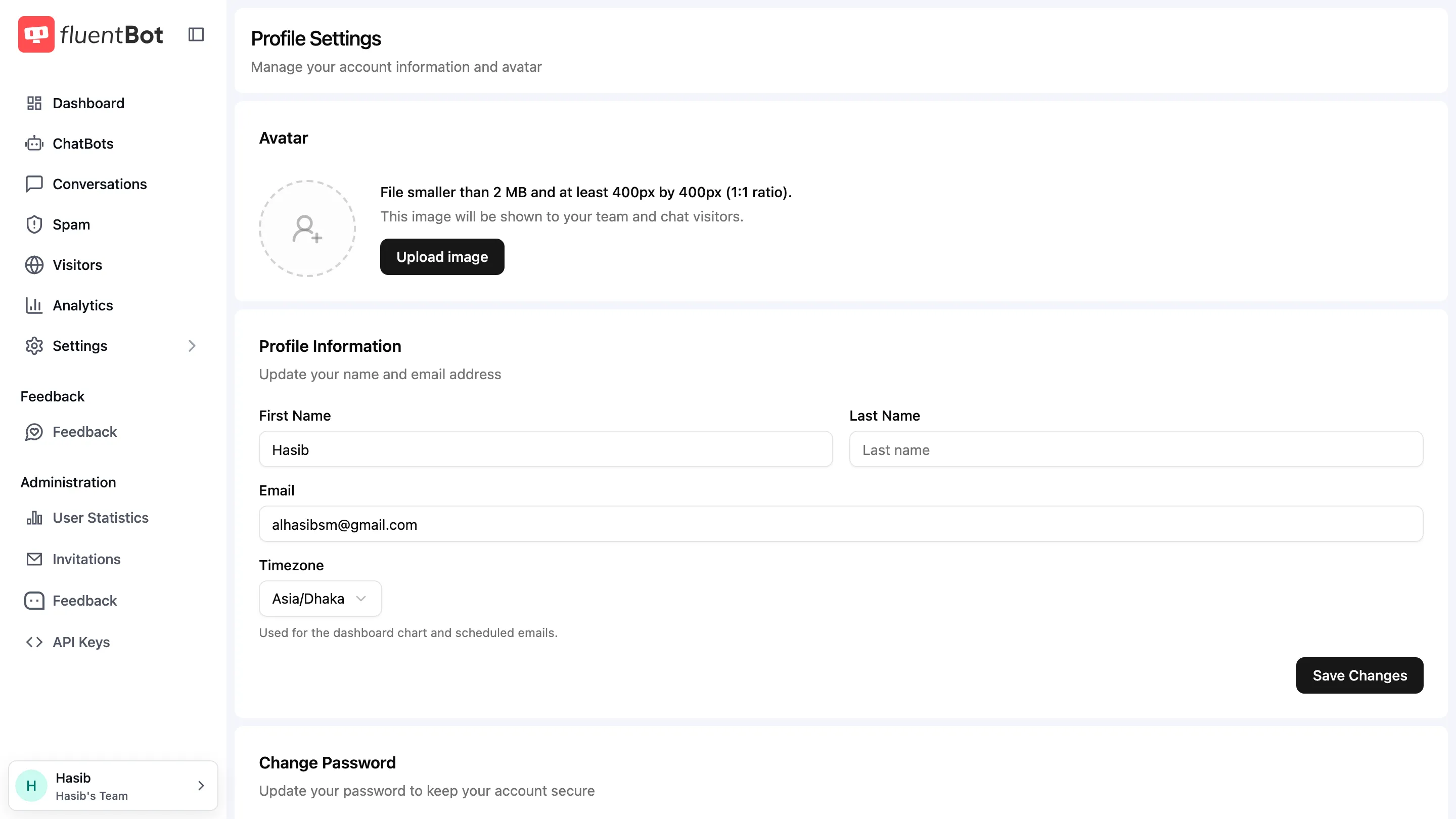
An agent is any team member who handles escalated chats. FluentBot tracks agents through three concerns: identity, presence, and notifications.
Identity
Visitors see an agent identified by:
- Name — pulled from the agent’s Profile (first + last name).
- Avatar — the same avatar from the agent’s profile.
There’s no separate “agent display name” override. To change what visitors see, edit the agent’s profile.
If you want to hide individual identities behind a single team-branded name, use the team-level avatar / branding (see Widget Customization) and configure agents to share a generic name. The widget shows whoever is set on the agent’s profile.
Presence
Agent availability is configured at Settings → Availability. The page shows how you’re currently seen (Online / Offline) and exposes three controls:
| Control | Effect |
|---|---|
| Force offline (invisible mode) | Appear offline regardless of activity. |
| Set me available when using the app | Presence follows your app activity. |
| Enable availability schedule | Configure available days and times in your timezone; visitors see you as away off scheduled hours but can still send messages. |
With multiple operators, the chatbox shows online if at least one operator is available, and away if all operators are unavailable.
There’s no skills-based routing or round-robin. Agents with access to a bot can respond to or assign conversations.
Agent availability shown to visitors
If the Team online toggle in Widget Settings is on, the widget header displays whether the team is currently online. Useful for setting expectations during off-hours.
Notifications
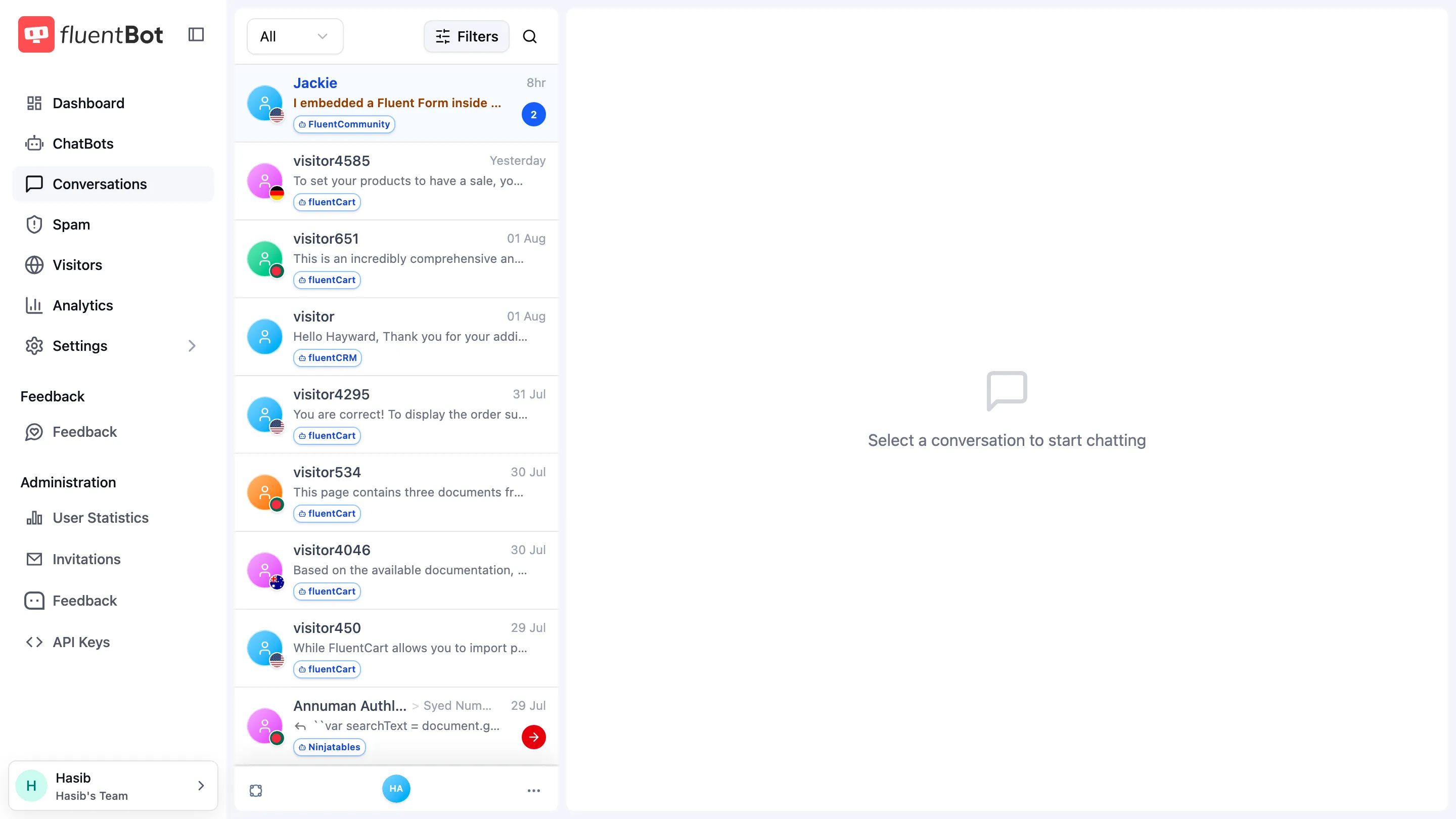
Agents can receive notifications about new escalations and unread messages through browser-based notifications:
- Browser notifications — native Web Notifications API. Grant browser permission from Settings → Notification.
- Push notifications — receive notifications even when the tab is closed or the browser is in the background. Enable from the same page.
Notification preferences
Open Settings → Notification to choose whether message notifications should fire while you are online (Online or Busy status) or offline. You can also send a test notification after enabling notifications.
Agent ↔ team relationship
Agents are team members with the Chat Agent role, or another role that includes chat-handling permissions. Live Chat shows only chats from bots they can access.
Multi-team agents
If a user belongs to multiple teams, the visible bots and live-chat queue follow the active team and bot access.
Troubleshooting
- Visitors see me as offline — check Settings → Availability: force offline may be on, or you’re outside your scheduled hours.
- Browser notifications never fire — confirm permission was granted (browser settings → site permissions → Notifications). Re-toggle in the inbox if denied.
- Push notifications stopped after a while — the browser’s notification registration may have expired after a browser change or reinstall. Sign in again and re-enable notifications.
- Agent’s name showing as their email — they haven’t filled in first/last name in their Profile.
What’s next
- Live Chat — agent workflow.
- Profile — agent identity (name + avatar).
- Human Escalation — what triggers a chat to land on an agent.
- Message Shortcuts — canned replies.