

Live Chat
The Conversations inbox is where human agents monitor visitor chats and take over when the bot can’t handle them. When a visitor asks for a person from the widget — or auto-escalation triggers — the chat is flagged here for the support team.
Open it from the main sidebar → Conversations. It’s a team-level page that aggregates chats from every bot you have access to. Related pages sit alongside it in the sidebar:
- Spam — conversations marked as spam.
- Visitors — live map of visitors currently online (see Visitor tracking).
- Analytics — chat volume and performance metrics.
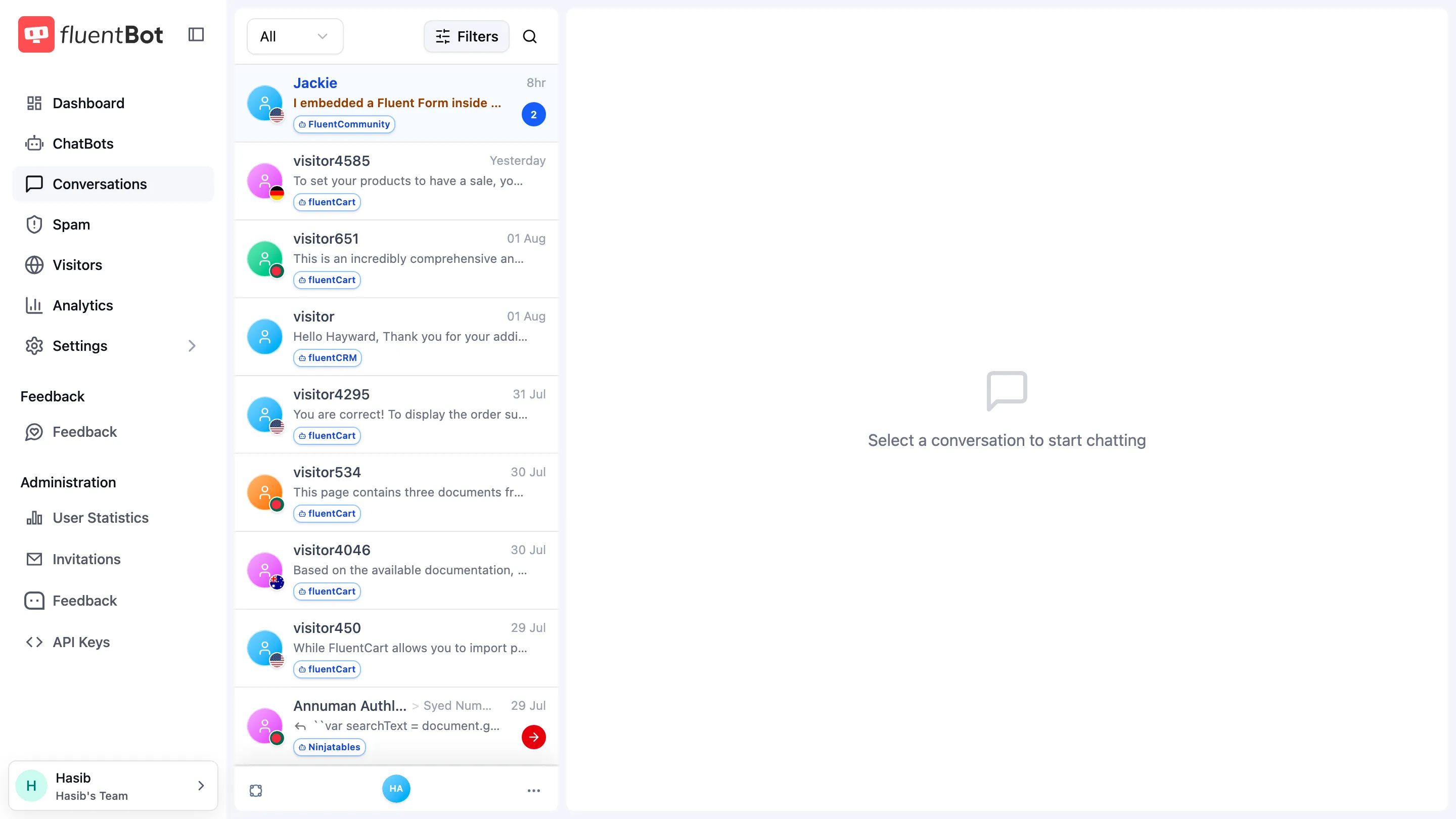
Filters
Above the list:
- Conversation scope — Assigned to me, Unassigned, or All conversations.
- Filter by handler — Human escalated or AI handled.
- Filters — an advanced filter builder: stack conditions to build your own inbox view (all conditions must match).
A Conversation actions menu offers bulk operations: Mark all messages as read and Resolve all conversations.
Conversation list
Each row shows the visitor (name if captured, otherwise an anonymous identifier like visitor51148), country, last-message preview, time, source bot name, and the assigned agent’s avatar when a human has taken over. Newest first.
Conversation pane
Selecting a row renders the full thread on the right:
- Visitor messages on one side, bot (AI) replies on the other.
- System markers show handoffs — Human support started. AI is paused. New messages go to the support team. — and resolution points.
- Agent messages are attributed to the agent, not the bot.
The pane header has three controls:
- Start Live — join the conversation as a human agent (pauses the AI).
- Resolve — close the conversation.
- Translate — translate the thread.
Composer
The composer at the bottom has three tabs:
- Reply — send a message to the visitor.
- Note — private agent-only internal note attached to the chat.
- Shortcuts — insert a saved canned response (see Message Shortcuts).
If the visitor is still chatting with the AI, a banner reminds you: your reply will still reach them — with an Invite to live chat button to pull them into a live session.
Visitor panel
The right rail shows everything known about the visitor:
- Main Information — identifier, country, email (with Add email if not captured).
- Conversation Routing — which agent handles the chat.
- Visitor Device — browser/device details.
- Last Browsed Pages — the pages the visitor viewed before and during the chat.
When does a chat escalate?
Escalation is configured per bot in Widget Settings. Triggers:
- Manual — visitor clicks the escalation button in the widget (when Enable Human Escalation is on).
- Human-only mode — bot is bypassed entirely; every chat is routed to an agent.
Availability
Whether visitors see the team as online is controlled in Settings → Availability:
- Force offline (invisible mode) — appear offline regardless of activity.
- Set me available when using the app — presence follows app activity.
- Availability schedule — configure days and times (in your timezone). Off scheduled hours visitors see you as away but can still send messages.
If your workspace has multiple operators, the chatbox shows online if at least one operator is available, and away if all operators are unavailable.
Notification preferences (browser and push notifications for new messages and escalations) live in Settings → Notification.
Visitor side
The visitor’s widget reflects the live state:
- Waiting — “Connecting you to a person…” message.
- Agent joined — banner with agent’s name; bot stops responding.
- Resolved — banner that the chat is closed; visitor can start a new one.
Updates appear automatically while the conversation is open.
Email notifications
If a visitor is offline when an agent replies, FluentBot can send an unread-message email after a short delay.
Troubleshooting
- No escalated chats show up — confirm escalation is enabled in Widget Settings and the visitor actually clicked the button (or human-only mode is on).
- Visitors always see the chat as away — check Settings → Availability: force offline may be on, or no operator is inside their scheduled hours.
- Visitor doesn’t see my reply as live chat — click Start Live first; until then the AI keeps handling the thread (your reply still reaches the visitor).
- Missing notifications — check Settings → Notification: browser permission must be granted, and the right online/offline message toggles enabled.
What’s next
- Widget settings — configure escalation triggers.
- Conversations — per-bot chat history view.
- Message Shortcuts — manage canned replies.
- Human escalation — feature deep-dive.