

Knowledge Sources
A knowledge source is anything you point a bot at so it can answer questions about it. FluentBot supports seven source types grouped into three families — you can mix any combination on one bot.
Source Types
| Family | Sub-types | Best for |
|---|---|---|
| Website Links | URL, URL List, Crawl, Sitemap | Help centers, docs sites, public marketing pages |
| Files & Text | File upload (PDF / TXT / Markdown), pasted Text | Internal PDFs, brochures, ad-hoc snippets |
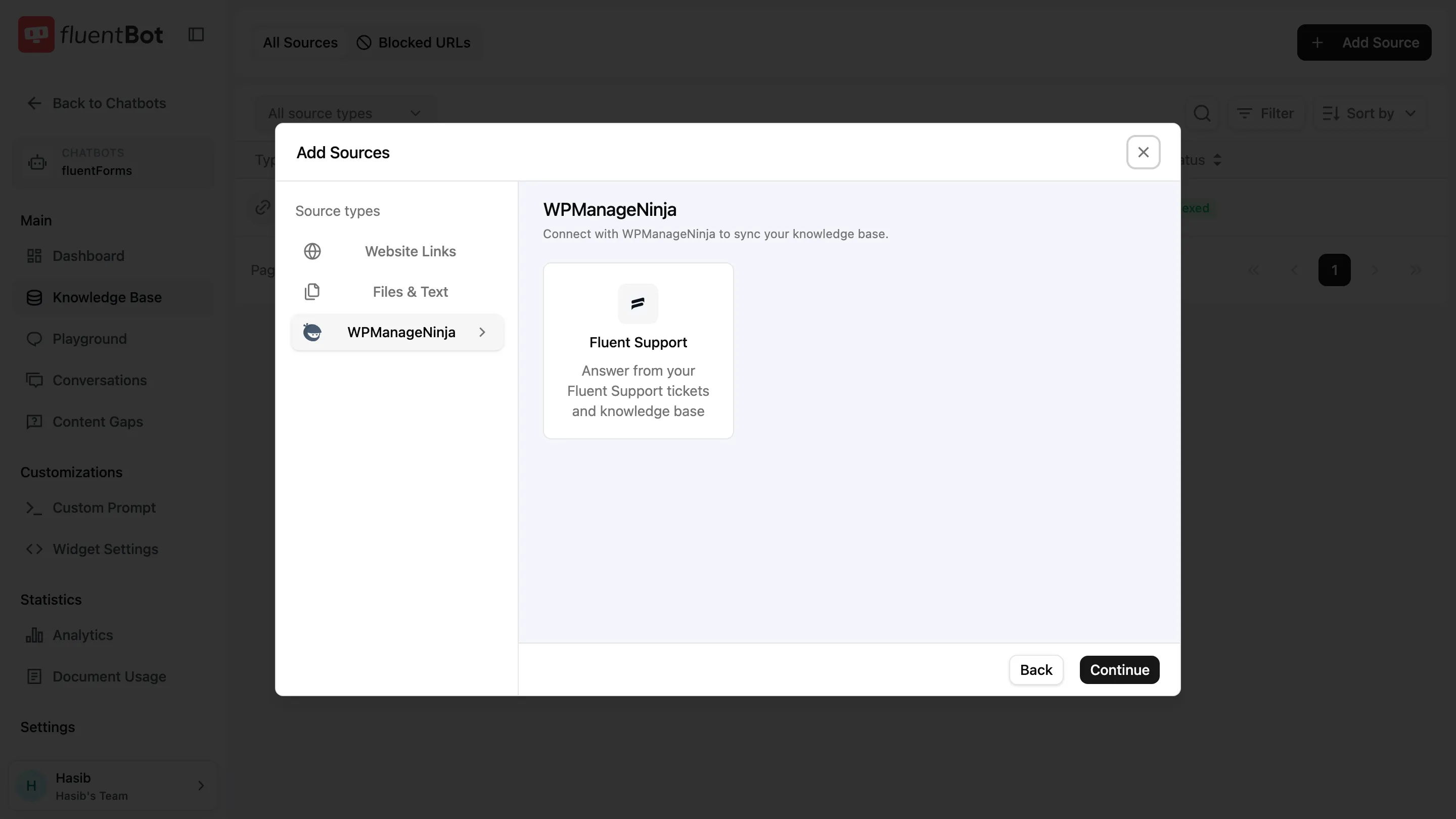
| WPManageNinja | Fluent Support | Existing Fluent Support customers - answer from support tickets |
For the full add-source walkthrough, see Train your bot.
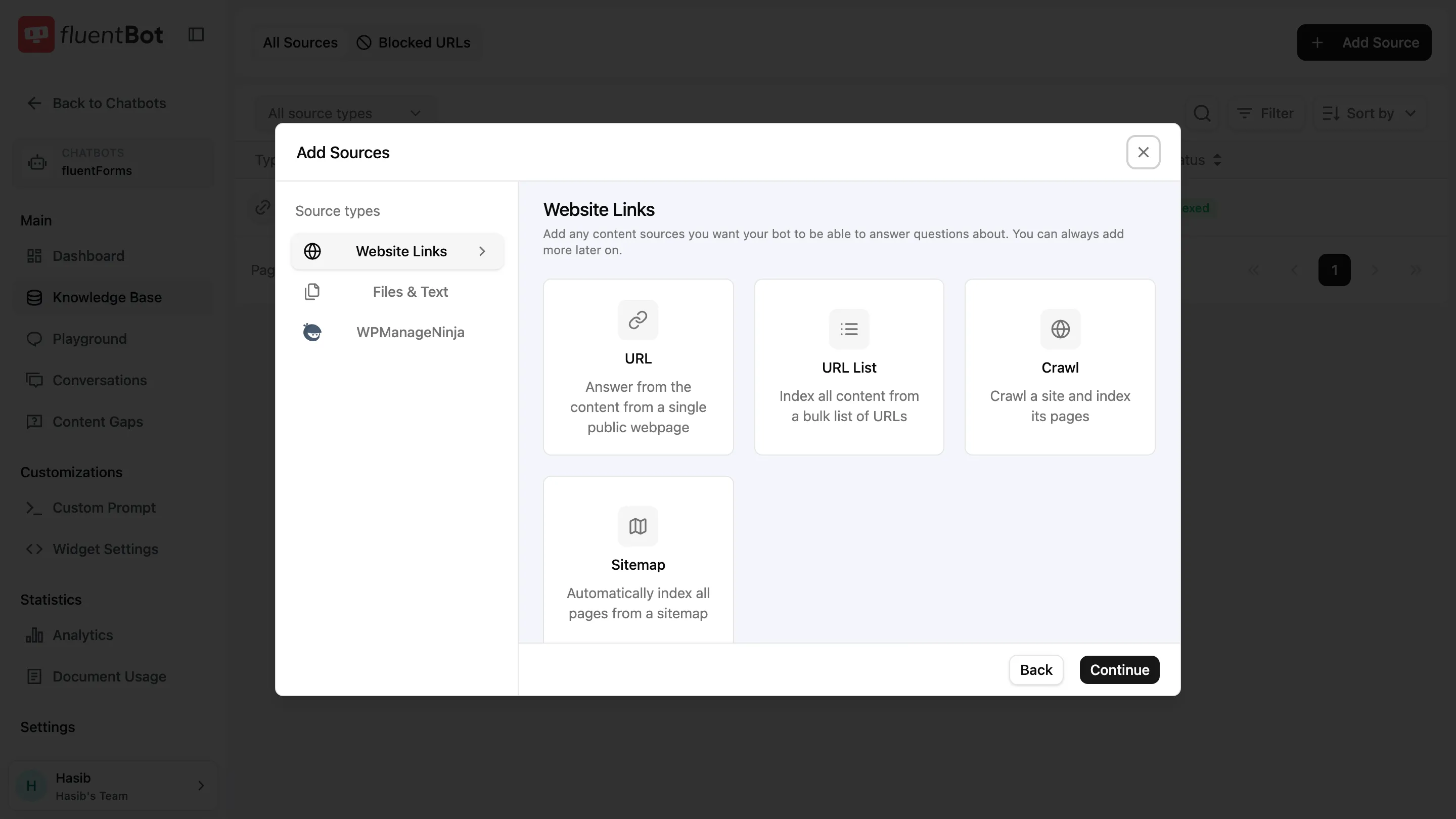
Website Links
Website Links fetch public web content and turn each page into one or more documents. You can set them to re-check on a schedule: Never, Daily, Weekly, or Monthly.
Use the bot’s Blocked URLs list to prevent specific pages or paths from being indexed.
URL
Use URL when you only need one public page, such as a landing page, policy page, or single help article.
Form fields:
- URL - the absolute page URL.
- Source title - optional display name. Defaults to the page title or URL.
- Scheduled refresh - how often FluentBot should re-check the page.
Best fit:
- One page has the exact answer content.
- You want tight control over what the bot learns.
- A broader crawl would include low-value pages.
URL List
Use URL List when you already know the exact pages to index. Upload a .txt file containing one URL per row.
Form fields:
- File - a TXT list of public URLs.
- Source title - optional display name. Defaults to the uploaded filename.
- Scheduled refresh - how often FluentBot should re-check listed URLs.
Best fit:
- Curated docs pages.
- A subset of a large site.
- A manually reviewed list from another system.
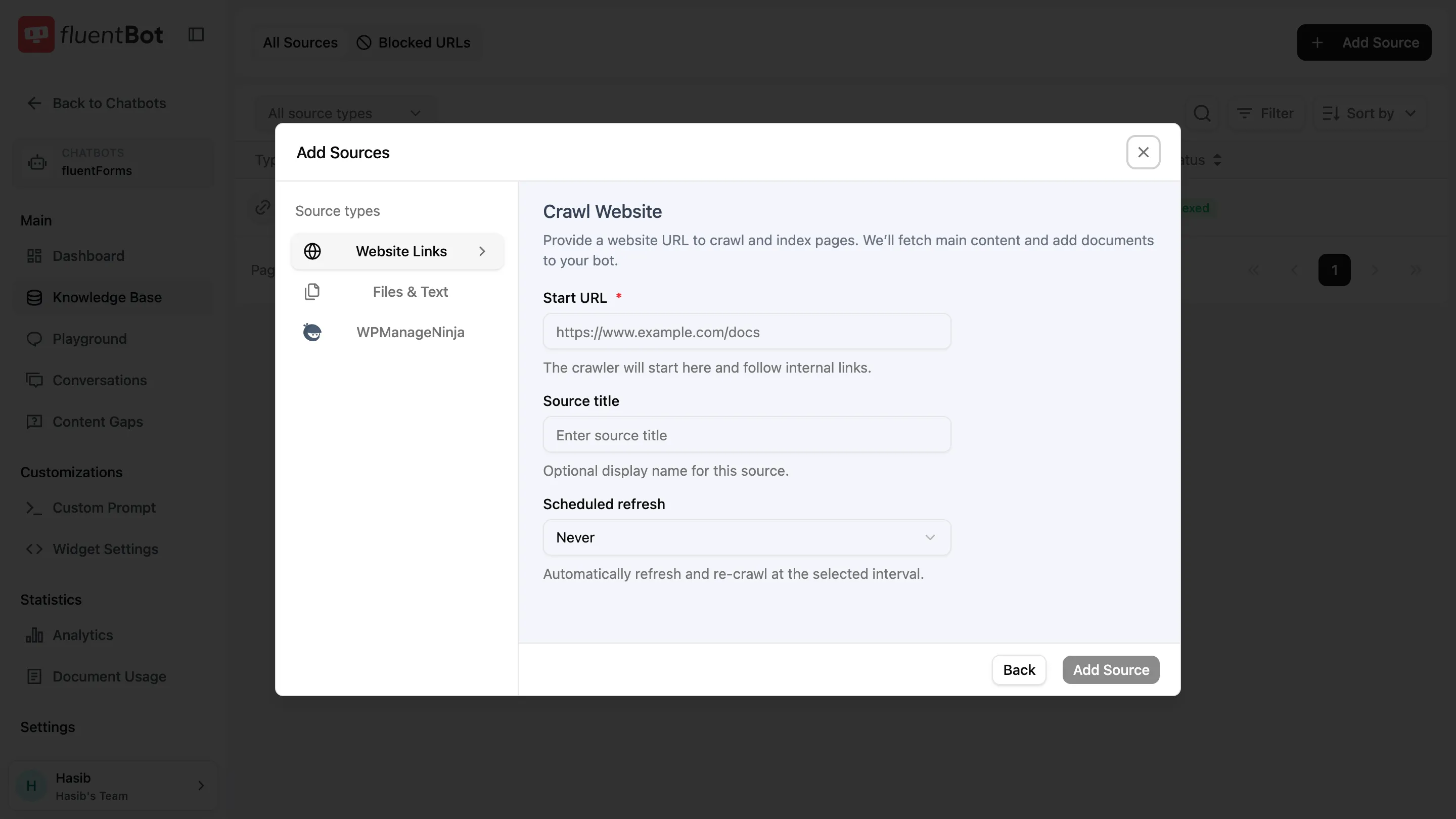
Crawl
Use Crawl when you want FluentBot to start from one URL and follow internal links.
Form fields:
- Start URL - where the crawler begins.
- Source title - optional display name. Defaults to the URL.
- Scheduled refresh - how often FluentBot should re-crawl.
What gets crawled:
- Internal links reachable from the start URL.
- Pages on the same site area, subject to crawler limits and blocked URLs.
- HTML pages with readable public content.
What is skipped:
- External domains.
- Blocked URLs.
- Login-only pages.
- Non-HTML assets such as images, videos, and downloads.
Prefer Sitemap over Crawl when a clean sitemap exists. Sitemap is faster and avoids accidental discovery of unrelated sections.
Sitemap
Use Sitemap when a site publishes a sitemap.xml that lists the pages you want indexed.
Form fields:
- Sitemap URL - the absolute URL of the sitemap file.
- Source title - display name in the sources table.
- Scheduled refresh - how often FluentBot should re-fetch the sitemap.
Most sites publish sitemaps at one of these locations:
https://example.com/sitemap.xmlhttps://example.com/sitemap_index.xml- Listed in
https://example.com/robots.txtunderSitemap:
If a sitemap index contains multiple sub-sitemaps, point FluentBot at the specific sitemap you want. This avoids indexing unrelated pages.
Sitemap quality matters:
- Stale URLs can fail during indexing.
- Missing URLs won’t be indexed.
- The wrong sub-sitemap can train the bot on unrelated content.
Files & Text
Files and Text sources are for content you already have. They don’t have scheduled refresh — FluentBot can’t know when your local file or pasted text changes.
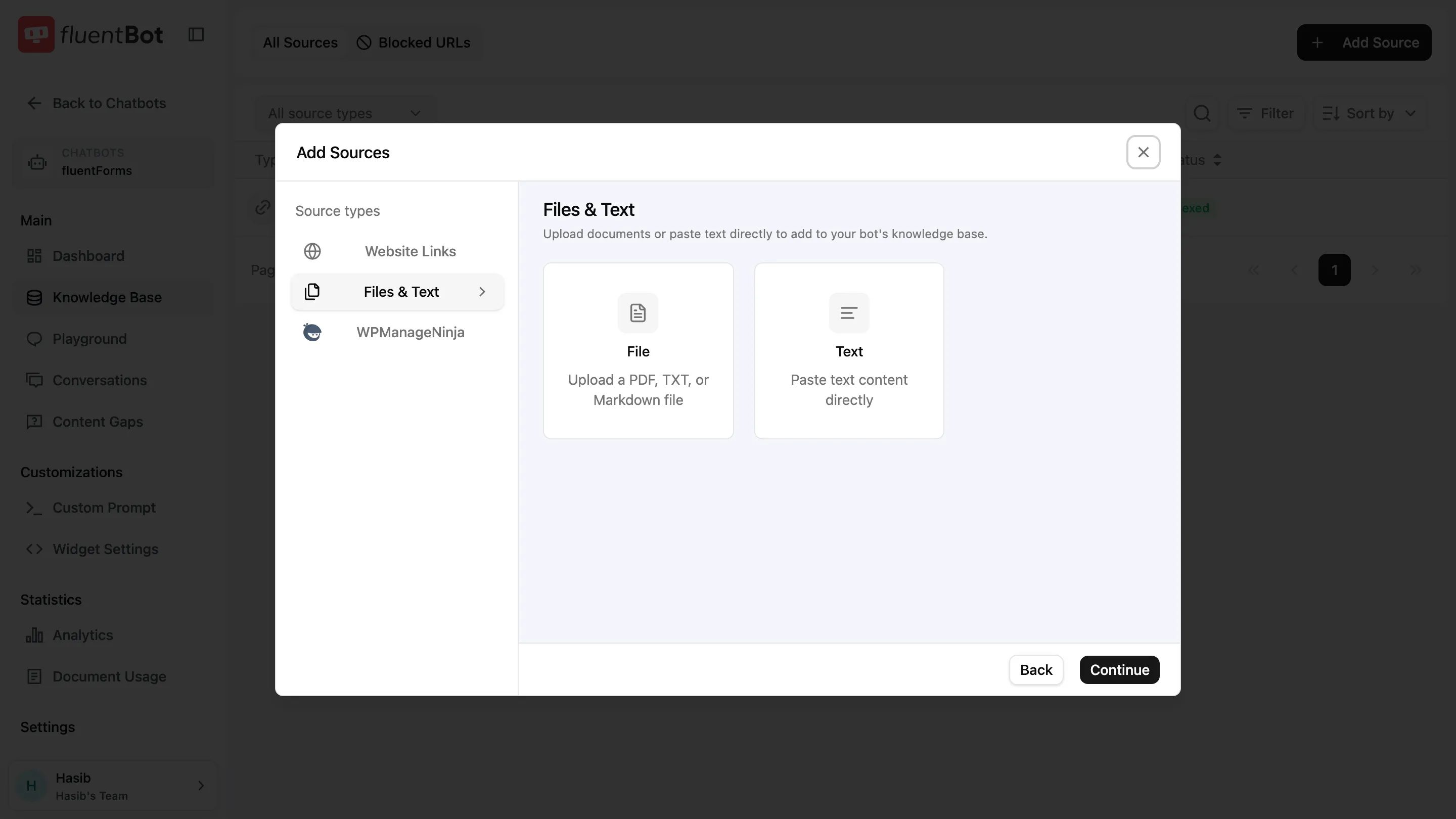
File
Use File for PDFs, TXT files, and Markdown files.
Supported formats:
- PDF - text-based PDF documents.
- TXT - plain text.
- Markdown -
.mdfiles, with structure preserved as text.
Form fields:
- File picker - drag-and-drop or choose a file.
- Source title - optional display name. Defaults to the filename.
Files are limited to 20 MB at upload time.
To replace a file, delete the old File source and upload the updated file. FluentBot doesn’t edit uploaded files in place.
If a file extracts poorly, convert it to Markdown or paste the corrected text as a Text source.
Text
Use Text for short or medium content that is easiest to paste directly, such as policies, FAQs, canned instructions, or internal notes.
Form fields:
- Title - required display name.
- Content - pasted source text.
Text is usually the fastest way to add a small amount of reliable information. It’s also useful when a web page or PDF extracts poorly.
To update Text content, delete the old source and add a new Text source with the corrected version.
Fluent Support
Use Fluent Support when your team already has support tickets in a WordPress site running Fluent Support.
Form fields:
- Domain - the WordPress site domain.
- Username - a WordPress user with the required access.
- Application Password - a WordPress application password.
- Ticket status - ticket statuses to include.
- Product - product scope for imported tickets.
- Tags - optional tag filter.
- Date filter - optional date scope.
- Refresh schedule - how often FluentBot should sync matching tickets.
FluentBot fetches matching tickets from the Fluent Support API and adds the resulting ticket content to the bot’s knowledge base.
How sources become usable
Every source follows the same high-level path: add the source, wait for it to finish processing, then test answers in Playground.
Source vs. document
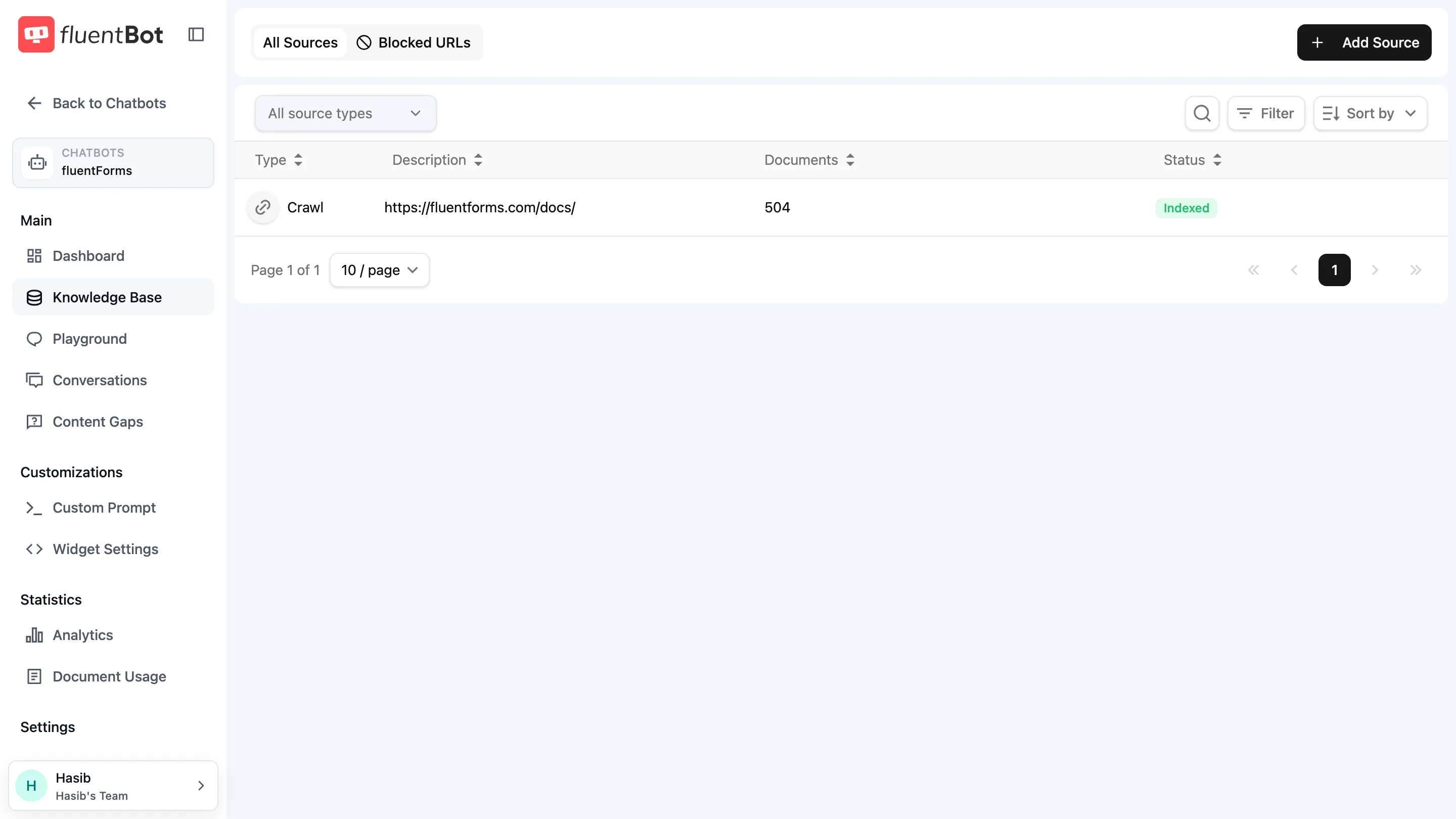
- Source - what you add (a URL, a sitemap, a file, a Text paste). Has a status (Indexed / Failed / Partially Indexed / Scraping / Indexing / Queued / Deleting).
- Document - one indexed unit produced by the source. URL-based sources usually create one document per page. Text creates one document per paste. File sources can create one or more documents because large files are split into chunks.
The bot dashboard tracks both source count and indexed document count.
Choosing a source type
| Goal | Use |
|---|---|
| Index every page on a site | Sitemap if there’s one, otherwise Crawl |
| Index one public page | URL |
| Index a curated list of public pages | URL List |
| Add a PDF, TXT, or Markdown file | File |
| Add short internal text | Text |
| Use existing Fluent Support tickets | Fluent Support |
You can mix any combination on one bot.
Status flow
Sources move through status states on the Sources page.
Common states:
Queued- waiting to start.Scraping- fetching website content.Indexing- preparing content for answers.Indexed- ready for the bot to use.Partially Indexed- some content worked and some failed.Failed- no usable content was indexed.Deleting- cleanup is running.
Open a source row to see details, failures, and retry options.
Plan limits
The PAGES counter on the Billing page caps indexed documents across the team. Website pages usually map one-to-one, while large files can count as multiple chunks. When you hit the limit, new indexing is blocked until you delete sources or upgrade.
Text usually counts as one document. Files and website sources can count as one or more documents depending on their size and page count.
Refresh
Website Links and Fluent Support sources can have a refresh schedule. Files and Text don’t change unless you replace them.
On refresh:
- Website pages are re-fetched.
- Changed content is updated.
- New sitemap or crawl pages can be added.
- Missing or removed pages and files are removed from the index.
See Retrain & Update for refresh and retry guidance.
Blocked URLs
A per-bot deny-list applies across every Website Links source. Add URLs the crawler should never index, such as careers pages, login walls, or marketing-only sections that confuse answers.
Manage from Knowledge Base > Blocked URLs (see Sources).
What’s next
- Train your bot - the full add-source walkthrough.
- Sources - manage existing sources and statuses.
- Retrain & Update - keep content fresh.