

Teams & Members
A team is the unit of ownership in FluentBot. Bots, sources, conversations, subscriptions, and member access are all team-scoped. A user can belong to multiple teams and switch between them, but every action happens inside the currently active team.
When you registered, FluentBot auto-created "{Your Name}'s Team" with you as the owner. Rename it, change the avatar, invite members, or work across multiple teams.
Members page
Open from the main sidebar → Members.
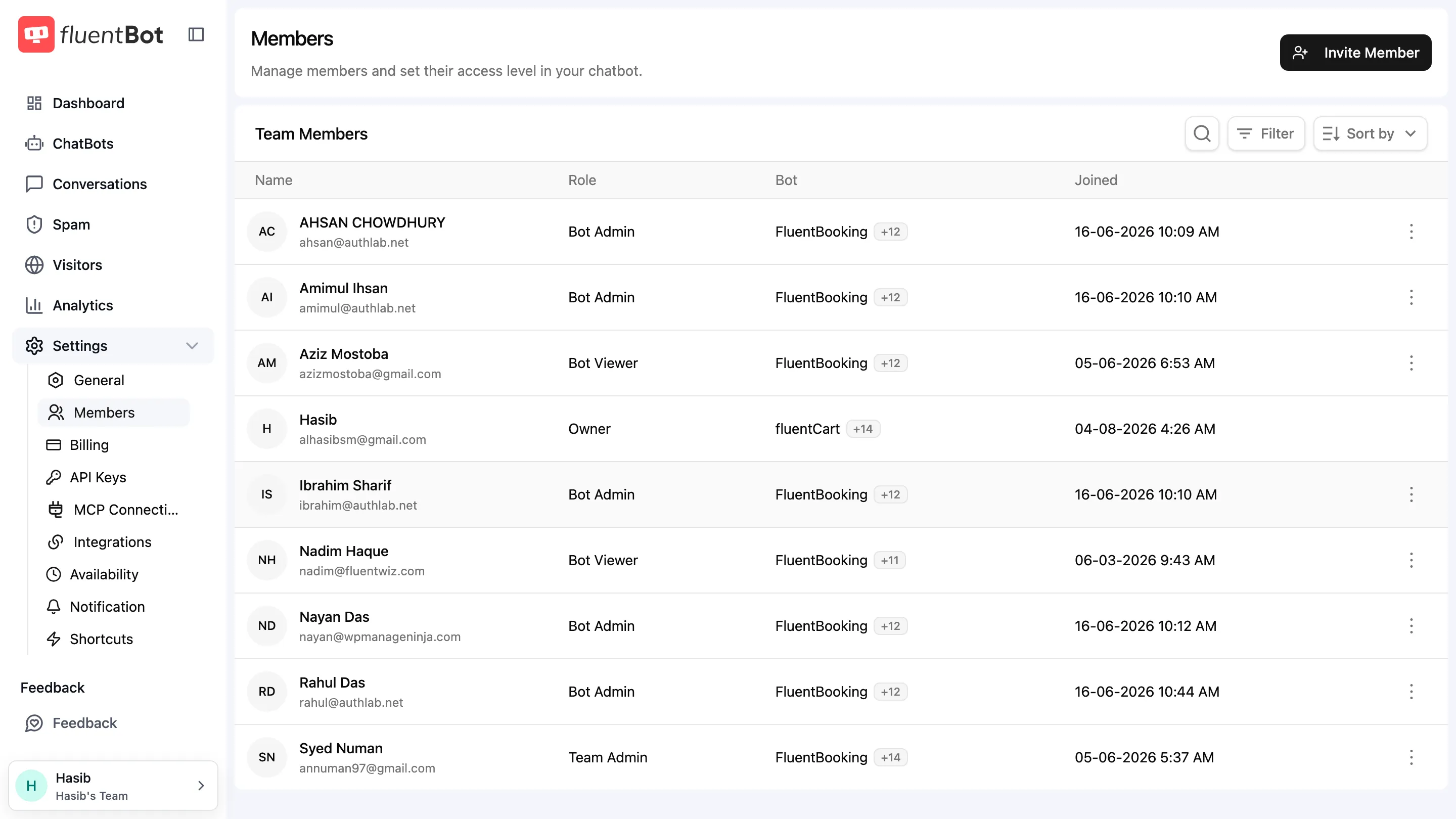
Columns: Name (with email), Role, Bot (which bots they can access), Joined. Filter and sort controls sit above the table.
Switching teams
Click the account chip at the bottom of the sidebar to open the account menu — your teams are listed under My Teams. Picking a team:
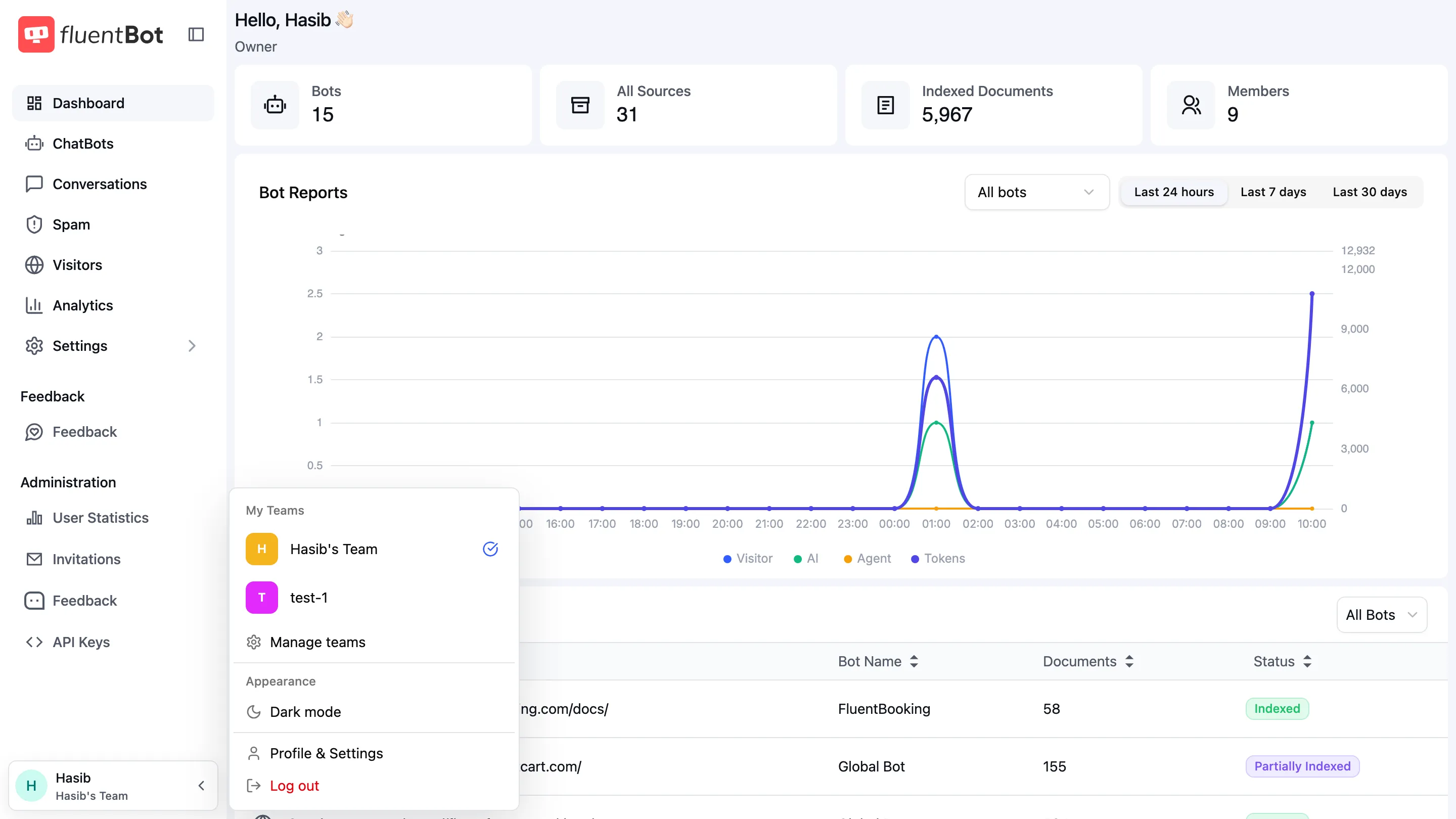
- Reloads bots, conversations, and analytics scoped to that team.
- Shows your role badge for the new team.
You can switch only to teams you belong to. Your role can differ between teams — you might be Owner in one and Bot Viewer in another.
Switching teams changes your active team for the current workspace. It doesn’t change your default team. Your default team is used as the fallback team when you leave or are removed from another team.
Setting a default team
Open the team switcher page to see every team you belong to. The current default team is marked with a Default badge.
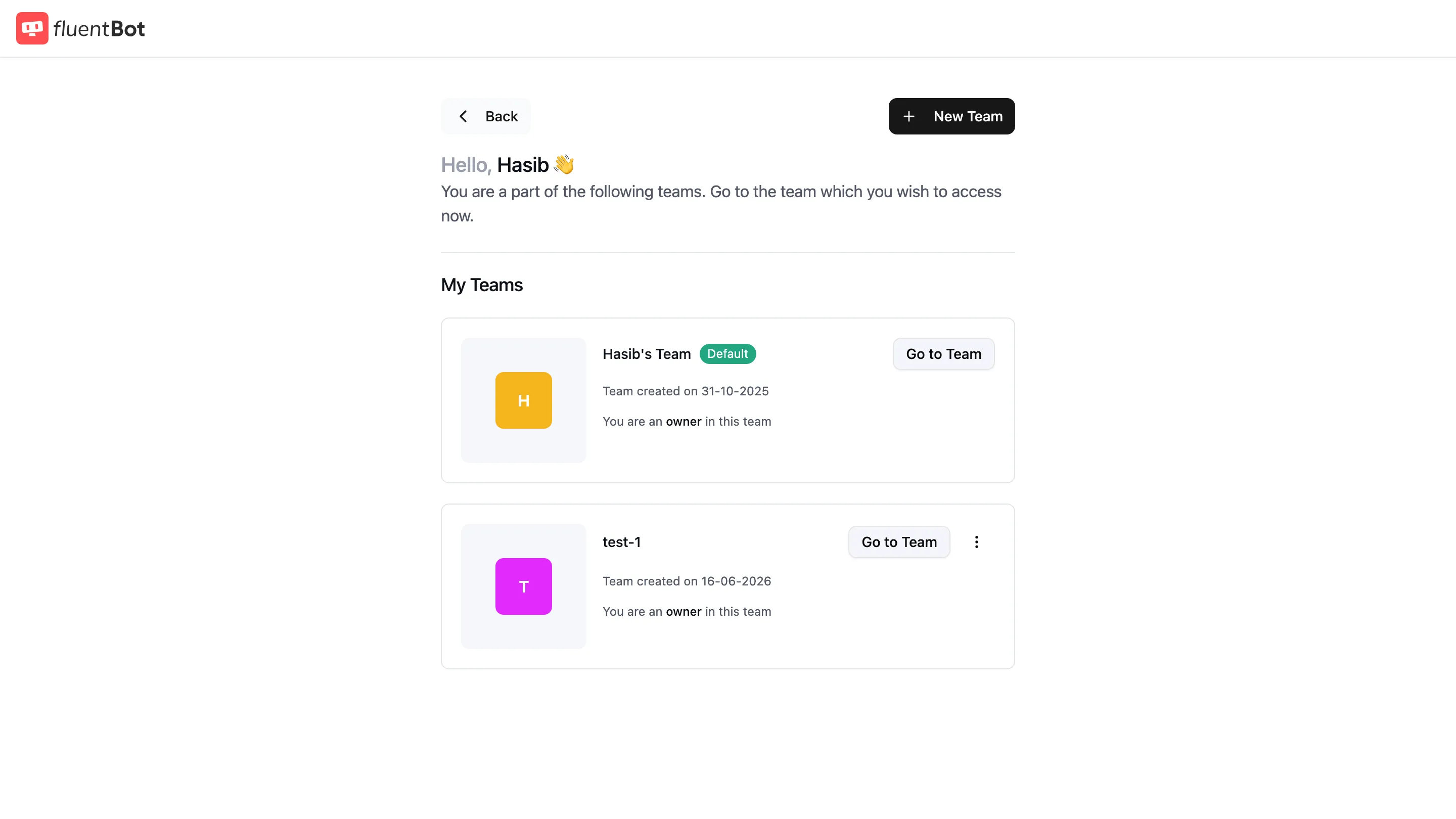
To change it:
- Open the account menu at the bottom of the sidebar.
- Click Manage teams.
- Find another team where your role is Owner.
- Open the team’s actions menu.
- Click Set as default.
Changing the default team doesn’t switch your active team. If you’re working inside Team A and set Team B as default, you stay inside Team A until you explicitly click Go to Team or switch teams from the header.
Default teams follow these rules:
- You can only set a team you own as default.
- Every active account should keep one owned team as its default.
- Teams where you’re only a member, admin, editor, viewer, or chat agent can’t be set as your default.
- Your current default team can’t be deleted or transferred until another owned team is set as default. If it’s your only owned team, create another team and set it as default first.
Roles
FluentBot uses a fixed set of team roles:
| Role | What they can do |
|---|---|
| Owner | Full control: billing, members, all bots, settings. One per team. |
| Team Admin | Manage members, billing, and team settings. Can’t transfer or delete ownership. |
| Bot Admin | Create, edit, delete bots and sources within the team. |
| Bot Editor | Edit existing bots — sources, prompts, widget settings — but not delete. |
| Bot Viewer | Read-only across the team’s bots. |
| Chat Agent | Handle live chat escalations. Limited to conversation tooling. |
Roles are assigned at invite time. A teammate’s role can be changed from their row’s actions menu later. Owner isn’t an invite role; ownership uses the transfer flow.
Inviting a member
Click Invite Member on the Members page → opens /members/invite.
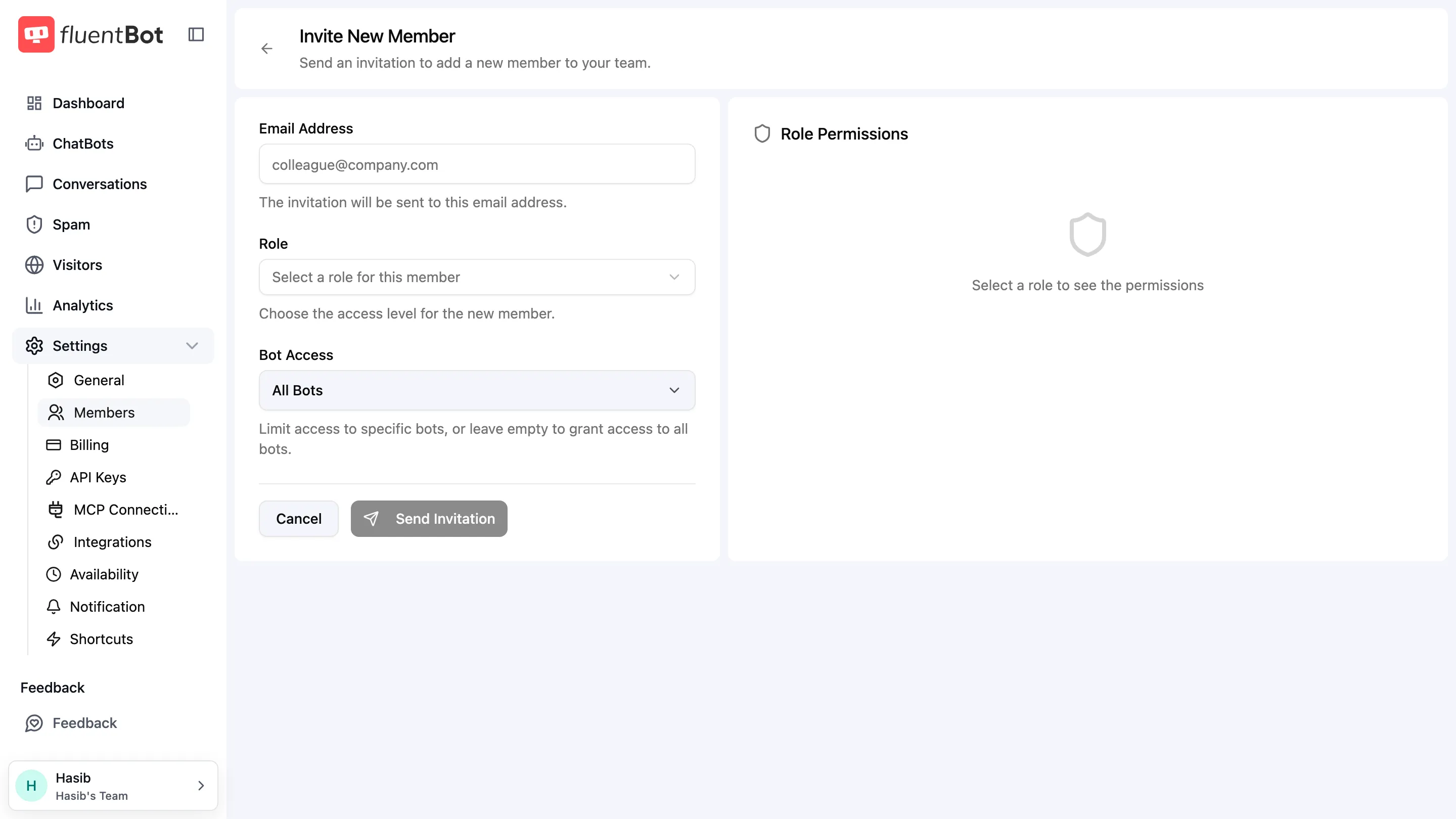
Fill in:
- Email Address — invitation goes here.
- Role — pick from the dropdown (Owner isn’t selectable here; that role belongs to the team creator).
- Bot Access — leave as All Bots to grant access to every bot, or pick a subset.
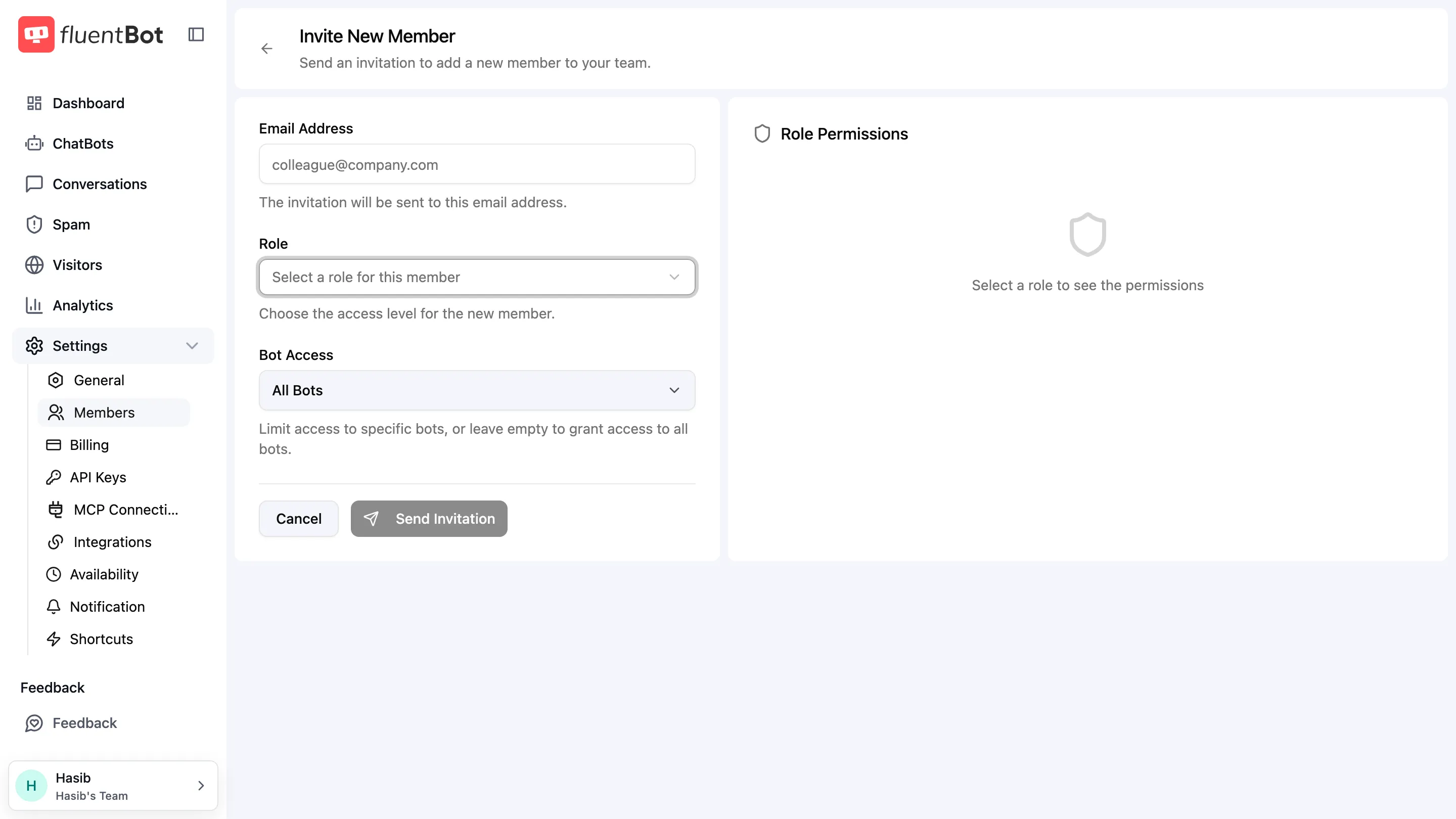
The right-side Role Permissions rail previews exactly what the chosen role can do — useful for picking the right one.
Click Send Invitation. The invitee’s row joins the table after they accept (see Invitations for the recipient side).
Removing a member
From the Members table, click the row’s overflow menu → Remove:
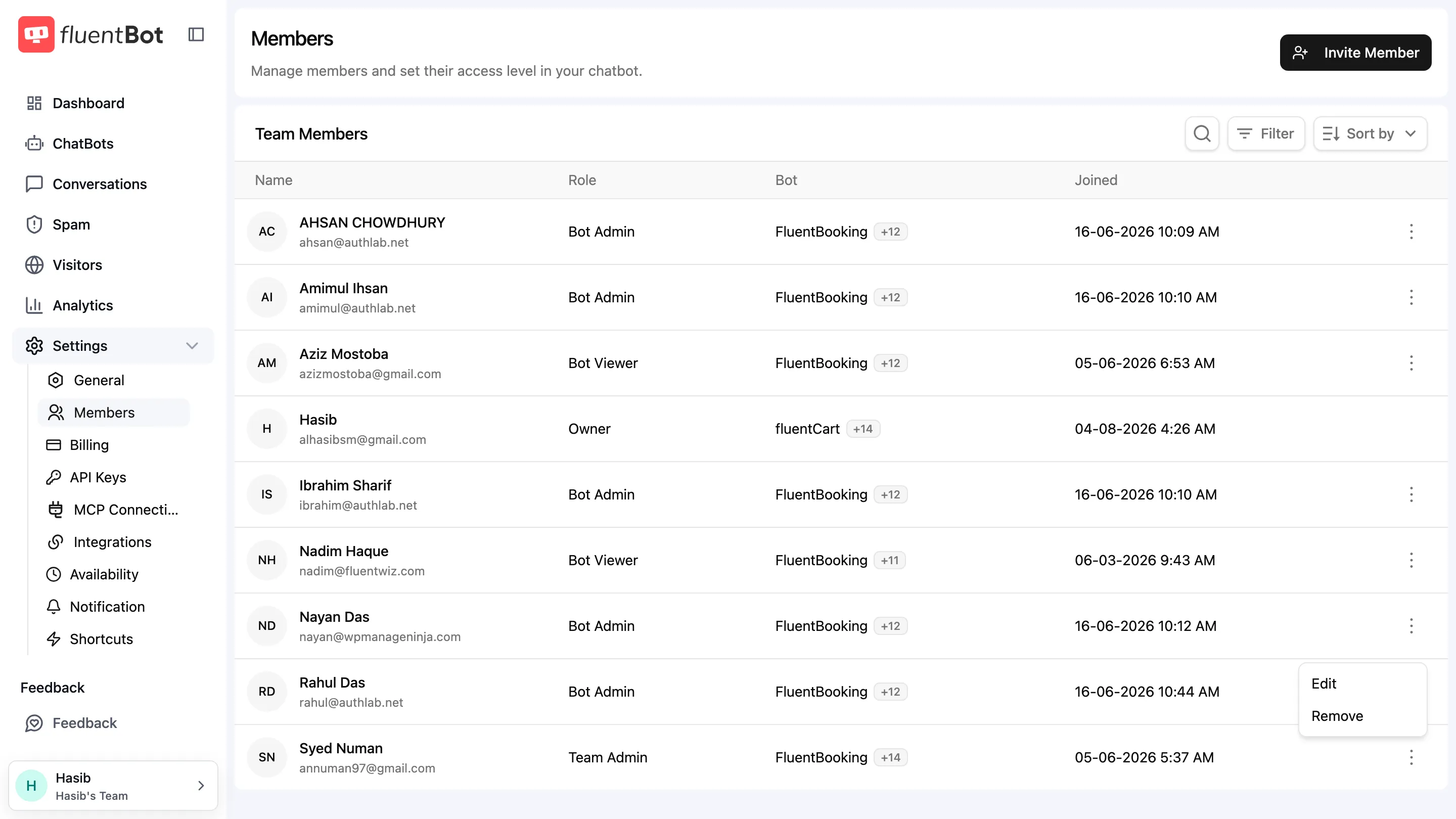
- The user is detached from this team.
- Their roles, permissions, and per-bot access are revoked.
- If this was their active team, they’re switched to another team they belong to on next request.
The user’s account itself is untouched — they only lose access to this team.
Leaving a team
A non-owner can leave from the Manage teams page → Leave team:
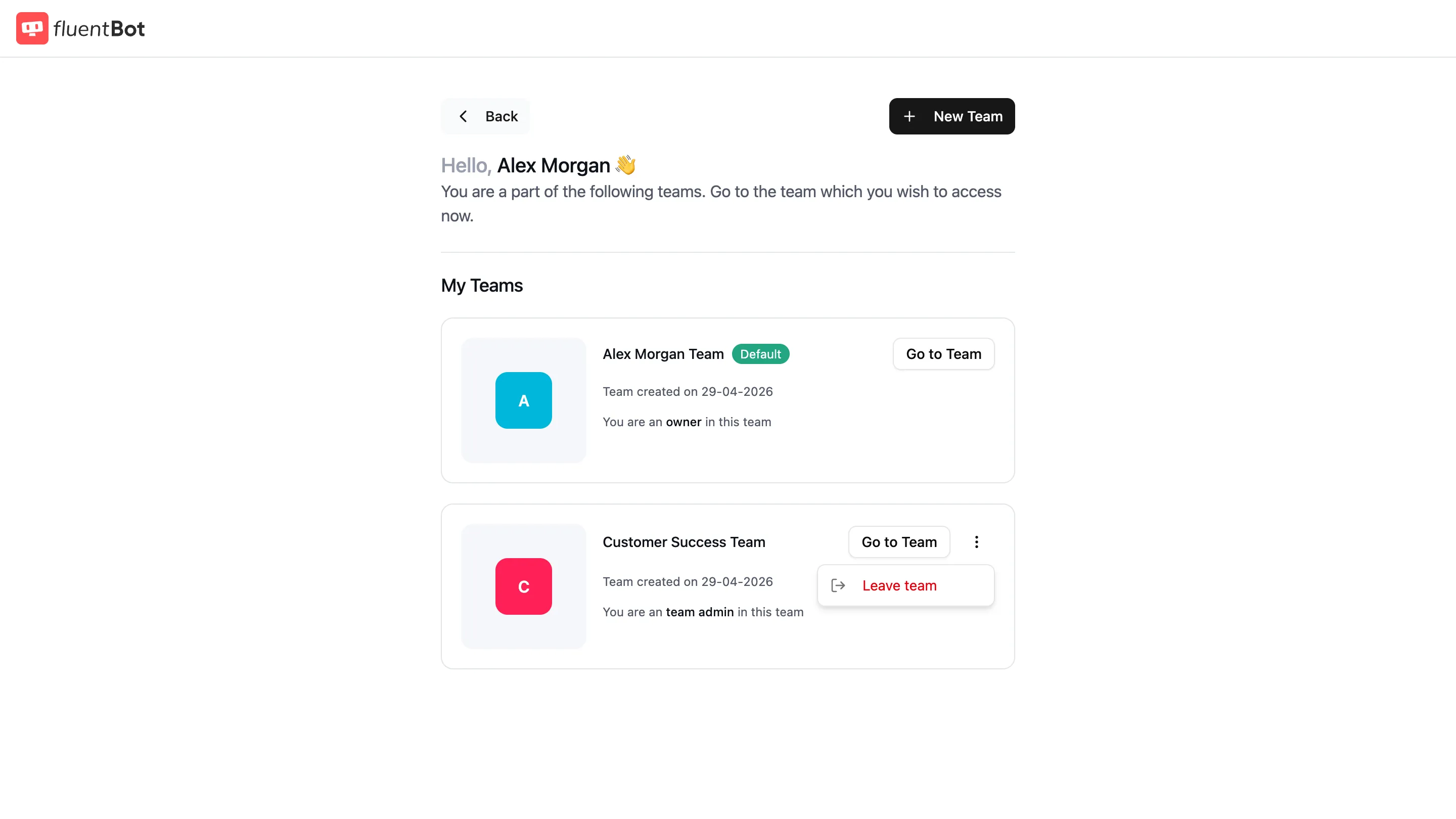
- Same effect as being removed.
- Owners can’t leave their own team. Transfer ownership first if you no longer need to own the team.
Transferring ownership
Owners can transfer a non-default team to another verified team member from the member row’s actions menu.
Before you start:
- The team must not be your default team.
- The new owner must already be a verified member of the team.
- You must know your current password.
To transfer ownership:
- Make sure the new owner is already a member of the team.
- Open Members.
- Open the member’s row actions menu.
- Click Transfer ownership.
- Confirm with your current password.
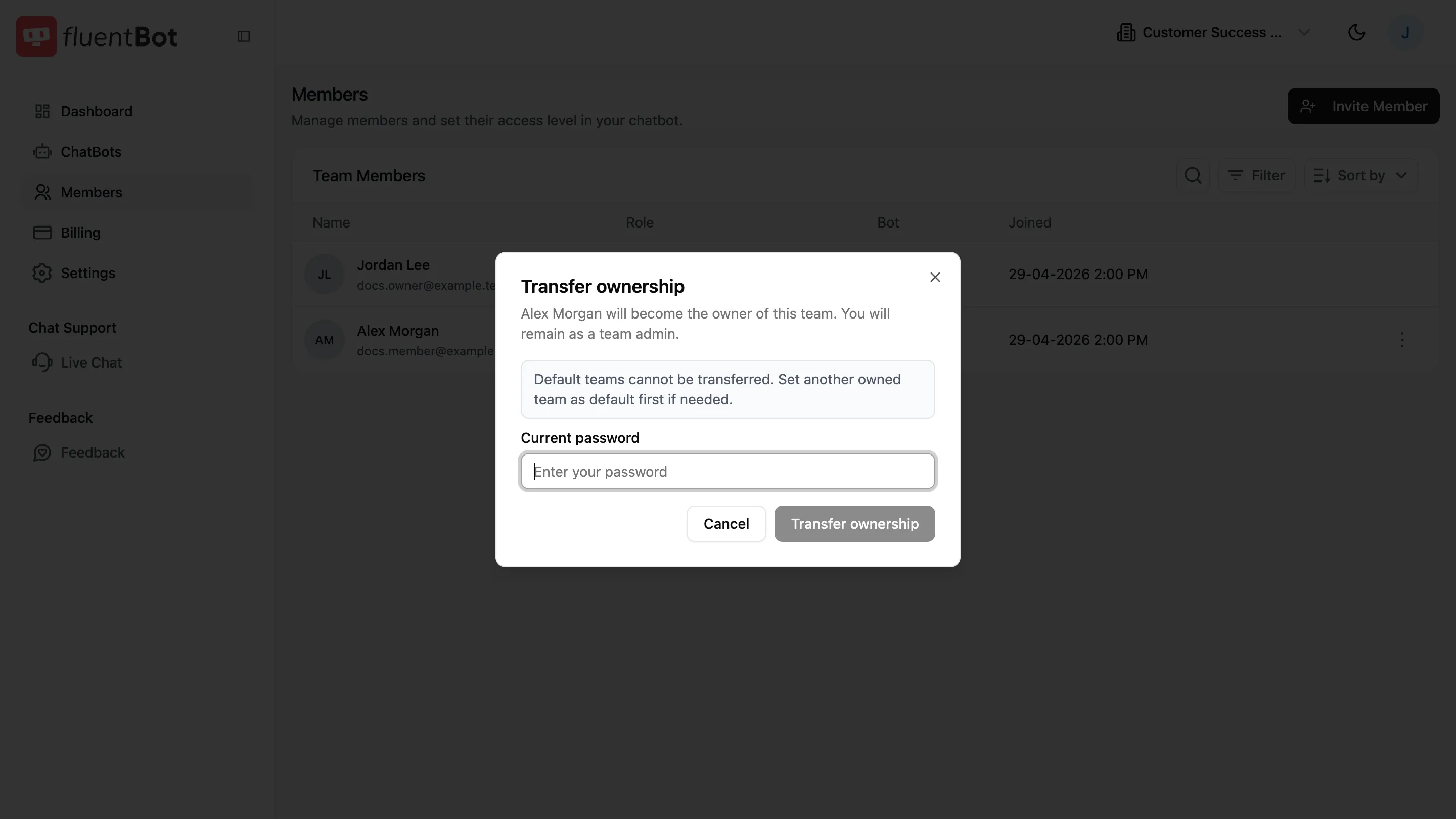
After transfer, the selected member becomes owner and receives access to all team bots. The previous owner remains on the team as a team admin and can no longer delete that team or transfer its ownership.
If the password is wrong, the transfer is rejected and ownership stays unchanged.
Team Settings
Open from the main sidebar → Settings → General.
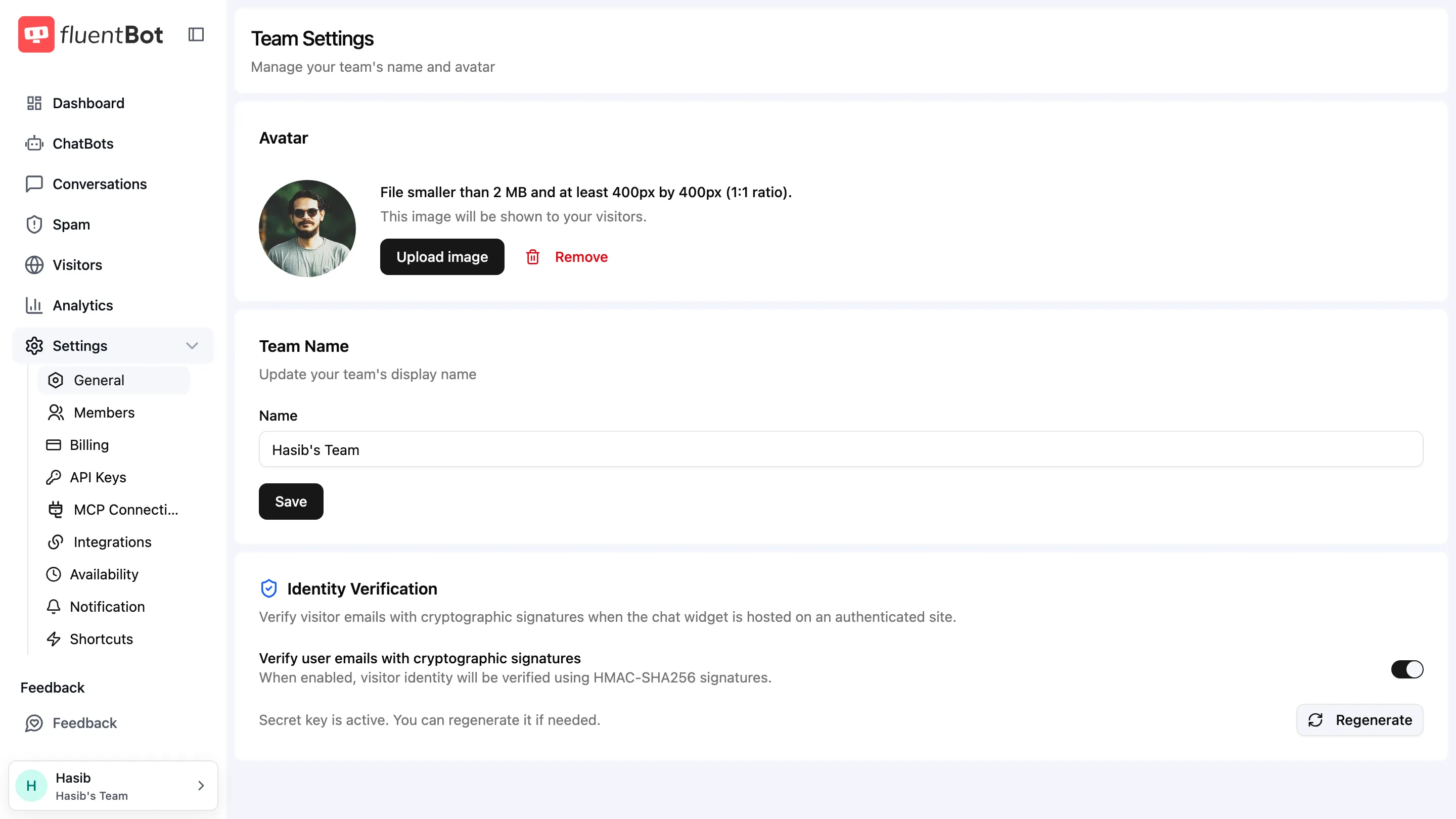
Editable here:
- Avatar — under 2 MB, ≥ 400 × 400, 1:1 aspect ratio. Shown to visitors in the widget.
- Team Name — display name in the team switcher.
Signed visitor identity moved to its own page — see Identity Verification.
Team Settings also shows safety actions when they apply:
- Leave Team — available only for non-owner, non-default teams.
- Delete Team — available only to owners of non-default teams. Your default team can’t be deleted while your account is active.
Deleting a team
Owners can delete a non-default team from Settings → Delete Team.
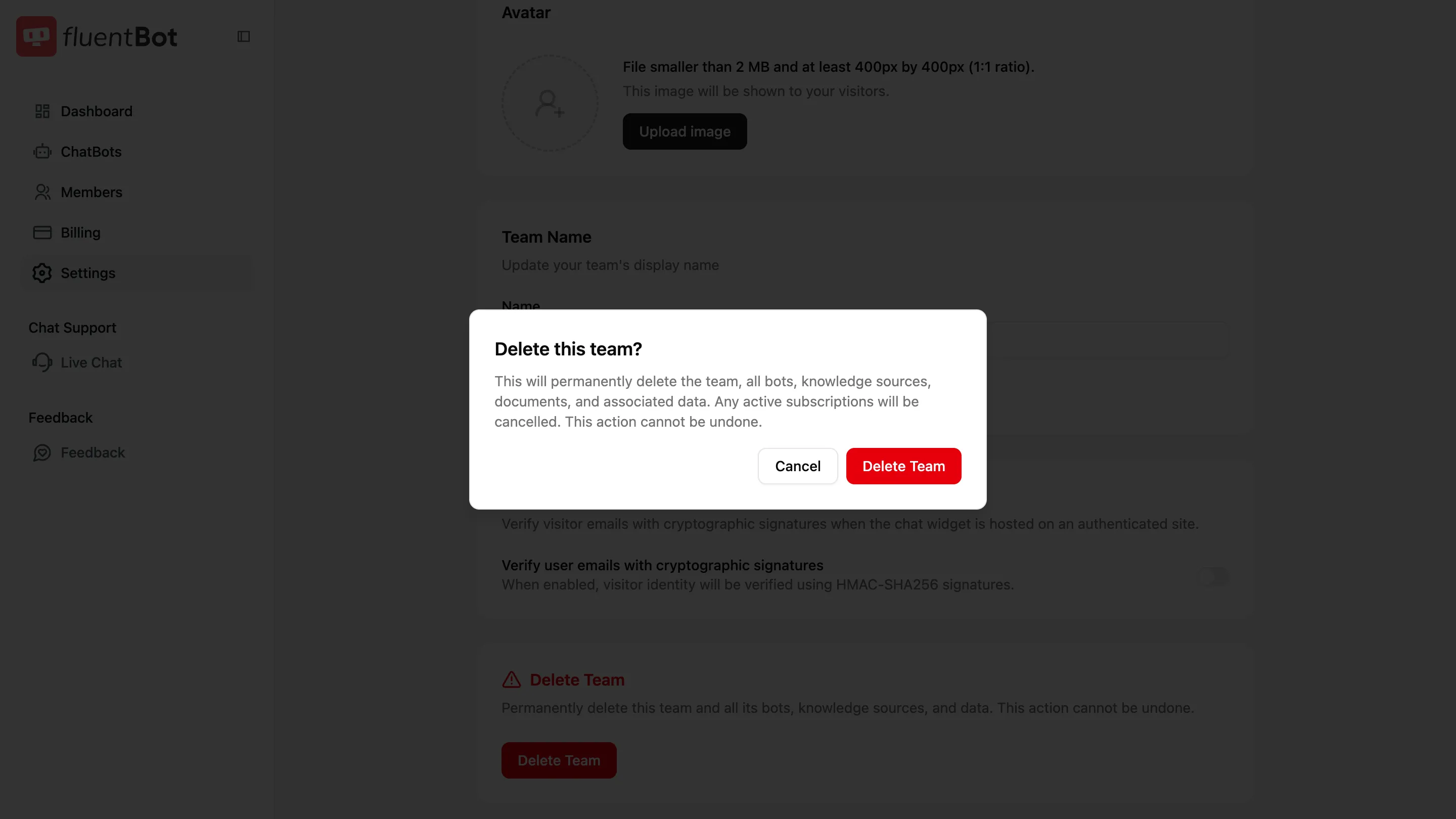
Deleting a team permanently removes that team, its bots, knowledge sources, documents, and associated data. Any active subscription on that team is cancelled.
Before deleting:
- Move any members, bots, or data you still need.
- Set another owned team as your default if this team is currently default.
- Confirm that the subscription and team data are no longer needed.
What’s team-scoped vs user-scoped
| Resource | Scope |
|---|---|
| Bots, sources, documents | Team |
| Conversations, escalations | Team (through bot) |
| Subscription, invoices, credits | Team |
| Token usage summaries | Team + user breakdown |
| Profile, password, avatar | User |
| Email verification, account deletion | User |
Deleting your user account also deletes teams you own, including your default team, and cancels active subscriptions for those owned teams during background cleanup. Account deletion removes you too, so it doesn’t leave behind an active account with no team. Transfer ownership before account deletion for any team that should continue.
Troubleshooting
- Invitation expired — invitations are short-lived. Resend from the Members page or the inviter’s invite list.
- “Email already in team” — they’re already a member. Update their role or bot access from the row’s actions menu.
- Cannot leave team — owners can’t leave their own team from the team switcher. Transfer ownership first; if it’s your default team, set another owned team as default before transferring.
- No Set as default action — only teams you own can become your default team. The current default team also doesn’t show this action.
- No Transfer ownership action — the action appears only to the current owner, only on non-default teams, and only for another existing member.
- No Delete Team button — only owners can delete teams, and the current default team can’t be deleted while your account is active.
- Transfer password rejected — enter the current password for your own FluentBot account, not the new owner’s password.
- Switched teams but still see old bots — refresh the page; the team switch updates the server but cached lists may need a reload.
What’s next
- Invitations — recipient flow for joining a team.
- Plans & Billing — billing is per-team.
- Usage & Tokens — consumption per team and per member.