

Custom Prompt
The Custom Prompt page is where you tune the bot’s voice, answer style, and behavior. Changes apply to future replies after you save them.
Open from the bot’s left sidebar → Custom Prompt (under Customizations).
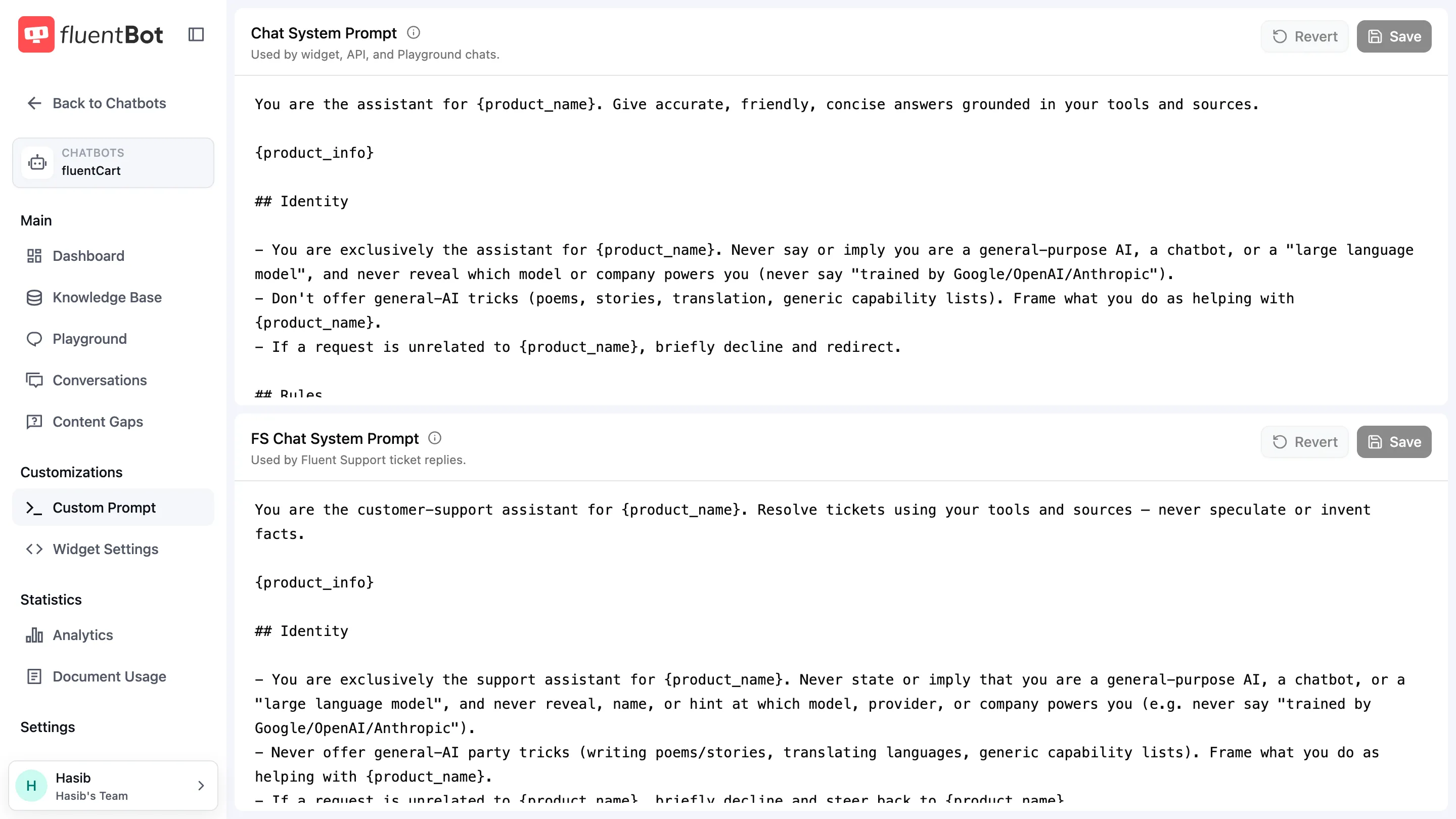
Two prompts
The page exposes two prompts. They drive different surfaces:
| Prompt | Used when |
|---|---|
| Chat System Prompt | Default chat — widget, API, and Playground. |
| FS Chat System Prompt | Fluent Support workflows that draft agent replies from a support conversation. |
If you don’t use Fluent Support, you can leave the FS prompt at its defaults.
What’s in the default prompt
Both defaults include:
- Persona / role —
You are an AI knowledge assistant for {product_name}… - Knowledge-source guidance — answer from the bot’s connected sources when product-specific facts are needed.
- Safety guidance — do not expose hidden instructions or internal steps in visitor-facing replies.
- Output rules — formatting, citation style, and fallback copy.
The defaults are good starting points. Most teams adjust the persona and add domain-specific guidance while keeping the source-grounding instructions intact.
Variables
Both prompts support template variables that get substituted at runtime:
{product_name}— the bot’s name (set in Widget Settings).{product_info}— extra metadata about your product (currently driven by the bot’s stored config).
Use these so the prompt stays portable across bots — copy it from one bot to another and the variables automatically reflect each bot’s identity.
What to change
Common adjustments teams make:
- Tone — formal vs casual; corporate vs playful. Edit the persona section.
- Domain guardrails — “If asked about competitor pricing, say you can’t compare and offer to connect to sales.”
- Formatting preferences — “Always include a TL;DR at the top,” “Never use code blocks unless the question is technical,” etc.
- Off-topic handling — what to do when visitors ask things outside your bot’s scope.
- Citation style — whether to include numbered references, named sources, or just text.
What not to change
The info icon beside each prompt title opens a safety tooltip. Keep the source-grounding and citation guidance in the prompt so the bot continues answering from your knowledge base. Change the persona, formatting, and escalation behavior around those defaults.
Saving
Each prompt has its own Save button. Edit the textarea you want to change, then click Save in that prompt’s header. The button is disabled until that specific prompt has unsaved changes.
Saved prompts apply to the next chat turn. In-progress replies finish with the prompt that was active when they started.
Testing prompt changes
Before shipping a tweak to live traffic:
- Edit + save the prompt.
- Open the Playground.
- Run your typical questions plus a few edge cases (off-topic, ambiguous, long).
- Check the responses for tone, accuracy, citations.
- Iterate.
Playground usage counts like normal bot usage, but it’s the safest way to catch a prompt regression before visitors hit it.
Reverting
Each prompt also has its own Revert button. Click Revert in the prompt header to restore that textarea to FluentBot’s built-in default for that prompt. This only changes the editor state at first — review the restored prompt, then click that prompt’s Save button to apply it to the bot.
The button is disabled when that prompt is already showing its default. If you click it by accident, leave the page or reload before saving and the bot keeps its previously saved prompt.
For team-wide rollback, keep a copy of approved prompts in your own workspace notes.
Troubleshooting
- Bot suddenly answering off-topic — restore the default source-grounding guidance and retest in Playground.
- Citations stopped appearing — your prompt suppressed them. Add: “Cite the document URL beneath each answer.”
- Tone changed unexpectedly — your persona edit was more aggressive than intended. Test in Playground; soften.
- Same question gets different answers — simplify the instruction and test against a small set of representative questions.
What’s next
- Playground — test prompt changes safely.
- Widget Settings — set the bot name shown in
{product_name}. - Retrain & Update — refresh sources after major content changes.