

Identity Verification
When you embed the FluentBot widget on a site where visitors are already authenticated (a customer dashboard, a logged-in app), you don’t want a malicious visitor impersonating someone else by pasting their email into the widget. Identity Verification solves this by requiring you to sign the visitor’s email server-side; the widget then proves to FluentBot that the email is real.
When to use it
- Your site has authenticated visitors and you embed the widget there.
- You want the bot or agent to know the verified identity of the person chatting.
- You want to surface visitor data (account ID, plan, org) into the Live Chat without trusting unsigned browser values.
If your widget runs on an anonymous public site, identity verification is optional — visitors are anonymous either way.
How it works
- You enable Identity Verification under Settings → Identity Verification in the dashboard. FluentBot generates a per-team secret (HMAC key).
- Server-side, you build the visitor payload as JSON:
{"name":"...","email":"...","data":...}. - You compute
HMAC-SHA256(visitor_payload_json, team_secret)and pass the resulting hex digest to the widget. - FluentBot verifies the signature server-side. Mismatched signatures are rejected.
The widget only ever sees the resulting signature — it never sees the secret. So even a fully compromised browser can’t forge identities.
Step 1: enable Identity Verification
Open Settings → Identity Verification in the main sidebar, then toggle Verify visitor identity on. The team’s HMAC secret is created and revealed to you.
The secret is shown once. Copy it before leaving the page — there is no way to read it back, only to regenerate.
Treat the secret like any other backend credential:
- Store it in your server’s env (e.g.
FLUENTBOT_IDENTITY_SECRET). - Don’t ship it to the browser.
- Rotate it with Regenerate on the same page if it ever leaks (old signatures stop verifying immediately).
Step 2: sign visitor identity server-side
When your server renders a page that includes the widget, compute the signature for the logged-in visitor payload and inject it into the page.
import crypto from "node:crypto";
function signVisitor(visitor, secret) {  const payload = JSON.stringify({    name: visitor.name,    email: visitor.email,    data: visitor.data ?? null,  });
  return crypto.createHmac("sha256", secret).update(payload).digest("hex");}
// Pass to your view layer:const visitor = {  email: "alice@example.com",  name: "Alice Liddell",  data: {    plan: "enterprise",    account_id: "ACME-1007",  },};
visitor.signature = signVisitor(visitor, process.env.FLUENTBOT_IDENTITY_SECRET);
$visitor = [ 'email' => 'alice@example.com', 'name' => 'Alice Liddell', 'data' => [ 'plan' => 'enterprise', 'account_id' => 'ACME-1007', ],];
$payload = json_encode([ 'name' => $visitor['name'], 'email' => $visitor['email'], 'data' => $visitor['data'] ?? null,], JSON_UNESCAPED_SLASHES | JSON_UNESCAPED_UNICODE);
$visitor['signature'] = hash_hmac('sha256', $payload, getenv('FLUENTBOT_IDENTITY_SECRET'));import hashlibimport hmacimport jsonimport os
def sign(visitor): payload = json.dumps( { "name": visitor["name"], "email": visitor["email"], "data": visitor.get("data"), }, ensure_ascii=False, separators=(",", ":"), ) return hmac.new( os.environ["FLUENTBOT_IDENTITY_SECRET"].encode(), payload.encode(), hashlib.sha256, ).hexdigest()Step 3: pass the signed identity to the widget
Use the Widget SDK’s visitor option:
<script type="module" src="https://cdn.jsdelivr.net/gh/fluent-docai/chat-widget@latest/chat-widget.js"></script><script type="module"> FluentBotChatWidget.injectWidget("YOUR_BOT_ID", { visitor: { email: "alice@example.com", name: "Alice Liddell", data: { plan: "enterprise", account_id: "ACME-1007", }, signature: "<hex digest from your server>", }, });</script>Render the script tag from your server-side template so signature is filled in dynamically per visitor. Don’t compute the signature in the browser — that defeats the point.
Single Page Apps
If your site is a SPA, resolve the logged-in visitor before calling FluentBotChatWidget.injectWidget(...). The current Widget SDK reads visitor only when the widget mounts.
If the visitor logs out or moves to a page where the widget should not appear, call FluentBotChatWidget.destroyWidget().
What FluentBot does with the verified identity
- The chat is tagged with the verified visitor email + name.
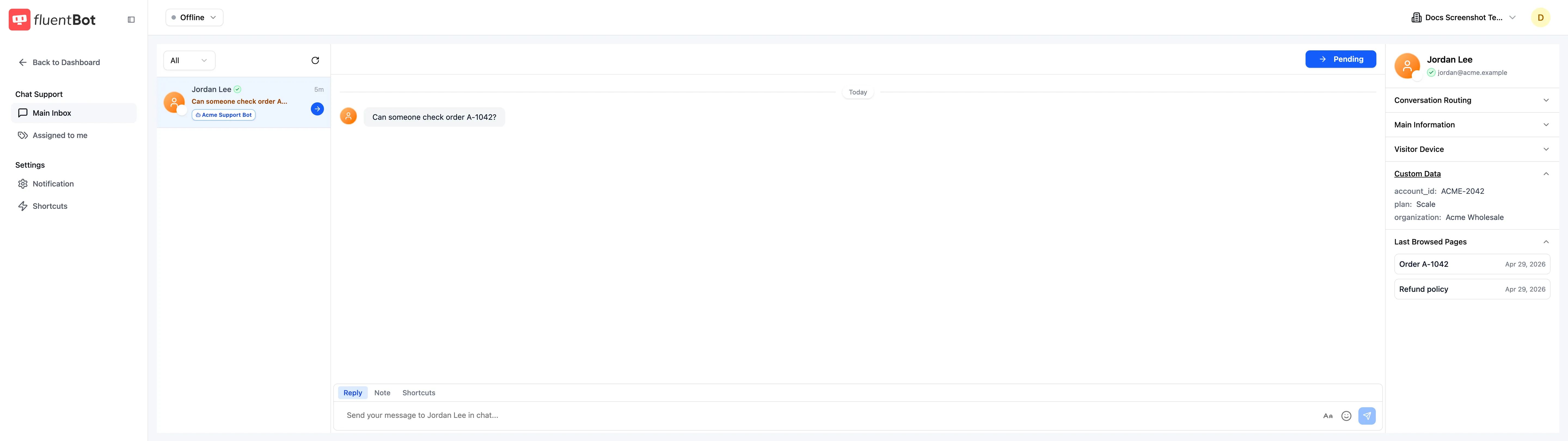
- Live Chat shows the verified identity prominently to the agent.
- The chat is linkable to the same visitor across sessions and devices, since the email is now trusted.
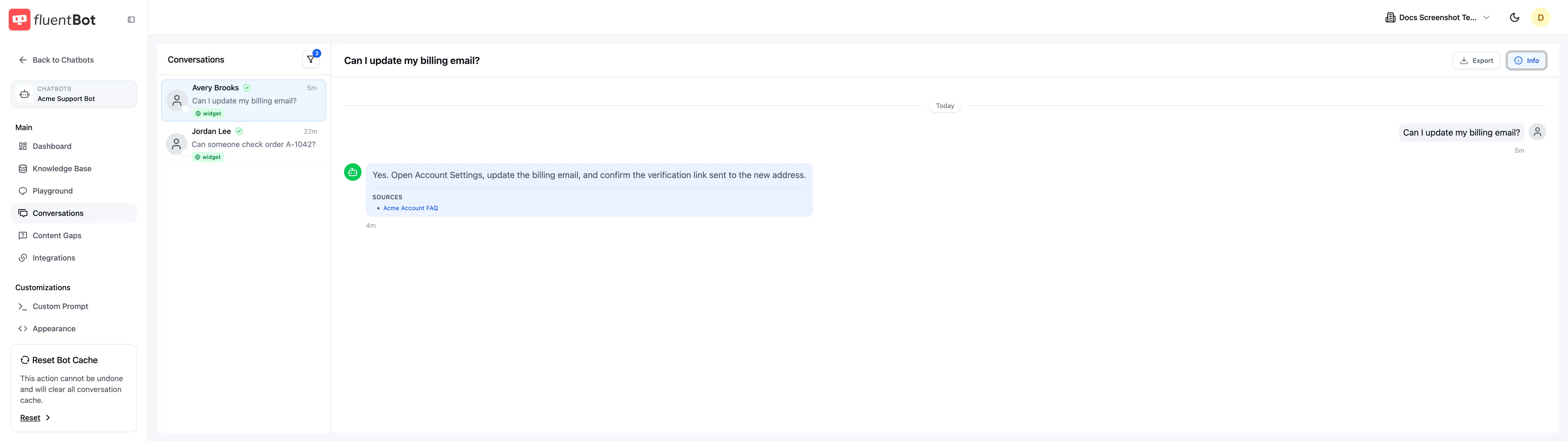
Identified users appear by name instead of an anonymous visitor label. FluentBot also shows the verified identity badge in Conversations and Live Chat so agents can tell when a visitor identity is trusted.
Custom identity data passed through the widget is visible in the Live Chat visitor panel, alongside the visitor’s verified email address.
Failure modes
- Bad signature — chat falls back to anonymous mode (or rejects, depending on bot config). The visitor still chats; the agent just doesn’t see verified identity.
- Secret rotated — every previously-signed page becomes invalid until visitors reload. Existing open chats keep working until next message.
- Visitor payload mismatch — if you sign one name, email, or data payload but invoke the widget with different visitor values, the signature fails. Re-sign per visitor.
What’s not signed
The name, email, and data fields are included in the signed payload. They are still sent through the browser as plaintext, so don’t put secrets, tokens, or sensitive account data in visitor.data.
Troubleshooting
- Identity not showing as verified in Live Chat — verify the signature matches
HMAC-SHA256(JSON.stringify({ name, email, data: data ?? null }), secret)exactly. A common bug is signing only the email instead of the full visitor payload. - Signature works locally but fails in prod — different
FLUENTBOT_IDENTITY_SECRETbetween environments. Each team has one secret per environment. - All chats anonymous after enabling — pages haven’t been re-rendered with the signed
visitorobject. Re-deploy or refresh.
What’s next
- Widget SDK — full SDK reference.
- Embed the Widget — baseline embed without identity verification.
- Teams & Members — team-wide settings and roles.
- Visitor Tracking — what FluentBot captures alongside verified identity.