

Conversations
The Conversations page is the chat history view. Every visitor message — from the embedded widget, the public API, or a Fluent Support sync — lands here, alongside the bot’s reply.
Open it from the bot’s left sidebar → Conversations.
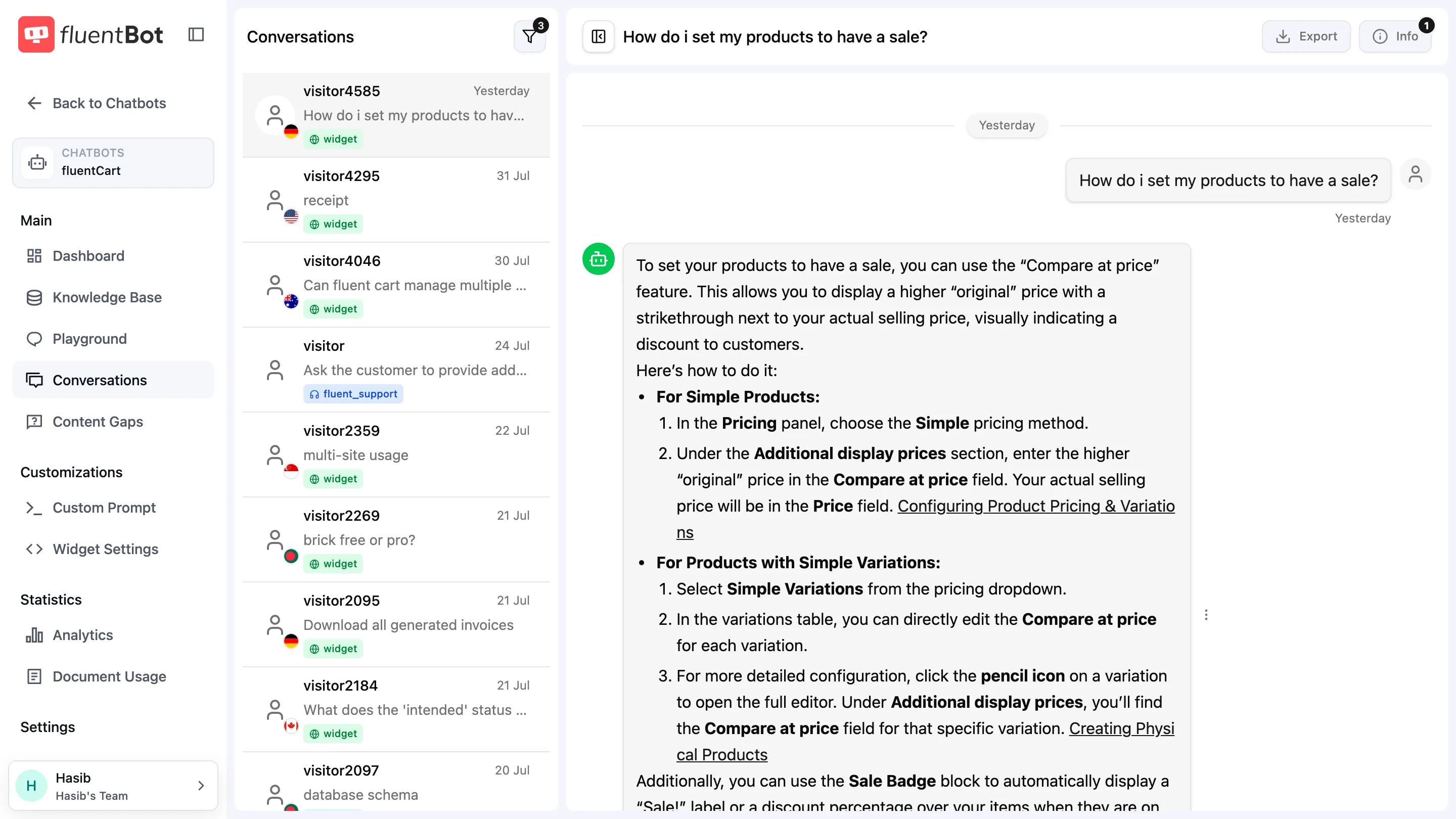
Layout
Two-column layout:
- Left rail — chronological list of conversations.
- Right pane — full message history of the selected conversation.
Sidebar list
Each row shows the visitor (name if captured, otherwise an anonymous identifier), source badge, last-message preview, and timestamp. Newest first. A three-dot Conversation actions menu sits next to each row (Select / Delete).
Filters
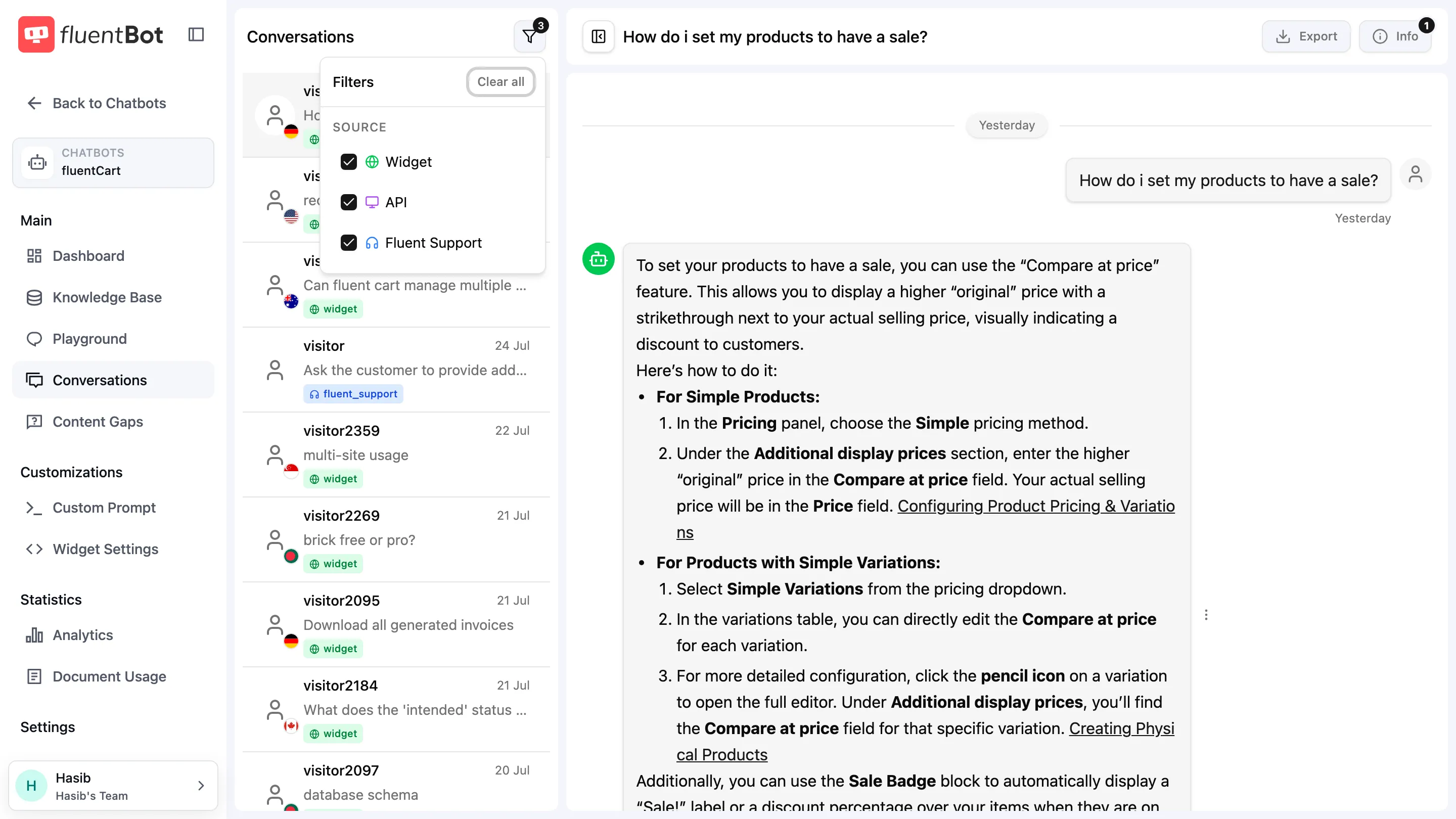
Click Filter conversations above the list to open the filter dialog. The only facet is SOURCE:
- Widget — chats from the embedded chat widget.
- API — chats started through the public
/api/chatendpoint. - Fluent Support — chats originating from a Fluent Support ticket sync.
All three are checked by default. Uncheck to narrow the list. Clear all resets to defaults.
Conversation pane
Selecting a row renders the full thread on the right:
- Visitor messages on one side, bot replies on the other.
- Bot messages show citations beneath the answer.
- Agent messages (if the chat was escalated) are labeled with the agent’s name.
- Markdown is rendered; code blocks get syntax highlighting.
The pane header has two controls: Export conversation and View chat info.
Delete a conversation
Two paths:
- Single delete — open the row’s three-dot Conversation actions menu → Delete. A confirmation dialog asks before removing the chat and all its messages. The action is permanent.
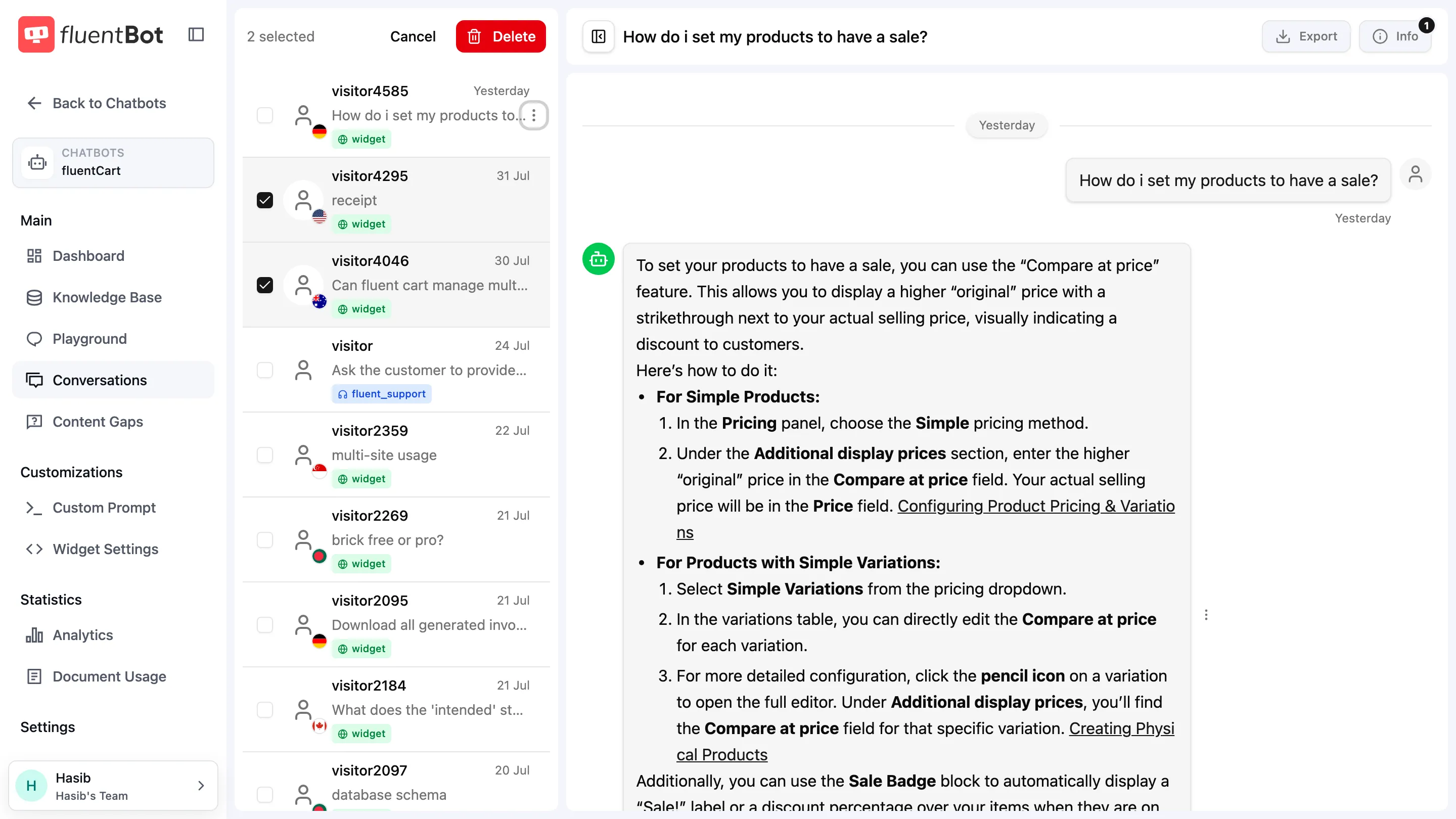
- Bulk delete — open the row’s actions menu → Select to enter selection mode. Checkboxes appear next to every row plus a header showing
<n> selected, Cancel, and Delete. Tick the rows you want to remove and click Delete. A confirmation dialog asks before deleting all selected chats.
Deleted conversations are gone permanently — there’s no soft-delete or undo.
Export a conversation
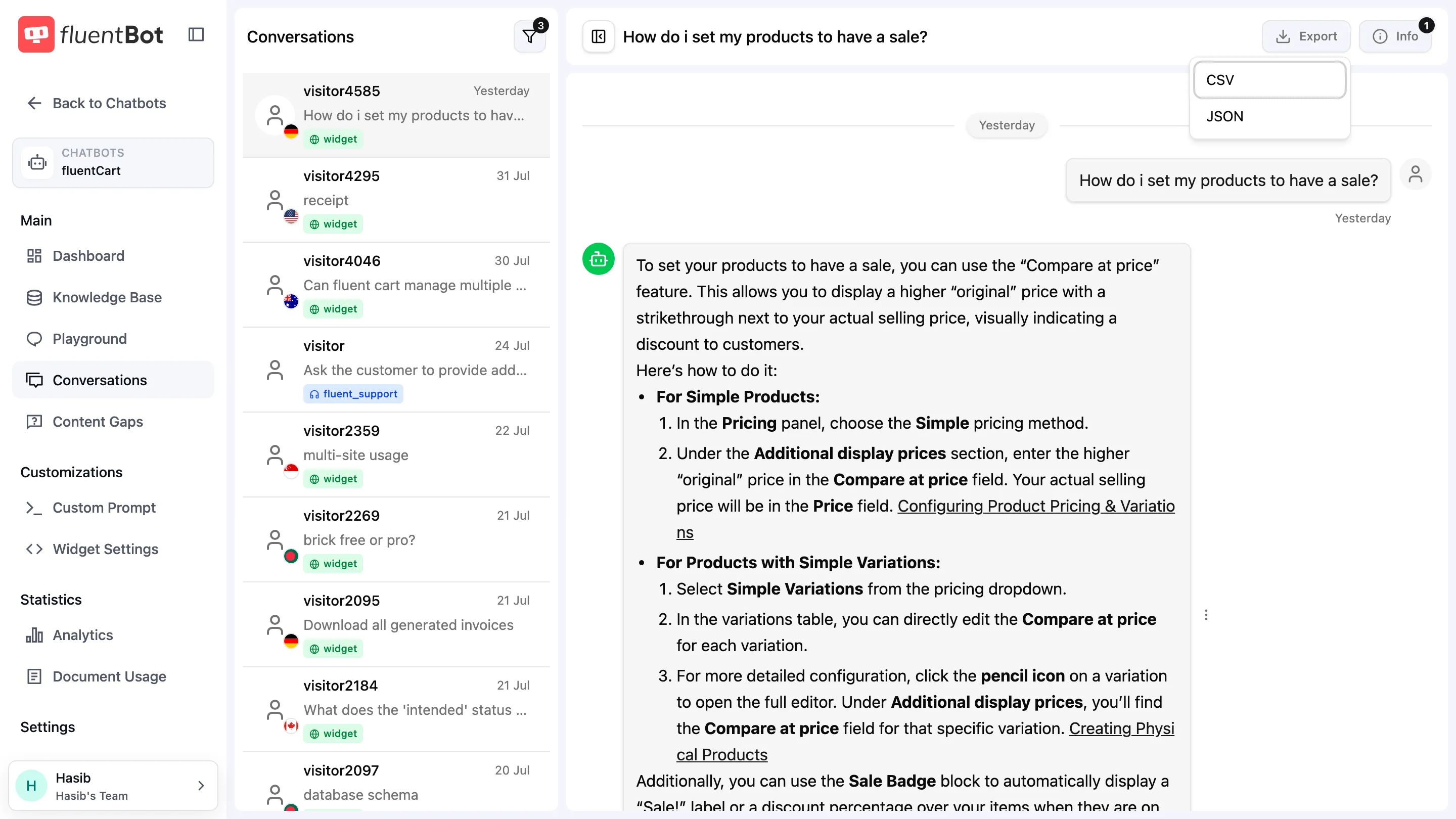
Click Export conversation at the top of the right pane. A small popover offers two formats:
- CSV — flat row per message; convenient for spreadsheets.
- JSON — full message structure with sources and metadata; better for programmatic use.
The download fires immediately; the file is named after the chat.
Bulk export across multiple conversations isn’t currently exposed in the UI — export one at a time or use the API for higher-volume pulls.
Finding problem chats
Combine the Source filter with the Content Gaps view to find conversations where the bot failed:
- Content Gaps surfaces the unanswered question + a link back to the source conversation.
- Click through to see the surrounding context — what the visitor asked before, what the bot replied.
Troubleshooting
- Chats from a deleted bot — historical chats persist after bot deletion until the team itself is wiped.
- Visitor name missing — the visitor never filled the email/name capture modal in the widget. See Widget settings for capture options.
- “No conversations found.” with no filters active — bot has had zero widget / API / Fluent Support traffic. Use the Playground to verify it’s wired up; playground chats don’t surface here.
- Deleted by accident — there’s no undo from the dashboard. Contact support if you need help recovering important data.
What’s next
- Content Gaps — find conversations where the bot couldn’t answer.
- Live Chat — handle live chats in real time.
- Analytics — aggregated conversation volume.