

Connect WordPress
The FluentChat Connector is the recommended way to use FluentChat on a WordPress site. It installs the widget without editing your theme, gives you page-level visibility rules, and can show matched WordPress or FluentCart customer context to agents in Live Chat.
Before you begin
- You need WordPress administrator access and permission to manage the FluentChat bot you want to connect.
- The WordPress site must be reachable from FluentChat over HTTPS.
- Install and activate the FluentChat Connector plugin in WordPress.
Connect the plugin
1. Create a connection token in FluentChat
In FluentChat, open the bot, then go to Settings → WordPress. Enable WordPress enrichment and copy the connection token.
The token is shown only when it is created. Store it securely and paste it into WordPress right away.
2. Add the token in WordPress
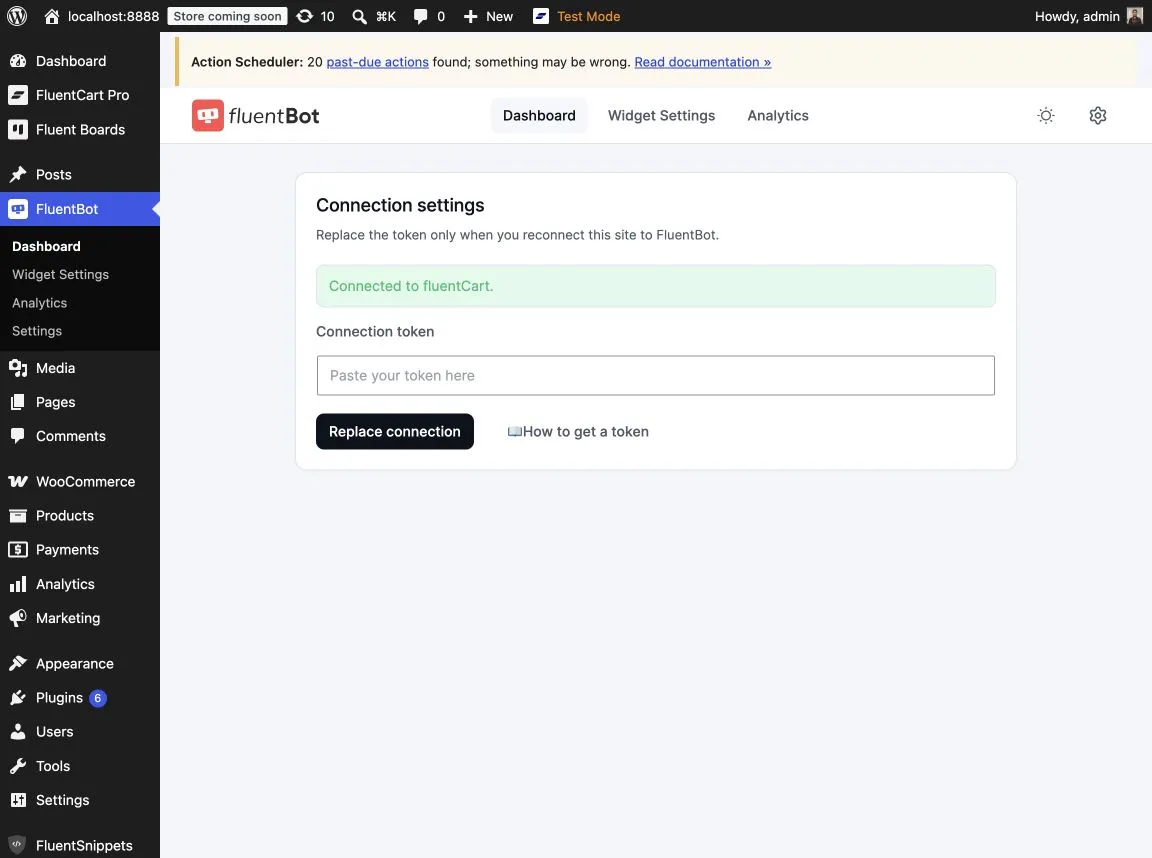
In WordPress Admin, go to FluentChat → Settings. Paste the token into Connection token, then choose Replace connection.
Return to FluentChat → Dashboard. A successful connection shows the connected FluentChat workspace and bot.
3. Show the widget where it belongs
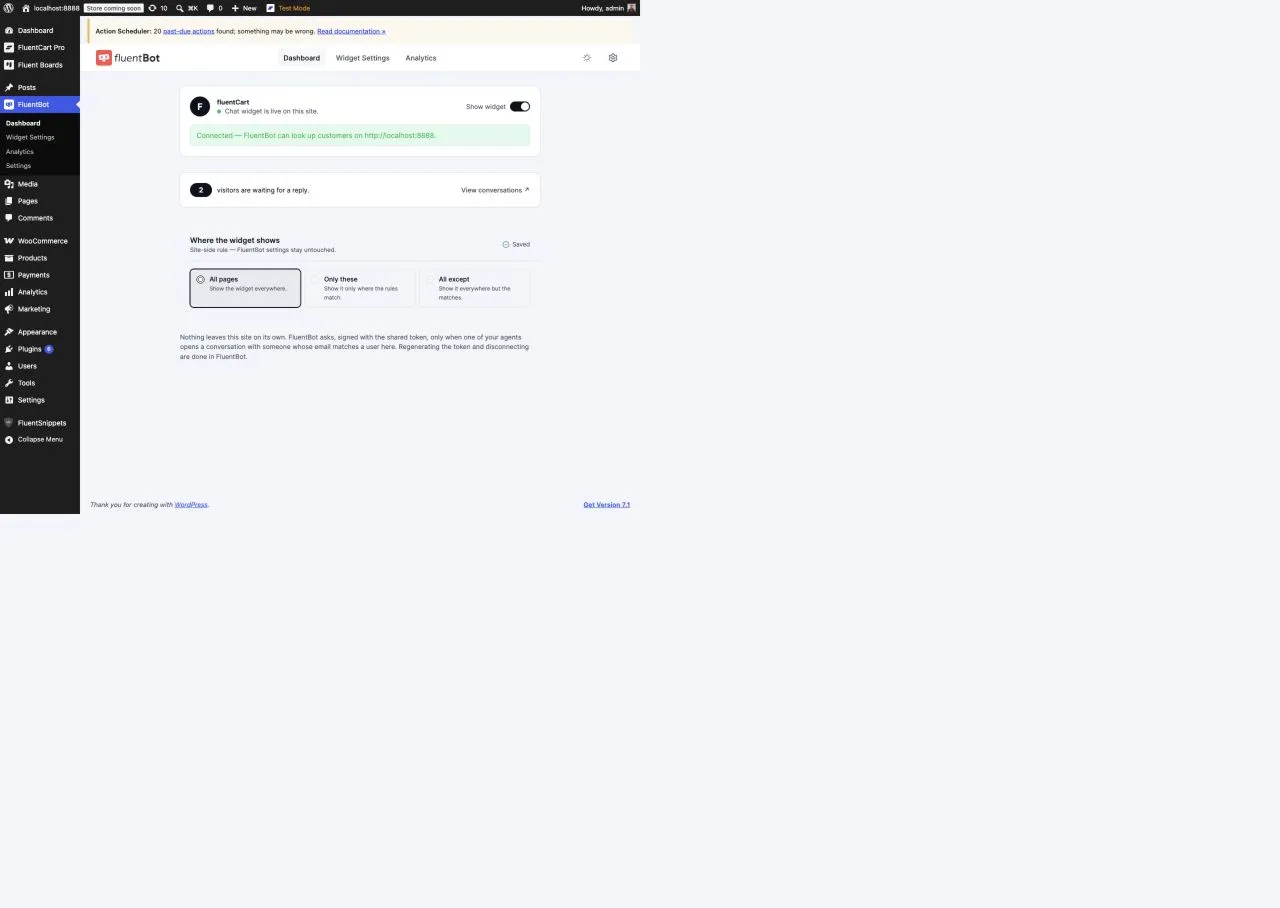
On FluentChat → Dashboard, enable Show widget. Choose one visibility rule:
- All pages — show the widget across the site.
- Only these — show it only on the pages, posts, or paths that match your rules.
- All except — show it site-wide except on matching pages, posts, or paths.
These are site-side visibility rules. They do not overwrite the bot’s FluentChat settings.
Configure the WordPress widget
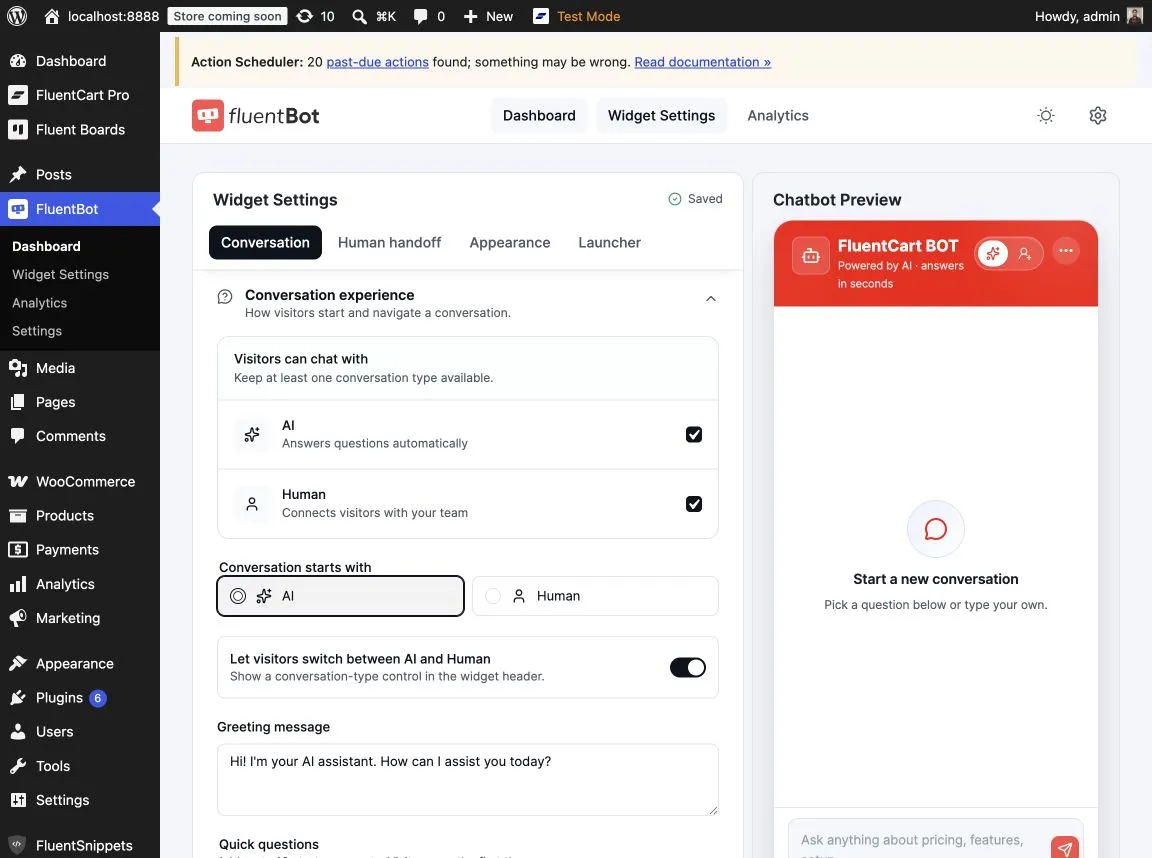
Open FluentChat → Widget Settings to manage the experience from WordPress. You can configure:
- AI and human conversation modes, including which mode opens first.
- Greeting message and quick questions.
- Human handoff, online status, and slow-response messages.
- Bot name, team name, icon, colors, and header style.
- Launcher position, appearance, and label.
The page includes a preview and saves changes to the connected FluentChat bot. For every available styling option, see Widget Customization.
What the connection enables
Once connected, the Connector can provide agents with relevant WordPress or FluentCart customer details when they open an eligible conversation. It also provides local analytics for widget requests and replies that still need attention.
See WordPress Customer Context for what agents can see and how matching works.
Security and lifecycle
- The connection token authorizes the plugin to communicate with FluentChat. Never place it in public page content or source code.
- To temporarily stop enrichment, pause it in FluentChat. To replace a token, regenerate it in FluentChat and reconnect the plugin with the new value.
- Disconnecting or regenerating a token invalidates the previous connection; reconnect the WordPress plugin before using the integration again.
Troubleshooting
The plugin says it is waiting for a connection
Create a fresh token in the bot’s Settings → WordPress, paste it in FluentChat → Settings, and choose Replace connection. Confirm that the WordPress site is publicly reachable over HTTPS.
The widget is not appearing
Confirm that Show widget is enabled, then check the selected visibility rule and its matching pages or paths. Also make sure the connector is connected to the bot you intend to use.
Customer context is missing in Live Chat
Context is available only after the connector is connected and FluentChat can match the conversation email to a WordPress or FluentCart customer. It is agent-only information; it does not identify a visitor by itself. For authenticated identity, use Identity Verification.